How to set up Consent Mode v2: A simple guide

Does your website or app have visitors from the EU? If so, Google Consent Mode v2 (GCM v2) is essential for your business.
Why? Because EU takes data privacy super seriously. They’ve asked Google (and other major ad platforms) to ensure websites and apps properly collect consent for data collection and target ads. If you don’t comply, Google might restrict your access to their tools or even suspend your Google Ads account.
But don’t worry! We’ll walk you through what you need to do and how to do it, step by step. Let’s get started!
What is Google Consent Mode v2?
Google Consent Mode (GCM) is a tool that helps websites respect user privacy while still collecting valuable data. It works with Google services like Analytics and Ads.
Google Consent Mode v2 (GCM v2) is the latest version of Consent Mode. If your website or app has EU visitors, you need GCM v2. In fact, Google made GCM v2 mandatory in March 2024 for websites using its services and targeting EU/EEA users.
Why Consent Mode v2 matters
Ignoring Consent Mode v2 could have serious consequences for your business:
- Protect your Google account: Google is taking action against websites that don’t comply with EU privacy rules, including account suspension. Consent Mode helps you avoid this.
- Keep getting data: Without Consent Mode, you’ll miss out on important info about your EU website visitors, which could impact your decision making. With Consent Mode, even if users decline some tracking, Google Analytics still gathers anonymous information to help you understand your website’s performance.
- Avoid legal trouble: Consent Mode helps you follow privacy laws like GDPR, saving you from potential fines and legal headaches.
- Build trust with customers: Showing users you respect their privacy choices builds a positive relationship.
In short, Consent Mode v2 is your key to staying compliant, informed, and out of trouble. The deadline to implement it was March 2024, so if you haven’t already, act now to protect your business and maintain valuable insights into your website traffic.
How does Consent Mode v2 work?
Consent Mode v2 helps you get permission from your users to collect their data (like cookies), so you can better tailor your website and ads to their needs.

Although “Basic mode” is sufficient for legal purposes, we highly recommend setting up Consent Mode v2 in “Advanced mode”, because it uses AI to help you collect and/or estimate valuable data to inform your marketing decisions.
For example, when people click “Reject” on your consent banner, you lose conversion data from that user. With “Advanced mode” is enabled, Google collects anonymous visit data, helping to estimate missing conversion data.

It isn’t perfect but it’s better than not collecting the data at all. Next, let’s look at how to implement Consent Mode v2 on your website (separate guide coming up for iOS and Android apps).
How to implement Consent Mode v2
Here’s our tried & tested 5-step process to implement Consent Mode v2. Don’t worry if this seems technical, we’ll guide you through it step by step!

Ready to go? Let’s dive in!
1. Choose a CMP
A Consent Management Platform (CMP) is a tool that helps businesses to obtain, manage and record user consent.
Choose a CMP that supports Consent Mode v2. Here’s a full list of Google CMP partners. And here’s a comparison of our 3 favourite options. We like them because they’re affordable, easy to set up, work well, and offer good support.
 |  |  | |
| Why we like it | Quick setup, affordable, all legal docs (cookie policy, privacy policy, terms), good support | Popular, affordable, high-converting consent banner, good support | Most thorough (maintained by team of international lawyers), affordable, best legal docs, excellent support |
| Languages | EN, DA, DE, GR, ES, 8 others | EN, DE, FR, IT, ES, 42 others | EN, IT, DE, ES, FR, 6 others |
| Countries | US, EU, GB, AR, AU, 8 others | No limits | EN, IT, DE, ES, FR, 6 others |
| Platforms | Web | Web | Web, iOS, Android, CTV |
| Pricing | Free to €13.5/month, custom for agencies | Free to €49/month | Free to €79.99/month |
| Ability | Code, CMS plugin, Google Tag Manager | Code, CMS plugin, Google Tag Manager | Code, CMS plugin, Google Tag Manager |
| Support | Phone, chat, email | Customer care, tech support via chat, email | Live chat, email, ticket, phone support |
For the remaining 4 steps, we’ll walk through how to do it in Termly, so you get a real-world sense of how it works.
2. Configure consent settings in your CMP
Let’s use Termly as an example to show you how to get your consent banner ready for Google Consent Mode v2. Other CMPs have a very similar process.
1. Find Termly Consent Settings
Login to Termly. If you have multiple websites, select the correct one. Then Find the section in your dashboard related to consent settings or banner configuration.

3. Customise your consent banner
Customise the layout and appearance of your consent banner (colours, fonts, etc.) to match your website’s branding.
4. Turn on Google Consent Mode v2
Select which regions or countries will see a banner e.g. GDPR banner for EU, CCPA banner for California, etc.
Important! Look for a toggle or checkbox specifically labelled “Google Consent Mode” and enable it.
Remember to hit the “Save” button!
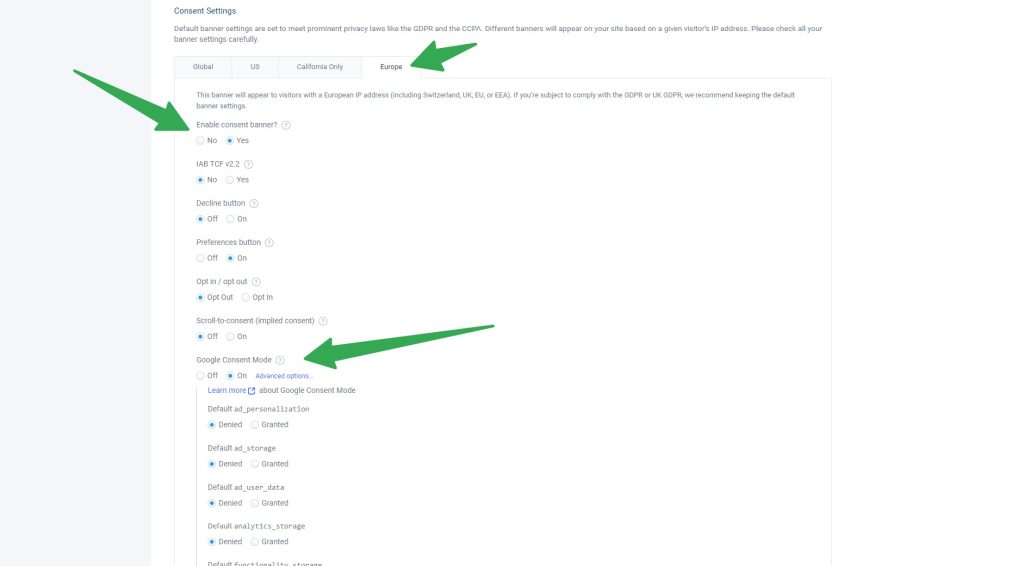
Every CMP is a little different, but the process is roughly the same. Now, let’s move on to the next step – integrating Termly with Google Tag Manager.
3. Integrate with Google Tag Manager (GTM)
Google Tag Manager (GTM) is a free tool that helps website owners to publish pieces code (“tags” or “pixels”) on their website without having to modify the code.
1. Open Google Tag Manager
Login to Google Tag Manager and select your website’s container.
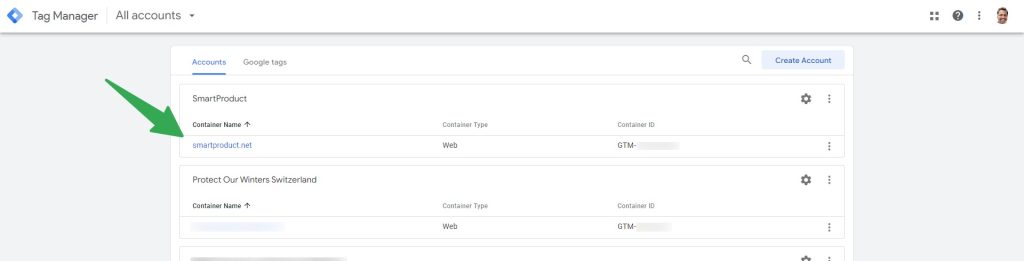
If you can’t see your website’s container, either you don’t have access (ask your admin) or it doesn’t exist (create a new one and add the code to your website. Tip! If you’re using WordPress, we recommend this free plugin to install GTM on your website.)

2. Create a Trigger in GTM
In GTM, a “Trigger” is simply a rule that decides where and when a Tag should load (or “fire”). Let’s create a Trigger that fires whenever a user provides a consent preference (“Accept” or “Reject”) via the consent banner.
Go to “Triggers” and click “New” → Choose “Custom Event” as the trigger type → Name the event “userPrefUpdate” → Set it to fire on “All Custom Events.

2. Add the Termly template
Go to “Templates” in the left menu → Click “Search Gallery” → Search for “Termly” and select “Termly Consent Management Platform” → Click “Add to Workspace”.
Ignore the red sign that says “Inject scripts”. GTM is saying that an external script will be added to the website. In this case, the scripts are safe because as a Google CMP partner, Termly worked with Google to create this template.

4. Add the Termly tag
Set up the Consent Initialization trigger to ensure consent settings are applied before tags fire.
Go to “Tags” and click “New” → Choose “Termly Consent Management Platform” as the tag type → Under “Triggering,” add the “Consent Initialization – All Pages” and the “userPrefUpdate” triggers you just created.

Good job! You’ve successfully added Termly to Google Tag Manager! Next, let’s look at how to configure GTM tags for Consent Mode v2.
4. Configure GTM tags for Consent Mode v2
Let’s make sure your Google tags (like Analytics and Ads) respect your users’ consent choices.
1. Enable Built-In Consent Checks (for Google Tags)
For Google tags like GA4 and Google Ads, enable their built-in consent checks in GTM and assign them to the appropriate consent category.
For example, the Google Analytics tag has built-in consent checks (ad_storage, ad_personalization, ad_user_data, and analytics_storage). This means the tag adjusts itself based on user preferences and no additional checks are required.
For such tags, the trigger can be left at “All Pages” or whatever the current trigger is.

2. Create Consent-Based Triggers (for Other Tags)
For tags without built-in consent checks, you’ll need to create new triggers in GTM. These triggers should fire based on the user’s consent to specific categories. For example, the Meta Pixel tag should fire only after the user has consented to “Marketing” cookies.
For example, this “Snap Pixel” tag does not have built-in consent checks. This means we need to select “Additional consent checks required” and add the required checks (like ad_storage, ad_user_data, and ad_personalisation because this is a marketing tag).
We also need to set the trigger to the “Preferences Updated” trigger (and not “All Pages” any more), so that it only fires when the user says okay to the collection of Marketing data.

Consent category mapping
See the table below for how Termly consent categories map to GTM consent types:
| Termly Consent Category | GTM Consent Type |
|---|---|
| advertising | ad_storage |
| analytics | analytics_storage |
| performance | functionality_storage |
| performance | personalization_storage |
| essential | security_storage |
| social | social_storage* |
*Not a default GTM consent category
Important! This step is the deciding factor sometimes take a long time to complete, especially if there are many non-Google tags. A smaller website with just 10-20 tags would take less time, while a larger website with 100+ tags might take much longer. Furthermore, the “All Pages” trigger is replaced by the “userPrefUpdate” trigger (called other names in other CMPs), and conditional triggers need to be recreated too. If you need help with getting this done quickly and effectively, reach out to our team and we’ll be happy to help.
3. (Optional) Trigger certain actions after user changes
If you need to trigger certain actions after the user makes or changes their consent choices, you can use Termly’s custom event “Termly.consentSaveDone.” This event fires each time a user’s consent preferences are updated.
5. Test, publish, and Verify
Time to make sure everything works as expected.
1. Preview and Debug in GTM
Use GTM’s Preview and Debug mode to make sure your tags are firing correctly based on user consent.
2. Check Your Browser Console
Look for any error messages related to Consent Mode v2 in your browser’s developer console.
3. Look for errors
Keep an eye out for any error messages or warnings in the console.
4. Publish your changes
Once everything looks good, hit the “Publish” button in GTM to make your changes live (and “sing like no one is listening!”)
5. Check Google Analytics 4 (GA4)
Check if the property is correctly sending consent signals to Google Ads. Note! It might take 24-48 hours before the changes show up in GA4.
That’s it! You’ve successfully implemented Google Consent Mode v2 with Termly. Your website is now more privacy-friendly and compliant with regulations.
If you run into any issues, reach out to our experts or Termly’s support (or your chosen CMP team’s support) for help.
Implement Consent Mode v2 with other popular CMPs
In this section, we’ll provide step-by-step instructions for implementing Consent Mode v2 with 2 other popular CMPs: Cookiebot and iubenda.
Cookiebot
Coming soon!
iubenda
Coming soon!
In the next section, we’ll discuss best practices and tips for maintaining your Consent Mode v2 implementation.
Follow these best practices
To ensure your Consent Mode v2 implementation remains effective and compliant, follow these best practices:
Ensure proper consent collection
- Tell users why you’re collecting their data and what you’ll do with it.
- Provide an easy way for users to manage their consent preferences
- Keep your consent messages up-to-date with the latest legal requirements.
[Screenshot placeholder: Example of clear and concise consent language]
Keep your CMP and tags updated
- Regularly check for updates to your CMP and Google Tag Manager
- Install updates promptly to ensure you have the latest features and security fixes
- Monitor your CMP and Google’s documentation for any changes to Consent Mode v2
[Screenshot placeholder: CMP and GTM update notifications]
Test regularly
- Set up a testing schedule to verify your Consent Mode v2 implementation
- Use Google Tag Manager’s preview mode to check tag firing based on consent
- Use your CMP’s tools to check if consent settings are working.
- Test across different devices, browsers, and regions to ensure consistency
[Screenshot placeholder: Testing checklist]
Check with your Legal team
- Work closely with your legal department to ensure your implementation complies with GDPR, ePrivacy Directive, and other relevant regulations
- Review your consent language, data collection practices, and privacy policies with legal experts
- Keep legal teams informed of any changes to your implementation or the regulations
[Screenshot placeholder: Legal compliance checklist]
By following these best practices, you can maintain a robust and compliant Consent Mode v2 implementation, demonstrating your commitment to user privacy and data protection.
Now, let’s move on to troubleshooting common issues that may arise during the implementation process.
Troubleshoot common issues
Even with careful implementation, you may encounter issues with your Consent Mode v2 setup. Here’s how to troubleshoot common problems.
Consent not being recorded properly
- Verify that your CMP script is loading correctly and not being blocked by ad blockers or other tools
- Check that the consent settings are being passed to Google Tag Manager and applied to your tags
- Ensure the Consent Initialization trigger is set up correctly and fires before any other tags
[Screenshot placeholder: Debugging consent recording issues]
Tags firing without consent
- Review your tag configurations to ensure they are set to fire only when the appropriate consent is granted
- Verify that your CMP is passing the correct consent settings to Google Tag Manager
- Check for any conflicting triggers or exceptions that may cause tags to fire unintentionally
[Screenshot placeholder: Resolving tags firing without consent]
Discrepancies between CMP and GA4 data
- Compare the consent settings reported by your CMP with the data in Google Analytics
- Ensure your CMP and Google Analytics are using the same consent categories and definitions
- Verify that your tags are firing correctly and sending data to Google Analytics as expected
[Screenshot placeholder: Investigating discrepancies between CMP and GA data]
Slow website performance
- Optimize your CMP script to load efficiently and not block other scripts or content
- Minimize the number of tags and requests sent from your website to improve loading times
- Consider using Google Tag Manager’s consent settings to selectively fire tags based on consent
[Screenshot placeholder: Optimizing website performance with Consent Mode]
If you still have problems after trying these steps, get help from your CMP’s support or a Consent Mode v2 expert.
Now that we’ve covered troubleshooting, let’s move on to the final section, where we’ll emphasize the importance of taking action to implement Consent Mode v2.
Act now
Congratulations on making it this far! You now have a solid understanding of Consent Mode v2 and how to implement it on your website. However, knowledge alone is not enough – it’s crucial to take action and put this information into practice.
Consider the following
- Google has begun sending warning emails to non-compliant websites, emphasizing the importance of implementing Consent Mode v2.
- Failure to comply with the EU privacy regulations can result in severe consequences, such as heavy fines and damage to your reputation.
- Implementing Consent Mode v2 not only helps you avoid these risks but also demonstrates your commitment to user privacy and data protection.
Don’t wait until it’s too late
Start your Consent Mode v2 implementation today by following the steps outlined in this guide. If you feel overwhelmed or need assistance, consider reaching out to a professional experienced in Consent Mode v2 implementation.
The deadline for compliance is fast approaching. By taking action now, you can ensure your website is prepared for the future of data privacy and protect your business from potential legal and financial repercussions.
[Call-to-Action Placeholder: Get started with Consent Mode v2 implementation]
Our hassle-free service
Implementing Consent Mode v2 can be time-consuming and complex, especially if you’re not familiar with the technical aspects of Google Tag Manager and consent management platforms. That’s where our service comes in.
Our team of Google-certified experts specializes in Consent Mode v2 implementation and can help you:
- Choose the right CMP for your business needs
- Configure your consent banner and privacy policies
- Set up Google Tag Manager to work seamlessly with Consent Mode v2
- Ensure your implementation is compliant with the latest EU privacy regulations
- Provide ongoing support and maintenance to keep your setup up-to-date
By partnering with us, you can save time, reduce stress, and have peace of mind knowing your website is compliant and optimised for data collection. Learn more about our Consent Mode v2 service.