How to use GA4 reports and explorations
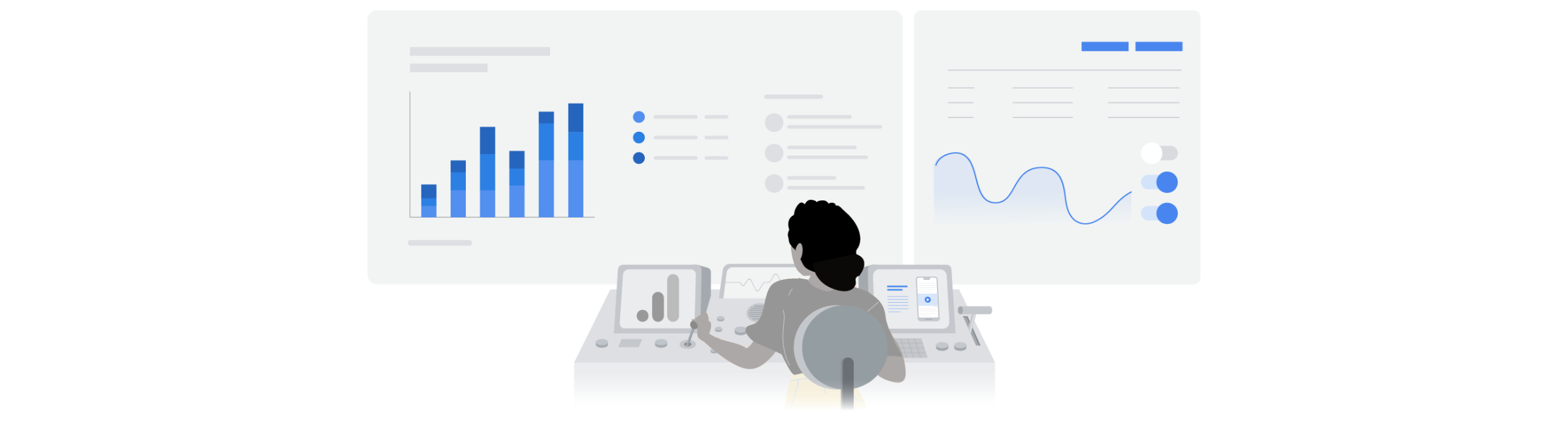
Google Analytics 4 (GA4) has a new interface. Here’s a quick breakdown to help you find what you need.
Understanding the new GA4 layout
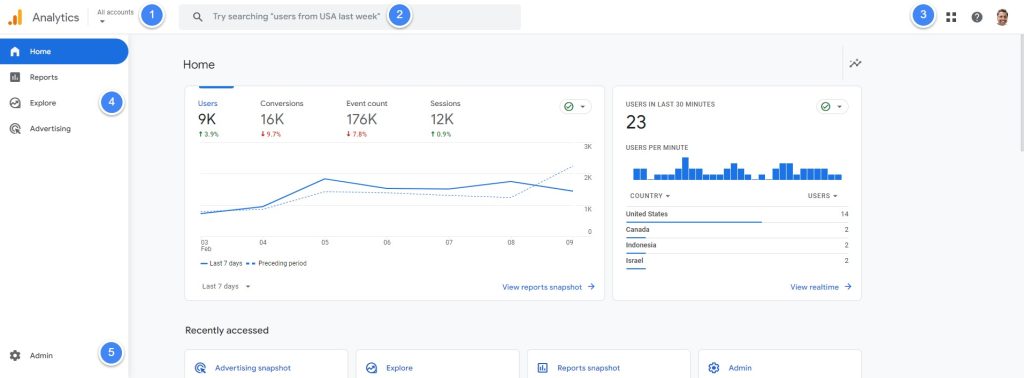
1. Account and Property selector
- Make sure you’re looking at the right business (Account) and website or ap setup (Property).
- Easily switch between accounts or properties without leaving the page.
2. Search bar
Know what you’re looking for? Type the report or setting name and go straight into it.
3. Product selector
Quickly jump to other Google tools, like Google Tag Manager or Search Console.
4. Left navigation
- Home: Get a snapshot of your key metrics.
- Reports: Pre-build reports with essential data about your visitors and their actions.
- Explorations: Create custom reports for in-depth analysis.
- Advertising: See how your ads are performing.
5. Admin settings (gear icon)
- Located is at the bottom left of the screen.
- Customise your GA4 setup here.
Once you understand this setup, you can easily find the reports and data you need to make better decisions.
Reports in GA4
GA4 “Reports” offer pre-built insights into how your website or app is performing. Think of them as your business dashboard, giving you quick answers to questions like:
- Are my marketing campaigns working?
- What content do people love?
- Where are we losing potential customers?
Let’s see how to use GA4 reports to get these insights and make data-driven decisions.
How GA4 reports are organised
GA4 reports are grouped into “collections” and “topics” to make things easier to find.
- Collections: Broad categories of reports, like “Business objectives” and “Life cycle”.
- Topics: Within each collection, reports are grouped by purpose. For example, reports in the “Business objectives” collection are grouped into topics like “Generate leads” and “Drive online sales”.
- Report types: Each topic has 2 types of reports: “Overview” reports show cards with key stats, while Detail reports show charts and tables that can be filtered and sorted.
However, 2 special reports are not part of a collection: Reports snapshot and Realtime.
Reports snapshot: Your GA4 dashboard
Unlike the old Universal Analytics, Google Analytics 4 (GA4) does not have a traditional “Dashboards” feature. However, you can turn the Reports snapshot into a customised, high-level dashboard.
To customise this report, click the pencil icon to add or rearrange “cards” from different overview reports. Once you’ve added the right cards, you can see your most important metrics in one place. For example, you could track new users, sales, top content, and more in a single view.

That said, for higher level dashboards that pull in data from multiple sources (Google Analytics, Google Ads, social media, CRM, spreadsheets, etc.) you’ll need a dedicated KPI dashboard tool like Google Looker Studio. We’ll cover this later in this guide.
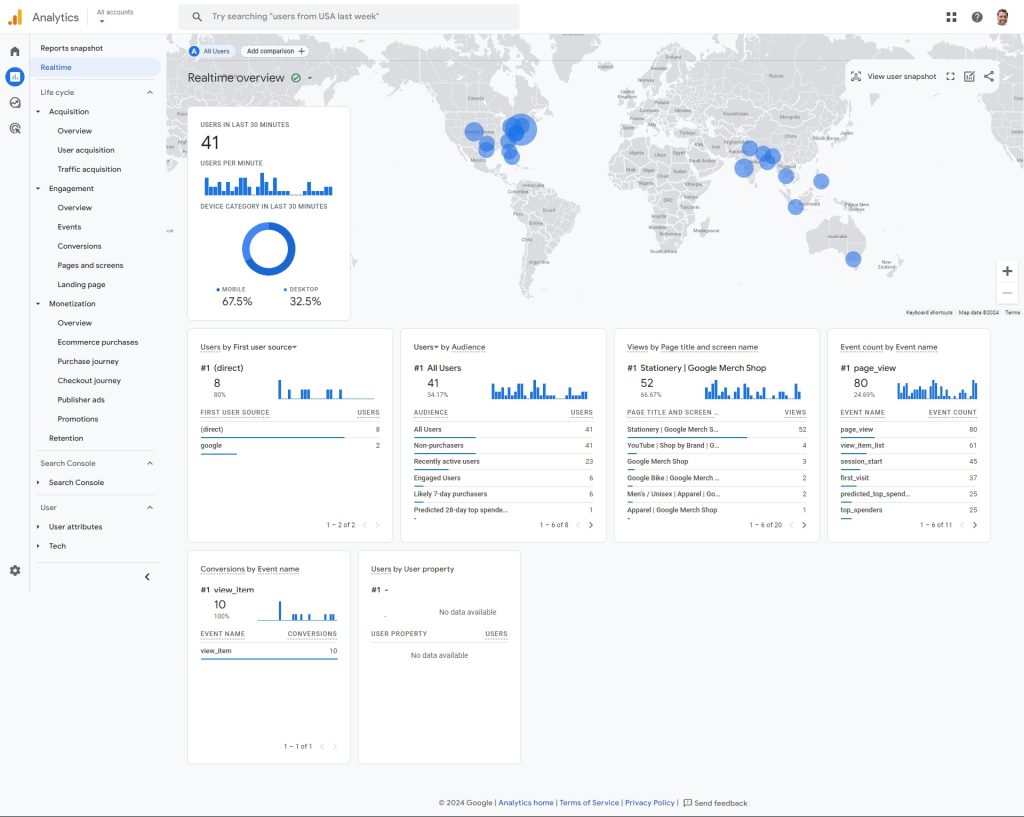
Real-time report
See who’s on the site right now. This report is great for testing your new GA4 setup, or for checking if a new marketing campaign is driving traffic.
GA4 Reports Library
Here you can choose which collections, topics, and reports to show on your menu. For example, if you want to hide the “Games reporting” collection that sometimes shows up as default in GA4, then simply unpublish it here.
[Visual: Screenshot of Report library]
The “Life cycle” collection
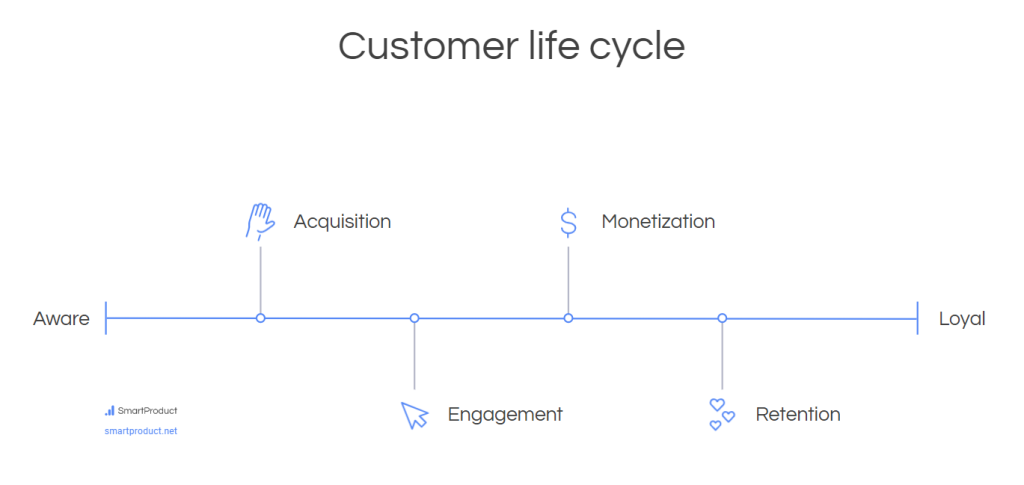
This collection tracks users from first interaction to purchase and (hopefully!) loyalty. It includes several useful reports organised into 4 topics: Acquisition, Engagement, Monetization, and Retention.
Acquisition
Understand where your visitors come from. Reports include:
- Acquisition overview: A snapshot of your traffic sources.
- User acquisition: How new visitors discover your website or app. For example, see if your social media ads are bringing in the right audience.
- Traffic acquisition: Where traffic comes from, split by new vs returning users. For example, spot if an email campaign boosted return visitors.
Engagement
Dive into how users interact with your site. Key reports:
- Overview: Summary of engagement metrics.
- Events: Track specific actions users take, like page views, button clicks, form fills, video views, etc. For example, see if users watch your demo videos.
- Conversions: Mark actions that are crucial to your business, likes purchases and sign-ups. For example, if your newsletter sign-up conversion rate is low, tweak the form or offer.
- Pages and screens: See your most popular content, so you can optimise it, promote it, and repurpose it for other channels. Good content drives sales and marketing results, so if you’re serious about growing your business, you’ll want to use this report a lot.
- Landing page: See which pages people enter your site through. For example, if ad traffic lands on a product page but bounces off, you’ll want to improve that page asap.
Monetization
Understand your revenue sources. Reports include:
- Overview: Summary of revenue metrics.
- Ecommerce purchases: Track sales performance. See your like revenue, best-selling products, and seasonal trends.
- Purchase journey: Visualise the steps customers take from first interaction to purchase. Identify where people drop off, so you can fix those issues.
- Checkout journey: Visualise the steps customers take just before buying. These are valuable users who decided to buy from you but couldn’t. Find and fix any issues asap.
- Promotions: Understand how well your promotions are working. See how many users viewed a promotion, clicked on it, and eventually made a purchase. Or compare the results of a discount code vs a free shipping offer.
- In-app purchases: Measure the performance of your iOS and/or Android mobile app. This report is built around the special “in_app_purchase” event, which sends data to the Apple App Store or Google Play Store.
- Publisher ads: Revenue from ads on your site.
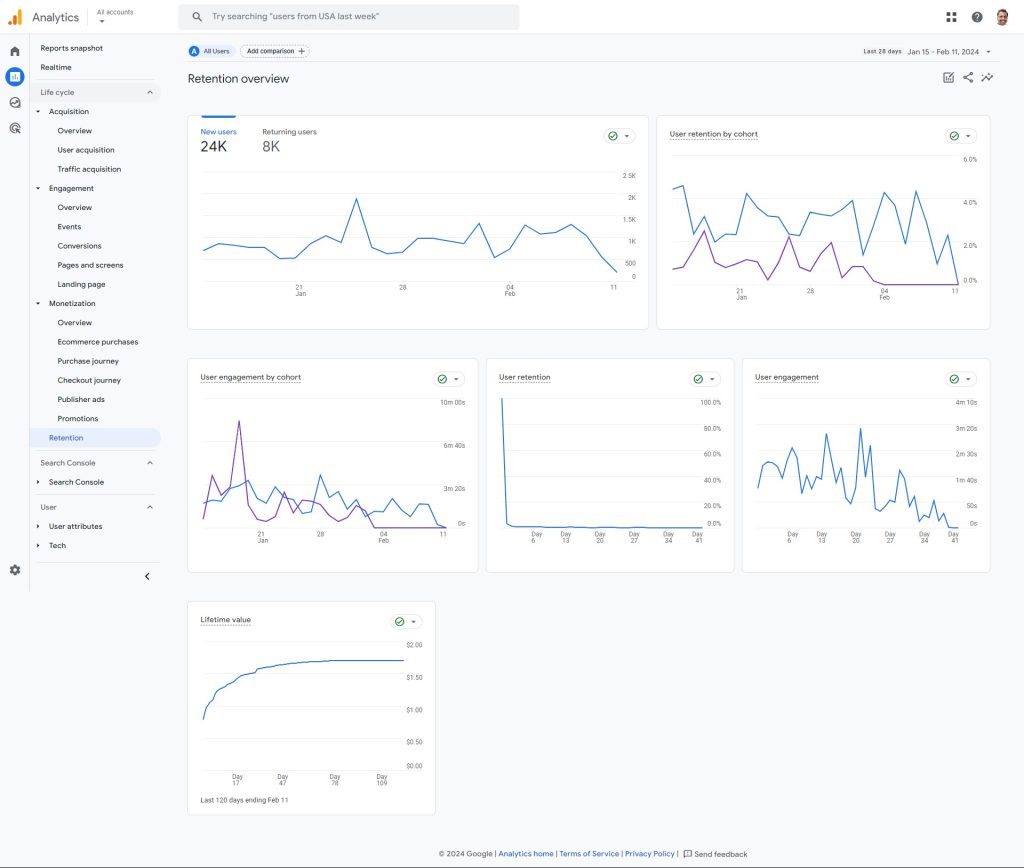
Retention
See how often users return after their first visit.
The “Business objectives” collection
This collection is designed to mirror your business goals. It contains the same reports as the “Life cycle” collection, but organised differently into 4 topics: Generate leads, Drive online sales, Raise brand awareness, and Examine user behaviour.
Generate leads
Understand how potential customers find your site and take the first steps. This topic includes the below reports:
- Overview: A snapshot of lead generation metrics.
- User acquisition: (described above)
- Traffic acquisition: (described above)
- Landing page: (described above)
[Visual: Screenshot of Overview]
Drive online sales
Turn visitors into customers! Reports include:
- Overview: A snapshot of online sales metrics.
- Ecommerce purchases: (described above)
- Promotions: (described above)
- Purchase journey: (described above)
- Checkout journey: (described above)
[Visual: Screenshot of Overview]
Raise brand awareness
Learn about your audience. Reports include:
- Overview: A snapshot of your audience metrics.
- Demographics: Discover locations, interests, age, gender, etc. of consenting users.
- Pages and screens: (described above)
[Visual: Screenshot of Overview]
Examine user behaviour
See what people do on your website or app with reports like:
- Overview: A snapshot of user behaviour metrics.
- Events: (described above)
- Conversions: (described above)
- Pages and screens: (described above)
[Visual: Screenshot of Overview]
The User collection
Learn about visitor demographics, tech, and more. This collection contains 2 topics: User attributes and Tech.
User attributes
Learn about your visitors and audiences.
- Overview: Summary of demographics and audiences.
- Demographic details: (described above)
- Audiences: Explore your audiences and how they grow and behave over time.
[Visual: Screenshots of Overview, Demographic details, Audiences reports]
Tech
Learn about the tech used by your visitors.
- Overview: Summary cards showing metrics by platform (like web, iOS, or Android), operating system (like Windows or iOS), browser (like Chrome or Safari), device category (desktop, mobile, or tablet), and screen resolution.
- Tech details: Browsers, devices, and operating systems used by your visitors. Ensure your website works well on the most popular tech.
[Visual: Screenshots of Overview, Tech details reports]
Customising a GA4 report
Need to tweak a report?
- Click the pencil icon.
- Add/remove cards (in Overview reports) or fields (in Detail reports).
- Click Save. Btw if you mess up, you can always restore the original from the GA4 Report library.
For example, here’s how we would customise the GA4 user acquisition report to add the conversion rate column.
[Visual: Screenshot GIF showing how to add conversion rate column to GA4 user acquisition report]
GA4 reports help you spot wins, areas for improvement, and how to adjust your marketing strategies. For deeper analysis, you’ll want to turn to “Explorations”, which we’ll cover next.
Important! Accurate data depends on proper setup, so make sure you’re tracking your key events and conversions correctly. Get in touch if you need help.
Explorations in GA4: Go beyond standard reports
Think of Explorations as your custom analysis toolkit. While GA4 Reports provide valuable overviews, Explorations let you dig deeper to answer specific questions and optimise your website or app.
Why Explorations matter
- Get the “Why” behind the numbers: See What’s driving changes in your Reports data. For example, if your Landing page report shows a high bounce rate, Explorations can reveal what users were doing before leaving and where they go next.
- Understand customer journeys: Map how users actually navigate your site compared to your ideal path. This helps spot bottlenecks in your conversion funnels and improve performance.
- Data your way: You choose what to see and how to visualise it — tables, charts, funnels, and more.
Getting started
Let’s take a closer look at how to use explorations to make better decisions.
Template gallery
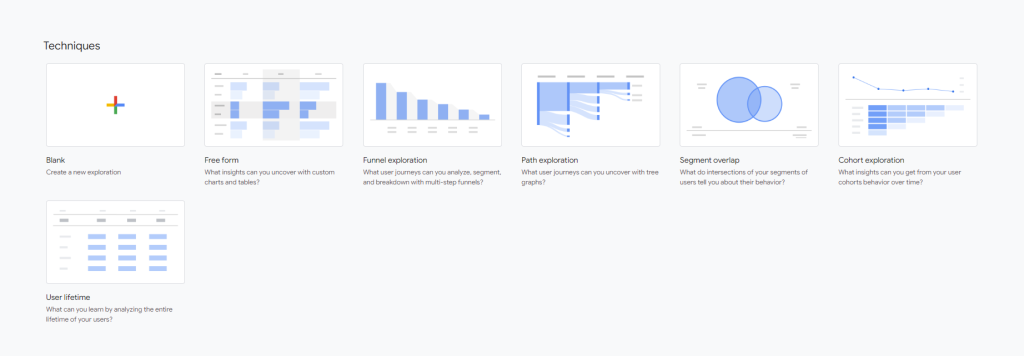
Click “Explore” in the GA4 sidebar, then click on a “Technique” to open a ready-to-use exploration.
Exploration layout
All explorations have 3 main areas: “Variables” sidebar, “Settings” sidebar, and the main area. Before jumping into each Exploration type, let’s get familiar with the layout.
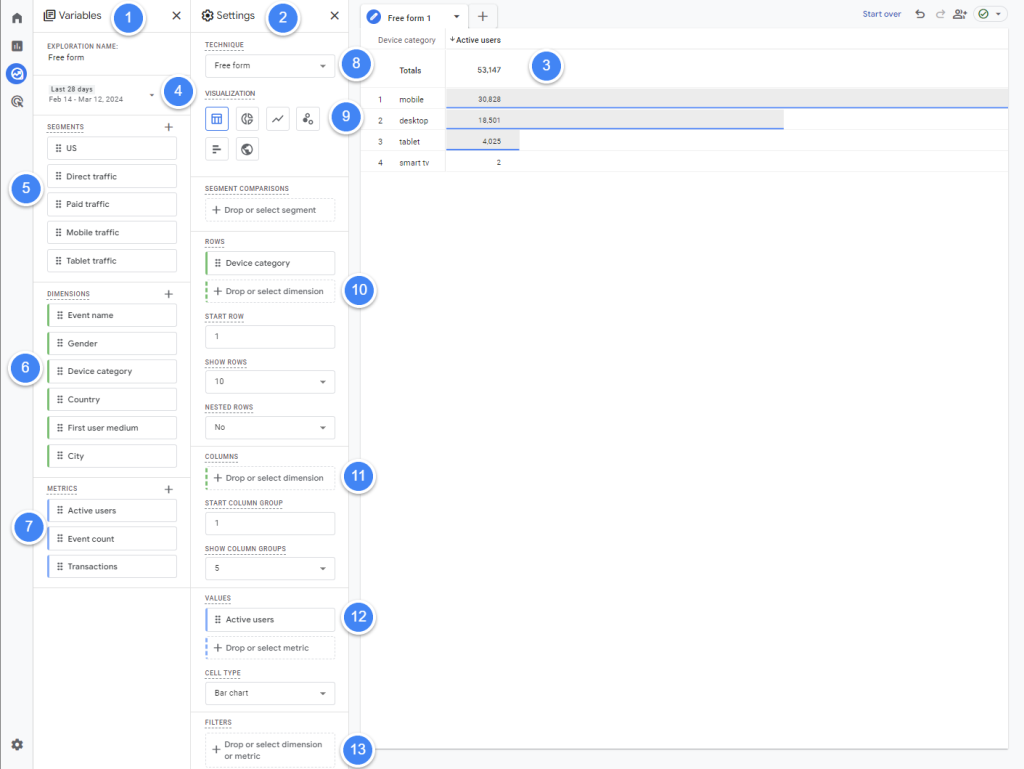
- “Variables” sidebar: Decide what data is available.
- “Settings” sidebar: Decide what data to examine and what it’ll look like.
- Main area: This is where the data will be shown.
- Date range: Set a date range you want to explore. The default is “Last 28 days”.
- “Segments”: Groups of users with something in common, like traffic source, location, a specific action they took on your website or app, etc. It’s a good way to narrow down the users whose data you want to examine.
- “Dimensions”: Things, like Country, Device, etc. Typically added under “Rows” in the “Settings” sidebar.
- “Metrics”: Numbers you care about, like Active users, Revenue, etc. Add these under “Values” in the “Settings” sidebar.
- “Technique”: Switch between Exploration types without having to go back to the Template gallery.
- “Visualisation”: How you want to see the data, like tables, charts, and maps.
- “Rows”: Organise data into categories. Add a Dimension to create rows for countries, devices, product names, etc.
- “Columns”: Add more detail to your rows. Use another Dimension to break down countries by city, or products by category.
- “Values”: The numbers you want to measure. Add Metrics to include users, purchases, revenue, or other key figures.
- “Filters”: Focus on a specific slice of data. Filter by traffic source, user location, or any other dimension or metric.
Key exploration types
Each exploration is designed to surface a specific type of insight. Know what each exploration is good for, so you can quickly pick the right one to answer your questions.
Free form exploration
The most flexible exploration type for quick answers or a fast overview.

For example, follow these steps to find your top cities in 3 steps:
- Go to Explorations and select “Free form”.
- Add Dimensions: First, in the “Variables” tab select a date range and make sure “City” is a Dimension. If it isn’t listed then click “+” to import it.
- Add Values: Next, in the “Settings” tab, under “Rows” select “City”. Under “Values” select “Active users”.
- Get answers: The data is shown in a table by default. Click the column header to sort your cities by most users.
Let’s look at a few more examples:
- Campaign performance: Dimension “Campaign name”, Metric “Active users” (or “Total users”). Under Visualisations, click “Line chart” to see which campaigns have been driving traffic over time.
- Top selling products in the last month: Date range “Last 30 days”, Dimension “Product name”, Metric “Product revenue”. Sort the table to find your bestsellers.
Need help tailoring a Free Form Exploration to answer your specific business questions? Send us a message!
Funnel exploration
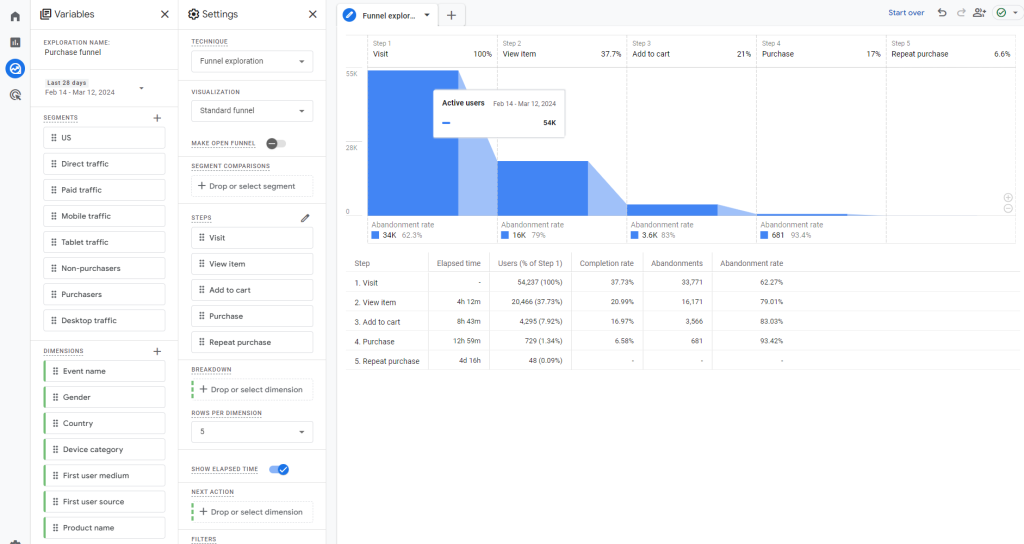
Funnels are the most powerful tool in GA4 for finding areas to improve. Visualise how users move through key steps on your website or app. See where they drop off, and why, so you can fix those issues and boost your metrics.
Define your user journey
Building a funnel requires some prep work, but it’s worth it. First, define the steps taken by users. For example, here’s a typical ecommerce funnel: First visit > View product > Add to cart > Begin checkout > Purchase > Purchase again > Write review.
Track those steps with events
The main way to track those steps in GA4 is through user actions (also called “events”) like page views, clicks, form fills, etc. GA4 collects 3 types of events:
- Automatic events (like “page_view”): Use these as much as possible because no setup required (full list here).
- Recommended events (like “purchase”): If you can’t find an automatic event for your step, look for a recommended event (full list here). These are pre-defined by Google but still need setup.
- Custom events. Create these only if you can’t find an automatic or recommended event for your step (how to implement).
Pro tip 1! Practice using the automatic event “page_view” event with its “page_location” parameter. It’s super versatile and can track most actions by itself, because most events happen on a page.
Pro tip 2! If you must set up an event, do it with Google Tag Manager (GTM) so you can avoid touching code. Popular platforms like WordPress and Shopify have plugins for this.
How to build a funnel exploration in GA4
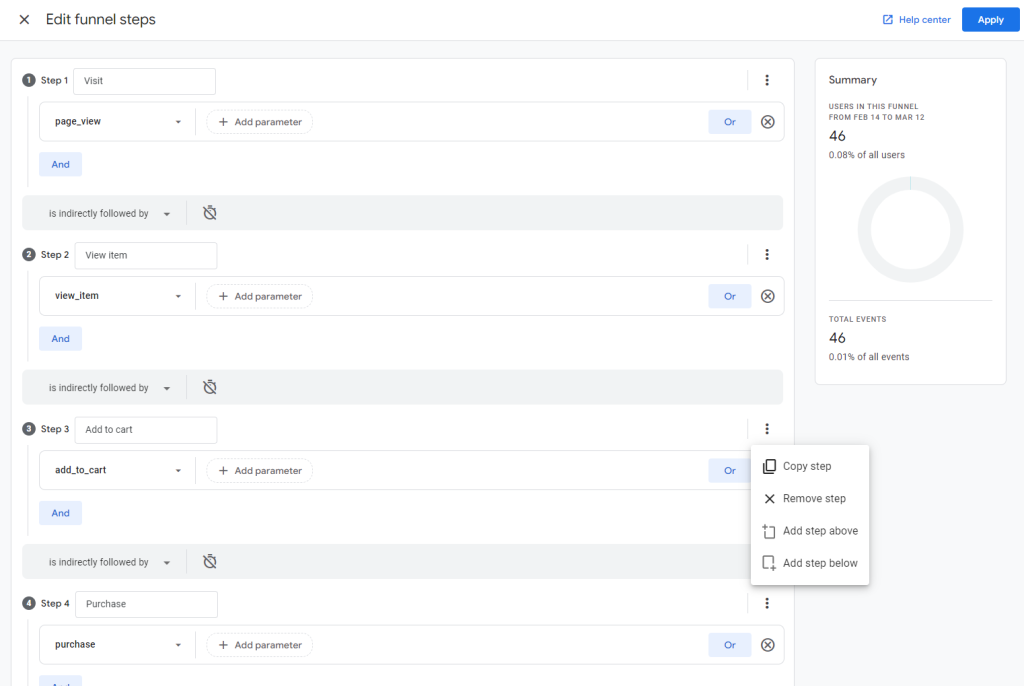
Now you’re ready to build a funnel. Follow these steps:
- Go to Explorations and select “Funnel exploration”.
- Add the 1st step: Click on the pencil icon next to “Steps” to open the “Edit funnel steps” screen. In our ecommerce example, name the 1st step “Visit” and select the event “page_view” to view the data for any time a page has been viewed.
- Continue adding steps: Click on “Add step”. Name the 2nd step “View product” and select the event “page_view” and set “page_location” to match the correct page URL. Repeat for all steps.
Funnels help you spot where customers drop off. For example, an online store we work with noticed a high drop-off between “Add to Cart” and “Begin Checkout.” Fixing their mobile checkout process led to a big increase in sales.
But funnel exploration tools can be very expensive. With GA4, this powerful feature is free, making it a smart choice for businesses of all sizes. If you need need help setting up funnels or getting more from GA4, reach out for expert guidance.
Path exploration
Funnels are great for visualising ideal paths. But what if you don’t know the steps your users actually take? Path exploration reveals this, helping you to find unexpected routes and build better funnels.
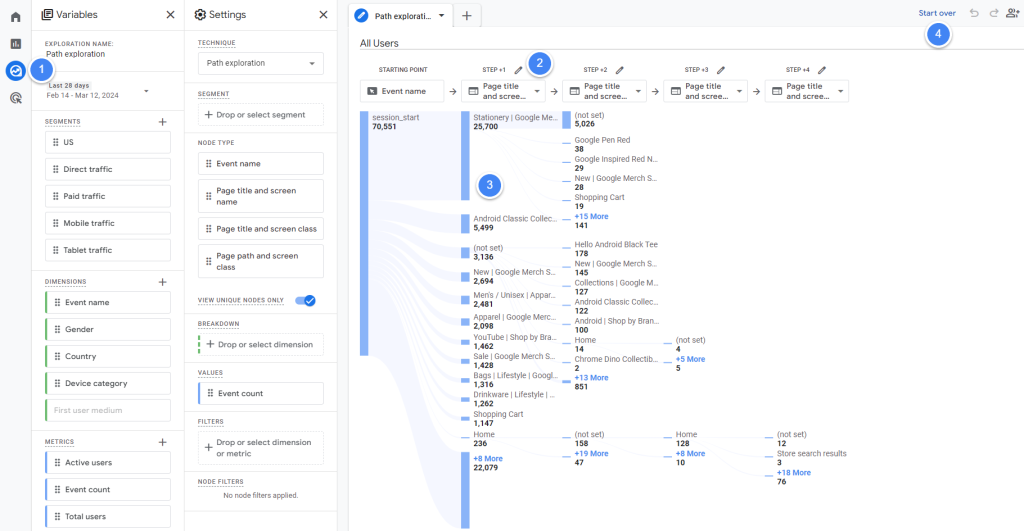
Follow these steps to get started:
- Go to Explorations and select “Path explorations”.
- Under “STEP +1”, choose “Page title and screen name” to see which pages people are viewing.
- Follow the flow: The visualisation shows where people start, and what they view next. Click on any node to drill down further.
- Reverse the path: Find out what pages people viewed before landing on a key page (like a checkout page or purchase confirmation).
Try to connect popular entry paths with popular conversion paths. For example, an agency we work with used Path exploration to see where people went after reading an article. They discovered many users weren’t finding related content, and that users who viewed at least 2 articles were more likely to opt in to their newsletter. Adding links within articles boosted engagement opt-ins significantly.
The Path exploration is useful for understanding the key funnels on your site or app. Use it together with the Funnel exploration to get the most out of GA4.
Segment overlap exploration
Even the best funnels won’t work if you’re targeting the wrong audience. Segment overlap helps you identify and reach the people most likely to convert.
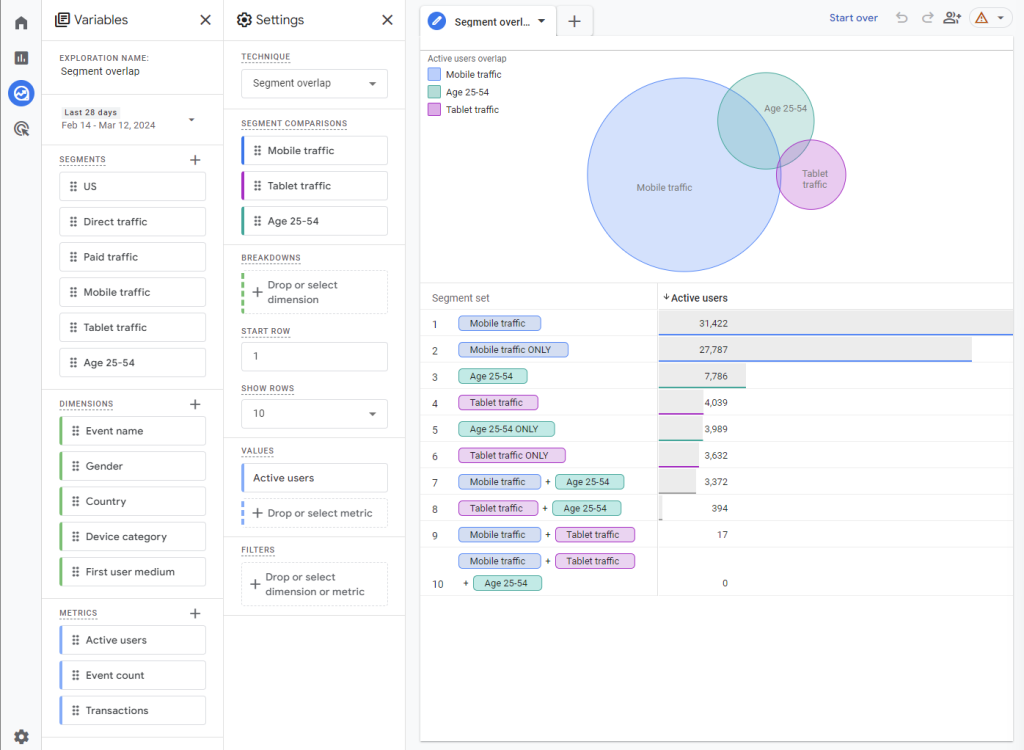
For example, here’s how you would use this report:
- Go to Explorations and select “Segment overlap exploration”.
- Evaluate traffic sources: See how many users from organic search, paid ads, etc. actually become customers.
- Refine ad targeting: Overlap your purchasers with Google’s pre-defined audiences (like “Business Travelers”, “Auto Enthusiasts”, etc.) Target those with high overlap, and avoid those with low overlap. For example, a fitness equipment store we work with discovered a strong overlap between their purchasers and Google’s “Prefers Organic Food” affinity segment. Their focused spend on this audience led to a huge sales increase.
The GA4 segment overlap exploration is an under-used exploration, which can help you get ahead of competitors. This exploration is especially powerful when combined with your data from other marketing tools, like your CRM or email marketing platform.
Cohort exploration
See how different groups of users (cohorts) behave differently over time. This is essential for understanding:
- Long-term impact: Do your marketing campaigns lead to lasting customers, or just a quick spike in sales?
- Customer retention: Are certain user groups more likely to return and purchase again?
- Hidden trends: Identify problems or opportunities that only become clear over weeks or months.
- Feature effectiveness: Did your website or app improvements actually result in a better user experience?
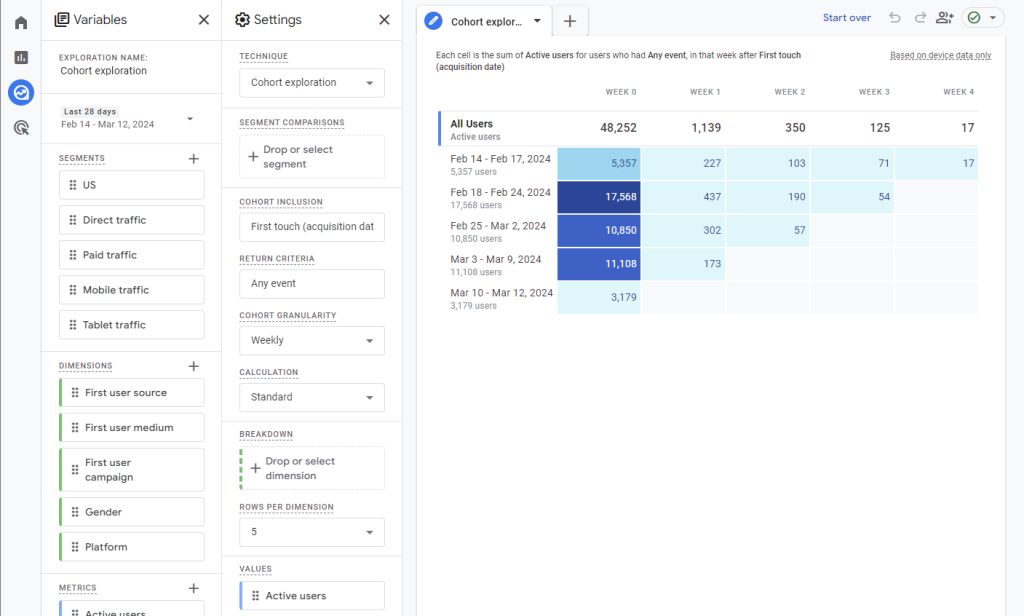
Here’s how you could use the Cohort exploration:
- Go to Explorations and select “Cohort exploration”.
- Define cohorts: Decide which groups to track, like users acquired on the same date, from the same traffic source, or who took a specific action.
- Analyse retention: See how many users from each cohort come back over time. This is key to understanding customer loyalty.
- A/B test changes: Compare how different versions of your website, app, or marketing campaigns affect long-term user behaviour.
All the KPIs are important, but few companies do Retention well. Their focus on acquiring new customers at the expense of looking after their existing customers hurts their profitability. The Cohort exploration could be your secret weapon in getting this right.
User explorer
While other Explorations look at groups, User Explorer lets you zoom in on a single user’s journey across your site, app, and over time.
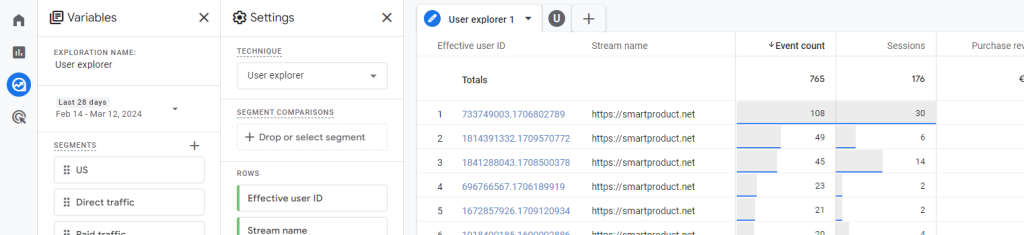
This can be very useful for:
- Troubleshooting: For example, if you see a discrepancy between what GA4 shows you and what you expect, look into a few users’ exact steps and data generated to identify the issue.
- Personalisation: See a user’s past behaviour to tailor your offers or messaging. This works well for your high-value users, yielding a huge ROI on effort.
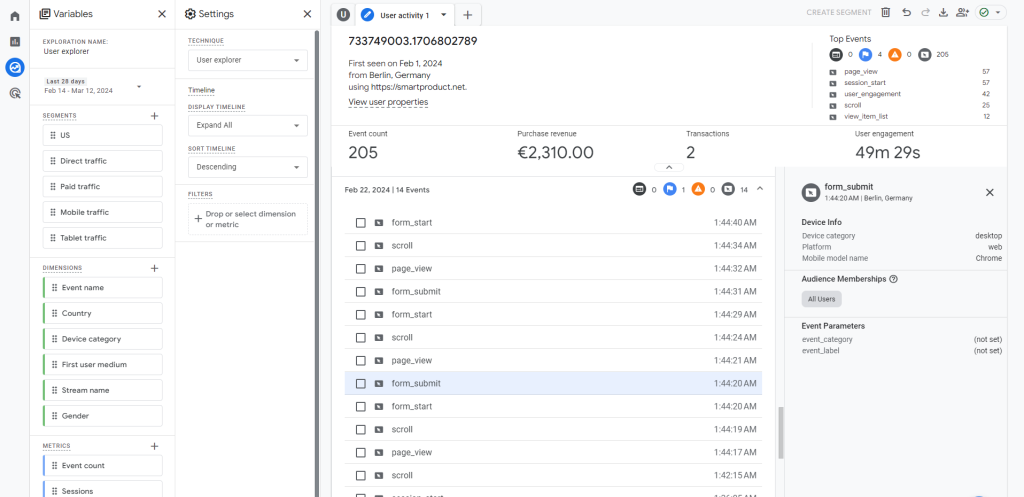
Important! User Explorer requires careful setup to protect user privacy and comply with data regulations. If you need help to set this up the right way alongside Consent Mode V2 for European users, get in touch with our Google-certified team.
Now that you’re acquainted with GA4 reports and explorations, you’ll want to locate your crucial metrics and boost them. Check out our free GA4 business guide, which guides you step-by-step through the process of using GA4 data to grow your business more profitably.