UTM parameters: Find your best traffic sources with Google Analytics 4 (GA4)
UTM parameters show where your website visitors come from, helping you make better choices. For example, you can check with UTM links if you’re getting more visitors from a Facebook ad than an email campaign, so you can decide whether to invest more in Facebook ads.
Using UTM links in your ads and posts
To use UTM links, replace your normal website links with UTM links. This lets you see how well your ads or posts are doing. For example, if you’re running a summer sale, you can track how many people clicked on the sale link from your Twitter post versus your newsletter.
The 5 UTM parameters
UTM stands for “Urchin Tracking Module”, named after an analytics tool called Urchin which Google turned into Google Analytics back in 2005. Since then, marketers have been using 5 URL additions to track online campaigns across different sources and media. Google Analytics uses them to make reports.
1. Source
Understand the origin of your visitors. Did they discover you from a Google search or through an email link?
2. Campaign
Identify the specific ad, post, or email driving traffic, such as “SummerSale” or “NewProductLaunch”.
3. Medium
See the type of ad or post, be it an email, social media post, or a paid ad.
4. Term
Discover the keywords that lead visitors to your site, especially useful for optimising paid ads.
5. Content
Find out which version of an ad or post is most appealing to users, especially when A/B testing.
Checking traffic sources in Google Analytics 4 (GA4)
The GA4 Traffic acquisition report is a great way to see which traffic sources are sending your visitors. It also helps you connect those sources to visitor actions on the site. For example, you might find that visitors who came from your “Winter Sale” email campaign converted better than those who came from Instagram.
Here’s how you can check traffic from UTM links in GA4:
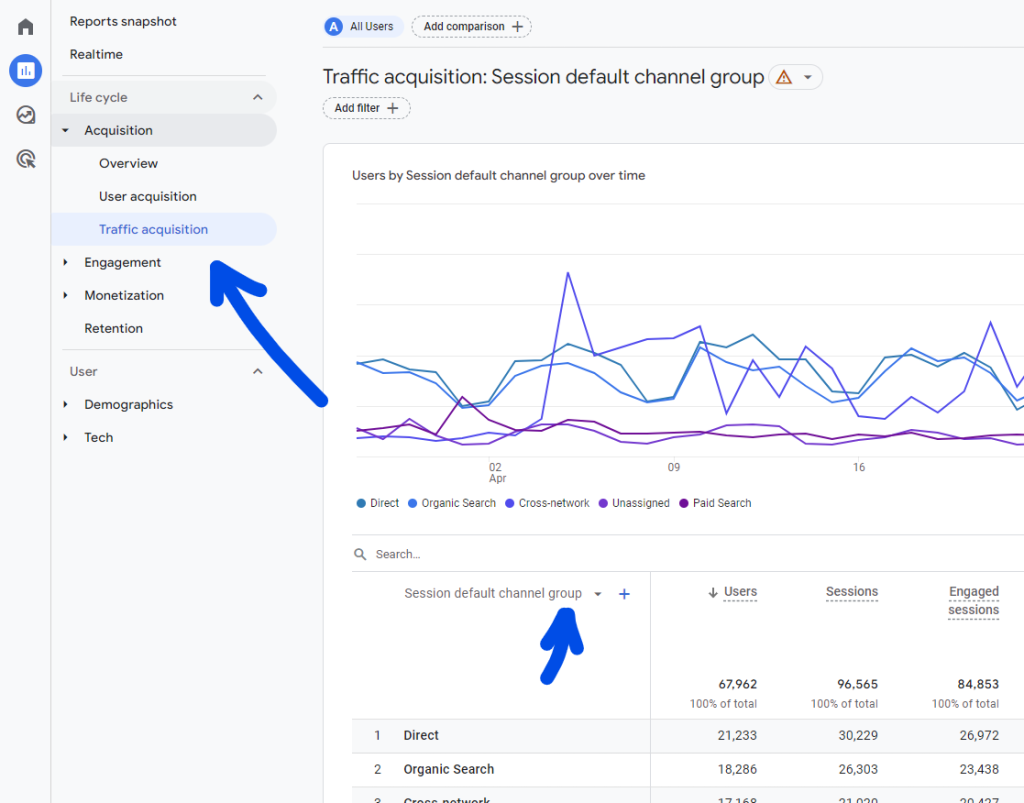
Step 1. In GA4, go to “Reports” > “Life cycle” > “Acquisition” > “Traffic acquisition”. Then click on the dropdown that says “Session default channel group”.
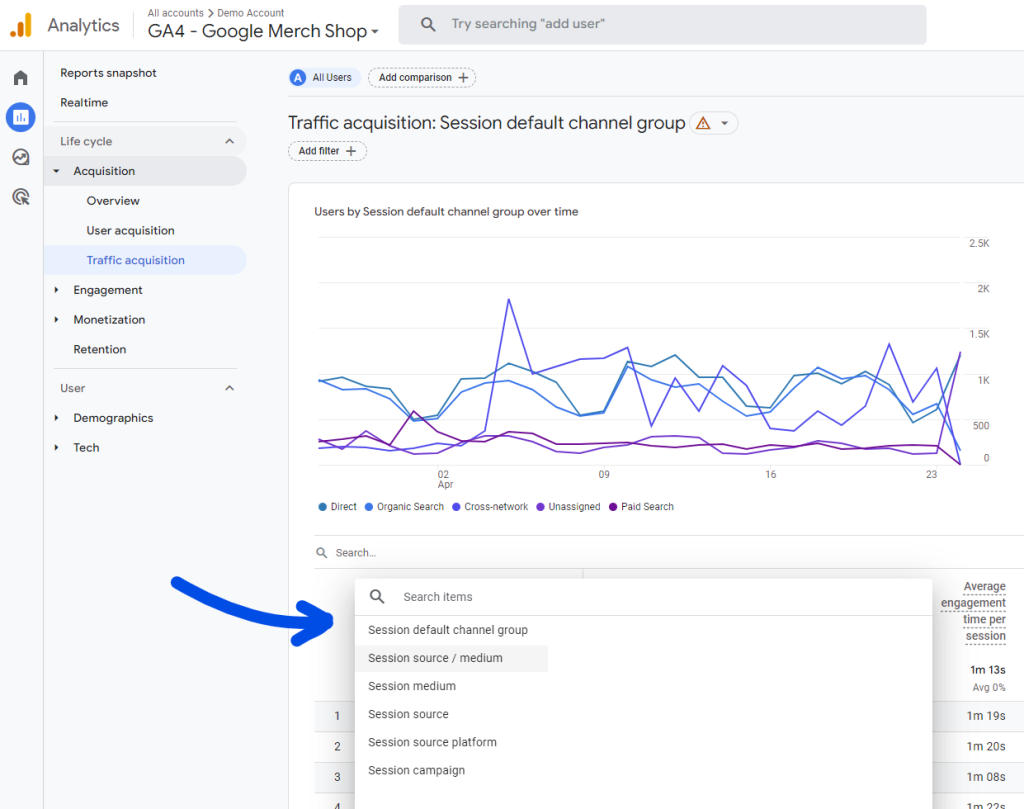
Step 2. Click on “Session source / medium”.
Step 3. Adjust your efforts and budget based on results. For example, if email links get more sales than social posts, then send more emails.
Here are some tips to help your decide:
- Sort by Users or conversion rate. To see conversion rate, click the top-right pencil icon > Add “User conversion rate” > Save. Then go back to the report, scroll to the last column, and pick the conversion important to you (like purchases for online stores or leads for B2B).
- Focus on sources with many Users and high conversion. For sources with lots of Users but low conversion, improve the conversion rate. If a source has high conversion but low Users, get more traffic.
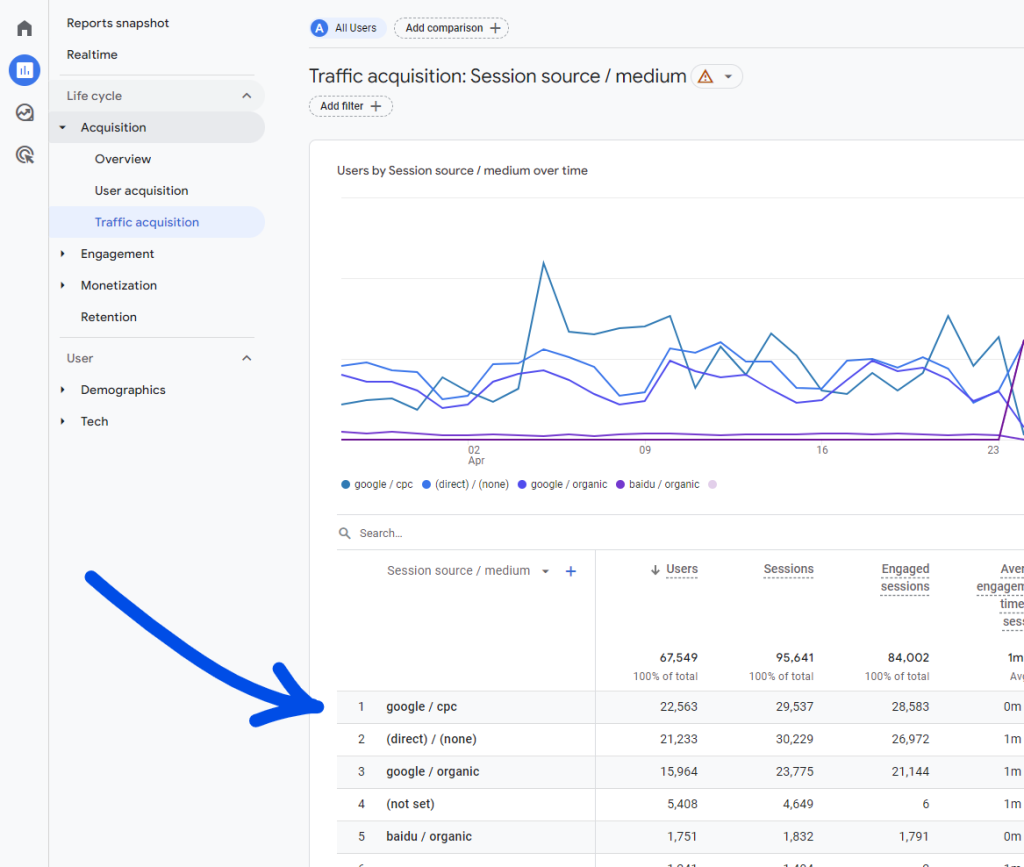
Using UTM links in GA4 shows where visitors come from. More of your traffic will be labelled as “ppc”, “email”, etc. instead of just “direct”. This helps you spend your marketing and website development budget more wisely.
5 easy ways to use UTM links
You can use UTM tracking to see how well different things are doing:
1. Social media
See which posts get the most clicks. For example, compare a product launch post on Twitter vs. Instagram.
This UTM link tracks traffic from Twitter (source), indicating a social media post (medium) for a product launch (campaign):
https://www.company.com?utm_source=twitter&utm_medium=social&utm_campaign=product_launch
2. Emails
Check which emails get the most opens and clicks. For instance, compare a holiday sale email to a new product announcement.
The below UTM link traces traffic from a newsletter (source) email (medium) promoting a premium membership (campaign):
https://www.company.com?utm_source=newsletter&utm_medium=email&utm_campaign=premium_membership
3. Paid ads
Find out which ads get the most clicks. Like comparing a Google ad to a Facebook ad for the same product.
The below UTM link monitors traffic from a paid ad (“cost per click” medium) on Facebook (source) for a spring sale (campaign):
https://www.company.com?utm_source=facebook&utm_medium=cpc&utm_campaign=spring_sale
4. Influencers
See how many clicks each influencer gets for you. For example, compare the results from a post by Influencer A vs. Influencer B.
This UTM link below captures traffic generated by an influencer (medium) named John Doe (source) promoting a new product launch (campaign):
https://www.company.com?utm_source=john_doe&utm_medium=influencer&utm_campaign=new_product_launch
5. Guest blogs
Check how many people read your guest blogs. Like seeing if a guest post on a tech site brings in more readers than one on a general news site.
The UTM link example below measures visitors from a Tech Blog (source) guest post (medium) promoting your article (campaign):
How to create UTM links
To create UTM links for GA4, use Google’s free UTM builder called Google Analytics Campaign URL Builder.
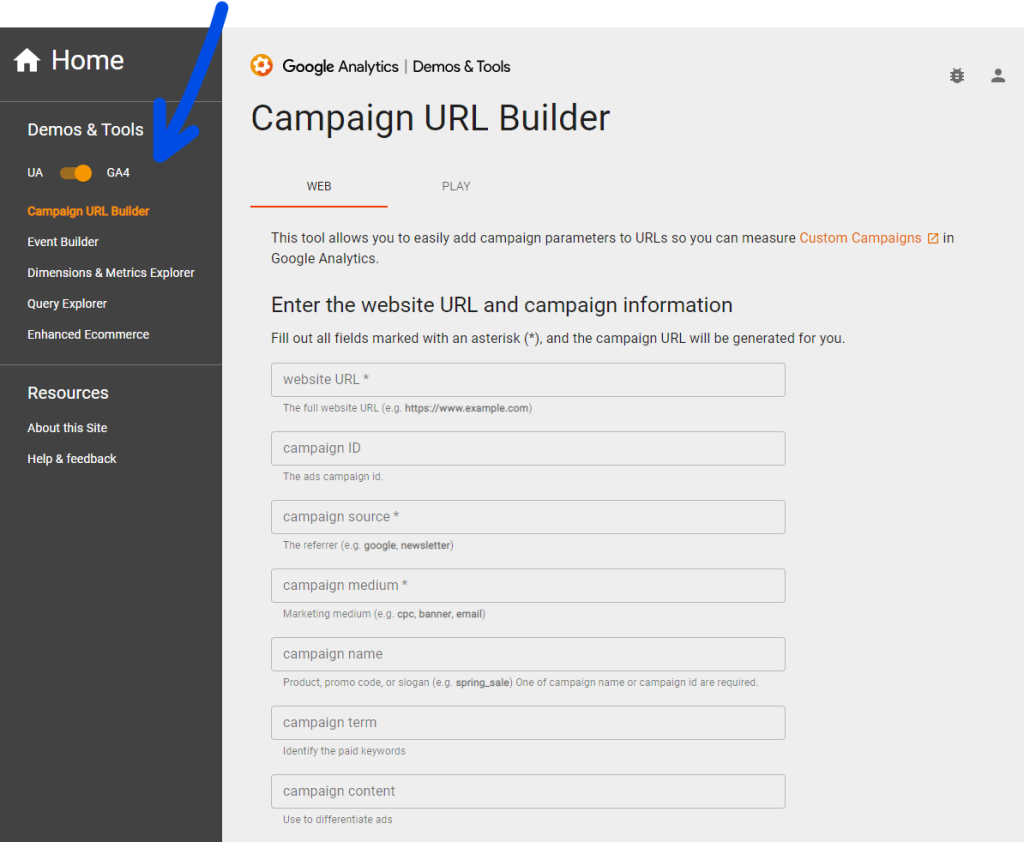
Follow the 3 steps below to create your own link using Google’s UTM link generator:
- Visit the Google Analytics Campaign URL Builder.
- Enter your website URL and campaign information.
- Click “Generate URL” to create your custom UTM link.
12 tips to level up your UTM tracking
Use these tips to save a ton of time and money when tracking your website visitors.
1. Be consistent
Use the same names for all your parameters. For example, always use “facebook” not “FB” or “facebook.com”. It matters less what you call it, the important thing is to stick to it.
2. Use small letters
Only use small letters. It keeps things clear and avoids mix-ups. So “utm_source” not “UTM_Source”, twitter not “Twitter”, etc.
3. Keep it clear
Use names that are easy to understand. Like “SummerSale” not “SSale”.
4. No special characters or spaces
They can cause problems. For instance, use “NewYearSale” not “New_Year_Sale”.
5. Shorten links
Use tools like Bitly to make short links. It looks better and is easier to share, and you can still track them.
6. Only use UTM tracking for external links
Don’t use them for internal links, meaning links that take visitors to another page on your own site. It can mess up your data.
7. Check where people click
Use tools to see where people click on your site. It helps you see what they’re interested in.
8. Look at your data
Check your UTM results in Google Analytics. It shows what’s working and what’s not.
9. See how guest blogs are doing
Use UTM links for guest blogs. It shows how many people read them.
10. Compare results
Use UTM links to see how the same post does on different sites. Like comparing a post on your site to one on a partner’s site.
11. Track influencers
Use a different UTM source for each influencer. It shows which ones get the best results.
12. Check social media results
Use UTM links to see which social media sites work best. Like comparing results from Facebook, Twitter, and Instagram.
Conclusion
UTM parameters help you see what’s working in your marketing. Start using them to find out where your best customers come from. Using UTM tracking with Google Analytics can help you see where people come from and what they do on your site. This helps you get more customers.
Bonus tip! Combine UTM tracking with another important GA4 feature called User ID. This is crucial for finding out what steps your best customers take before buying, so you can nudge other users to take the same steps.
P.S. Google has a new version called Google Analytics 4 (GA4). The old version won’t be used anymore. GA4 is good, but you need to set it up right. If you need help, click here to ask our team. We’ll help you use UTM parameters effectively and show you how to read the results. This helps you decide where to spend your time and money, so you can increase sales, revenue, and profit for your business.