Easily measure user activity across devices with GA4 User ID
Google Analytics 4 (GA4) offers powerful tools for tracking and analysing your website’s performance. One essential feature is the GA4 User-ID tracking, which allows you to monitor user activity across devices and platforms. In this article, we’ll explain what User ID tracking is, how to set it up in Google Analytics 4, its benefits, limitations,…
Introduction to GA4 User ID tracking
Before diving into the setup and implementation of User ID tracking, let’s get familiar with the concept and understand its importance.
What is the User ID feature in Google Analytics 4?
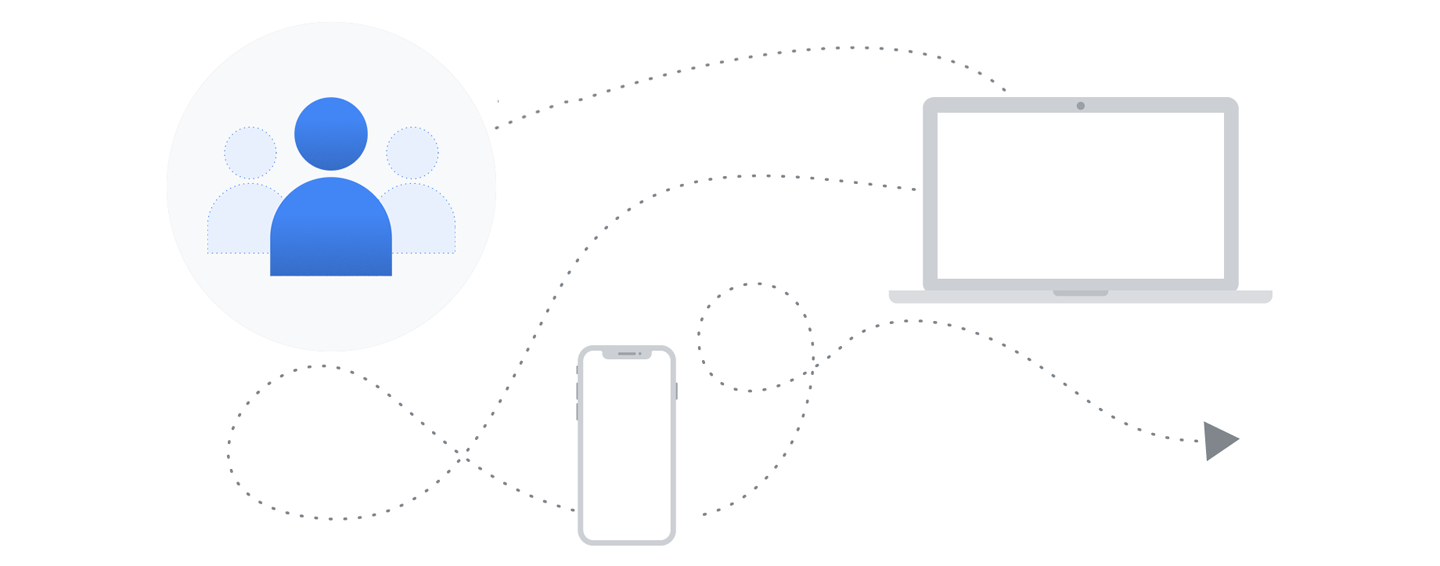
The User ID tracking feature in Google Analytics allows you to track individual users across devices and platforms. This helps you better understand the user journey, from the first visit to conversion, and provides more accurate data on user behaviour.
Difference between GA4 User ID and Client ID
The User ID tracks individual users, while the Client ID tracks devices or sessions. The User ID provides a more accurate view of user behaviour since it follows users even when they switch devices.
Understanding New vs Returning Users in GA4
Google Analytics 4 classifies users as new or returning based on their previous interactions with your site. New users are those visiting your site for the first time, and returning users have visited your site before. User ID tracking helps provide more accurate data about returning users.
Setting up & implementing GA4 User ID tracking
There are 2 options to set up User-ID tracking in GA4: using Google Tag Manager (GTM) or modifying the gtag.js tracking code directly. We highly recommend to using GTM, as it simplifies the process and makes it easier to manage your tracking implementation. Let’s explore both options and provide an example.
Option 1. Set up User ID tracking using Google Tag Manager (recommended)
Here’s an example of how to generate, assign (to website users), and send User IDs to GA4 using Google Tag Manager.
1. Create a new variable in GTM to store the User ID
This could be a first-party cookie, JavaScript variable, or a custom JavaScript variable that retrieves the user’s unique identifier (such as a login ID or customer ID) from your website’s system.
2. Modify your GA4 configuration tag in GTM to include the User ID variable
Add a new field named “user_id” under “Fields to Set” in the tag configuration, and set its value to the User ID variable you created in step 1.
3. Save and publish your changes in GTM
For example, if your website assigns a unique user ID to each registered user, you can create a custom JavaScript variable in GTM that retrieves this user ID. Then inside GTM, add the “user_id” field to your GA4 configuration tag and set its value to the custom JavaScript variable.

Option 2 – Set up User ID tracking using gtag.js (alternative method)
Here’s an example of how to generate, assign (to website users), and send User IDs to GA4 using the Google Analytics tracking code:
1. Modify your GA4 tracking code
Create a unique identifier for each user, such as a login ID or customer ID.
2. Send the unique identifier as the GA4 User ID
For example: To send a unique customer ID as the User ID, you would modify the gtag.js tracking code as follows. Remember to replace ‘GA_MEASUREMENT_ID’ with your actual GA4 measurement ID and ‘CUSTOMER_ID’ with the unique identifier for the user.
gtag('config', 'GA_MEASUREMENT_ID', { 'user_id': 'CUSTOMER_ID' });3. Save your changes and test the tracking code on your website
You can use the GA4 DebugView or Realtime report to verify the data is being sent correctly to Google Analytics 4.
Using GTM for setting up User ID tracking is the recommended method, as it simplifies the process and reduces the chances of errors when modifying tracking codes directly.
3 benefits of using GA4 User ID tracking
Implementing User ID tracking provides several advantages for understanding user behaviour and improving your website’s performance. Let’s explore these benefits.
1. Why use Google Analytics User ID?
User ID tracking offers several benefits, including more accurate user data, better understanding of user behaviour across devices, and improved cross-device reporting. This leads to better decision-making and more effective marketing strategies.
2. Compare signed in vs non-signed in users
By comparing signed-in users (who have User IDs) with non-signed-in users, you can gain insights into how user behaviour differs. This can help you tailor your marketing efforts and improve the user experience for both groups.
3. Cross-device reports in Google Analytics
User ID tracking enables cross-device reporting in Google Analytics 4, which allows you to see how users interact with your site across multiple devices. This helps you optimize your site’s performance and user experience for various devices and platforms.
5 limitations of GA4 User ID tracking
While GA4 User ID tracking provides valuable insights, it also comes with some limitations and challenges. Let’s discuss these drawbacks and ways to overcome them.
1. What are the limitations of the GA4 User ID feature?
Some limitations of GA4 User ID tracking include the requirement for users to log in, the inability to provide identifiable data about users, and the need for developer expertise to implement the feature.
2. It requires users to log in for it to work
For GA4 User ID tracking to be effective, users must log in to your site. This may not be suitable for all websites or may limit the data collected from users who don’t log in.
3. Doesn’t provide identifiable data about users
While GA4 User ID tracking provides more accurate data, it doesn’t offer identifiable information about users. This is to maintain user privacy and comply with data protection regulations.
4. Non-User ID View
Google Analytics 4 provides data from users who don’t have a User ID. This view is useful for understanding the behaviour of users who don’t log in or for whom User ID tracking is not implemented.
5. What’s an alternative way to track individual users and revenue?
An alternative to User ID tracking is using Client ID, which tracks devices or sessions rather than individual users. This method is less accurate but easier to implement and does not require user login.
Analysing user data and overcoming limitations
With User ID tracking set up, let’s explore ways to gain insights on unique users and maximize the benefits of this feature in your Google Analytics account.
How to look at users in Google Analytics 4
To analyse user data in GA4 in your Google Analytics account, navigate to the “Users” section and explore the various reports available, such as the User Explorer report, which provides detailed information on individual users.
Survey new and returning users to get the missing context
To gain additional insights into user behaviour, consider surveying new and returning users. This can provide valuable context and help you better understand their needs and preferences.
How session unification works
Session unification in GA4 combines data from multiple sessions when a user is assigned a User ID. This helps provide a more accurate view of user behaviour across sessions.
When does a regular GA4 session turn into a User ID Session?
A regular GA4 session becomes a User ID session when a user logs in, and their User ID is sent to GA4. From that point on, their activity will be tracked using the GA4 User ID.
Overcoming the limitations of GA4 User ID through session stitching
Session stitching is a technique used to link user sessions across devices or platforms when User ID tracking is not available. This can help provide more accurate user data and insights into cross-device behaviour.
Using the GA4 User Explorer exploration report
The User Explorer report, which was available in Universal Analytics, has been replaced with the User Explorer exploration in GA4.

The User Explorer exploration allows you to analyse individual user behaviour and understand how users interact with your website. Here’s how to access and use the User Explorer exploration in GA4:
- Log in to your Google Analytics 4 account and navigate to your GA4 property.
- In the left-hand menu, click on “Explore” to access the GA4 Exploration reports.
- Click on the “Library” tab at the top of the Explore section. Find the “User Explorer” template and click on it to create a new User Explorer exploration.
- In the User Explorer exploration, you can see a list of individual users, represented by their User IDs, along with various metrics such as engagement time, sessions, and events. Here’s how to see User ID in Google analytics.

- Click on a specific User ID to view more detailed information about that user’s interactions with your website, including a timeline of events, event names, and event parameters.
- You can also customize the exploration by adding or removing dimensions and metrics, or by applying filters to focus on specific user segments or behaviours.


The User Explorer exploration in GA4 provides valuable insights into individual user behaviour and can help you identify patterns, trends, and areas for improvement in your website’s user experience.
Conclusion
User ID tracking in Google Analytics 4 is a powerful feature that can provide you with valuable insights into user behaviour across devices and platforms. By understanding its benefits, limitations, and how to analyse the data, you can make informed decisions to improve your website’s performance and create more effective marketing strategies.
If you need assistance with setting up User ID tracking or have any questions, our team is here to help! Feel free to contact us for expert Google Analytics 4 support and training. We also recommend checking out Google’s official help post on this topic.