Google Analytics 4 (GA4) for business: A complete guide

How much money are you leaving on the table by not using Google Analytics 4? This guide will show you how to use Google Analytics 4 (or “GA4”) and its top features to get more customers, sales, and profit. Need help? Just ask us!
How 3 businesses used GA4 to increase sales
Data isn’t just for big businesses. Small and midsize businesses can use it too, but with their limited resources they need to be smart about it. Here’s how 3 different companies used Google Analytics 4 to grow their revenue.
Online grocery store grew revenue by 37%
Challenge: Customers weren’t returning for repeat purchases.
Insight: GA4 revealed only 9% of customers bought 2 or more times, and the reordering flow had 13 steps.
Solution: Simplified reordering and targeted customers with personalised offers based on their first purchase.
Result: 37% revenue uplift within 90 days
B2B app converted 31% more free trials
Challenge: Free trials weren’t converting into paying customers.
Insight: Only 4% of users upgraded (lower than industry average of 9%). Users who tried a specific feature were 3X more likely to convert, but awareness of the feature was low.
Solution: Increased promotion of the key feature in ads, landing pages, and onboarding flow.
Result: 31% increase in conversions within 6 months, leading to a 39% revenue boost.
Marketing agency got 2X inbound leads
Challenge: Decent website traffic but lead generation was lagging.
Insight: Website conversion rate was low (6%), and GA4 revealed top drop-off points, like the portfolio page.
Solution: Revamped portfolio with results-focused case studies, added targeted blog content, and integrated live chat.
Result: Doubled own leads in 90 days. Partnered with us to boost client conversions with GA4, leading to positive feedback and renewals.
Want to unlock similar growth for your business? This guide will show you how to use Google Analytics 4 (GA4) to gain the insights you need. Let’s start by understanding what GA4 is, so we can use it effectively.
What is GA4?
Google Analytics 4 (GA4) is the latest and most powerful version of Google Analytics.
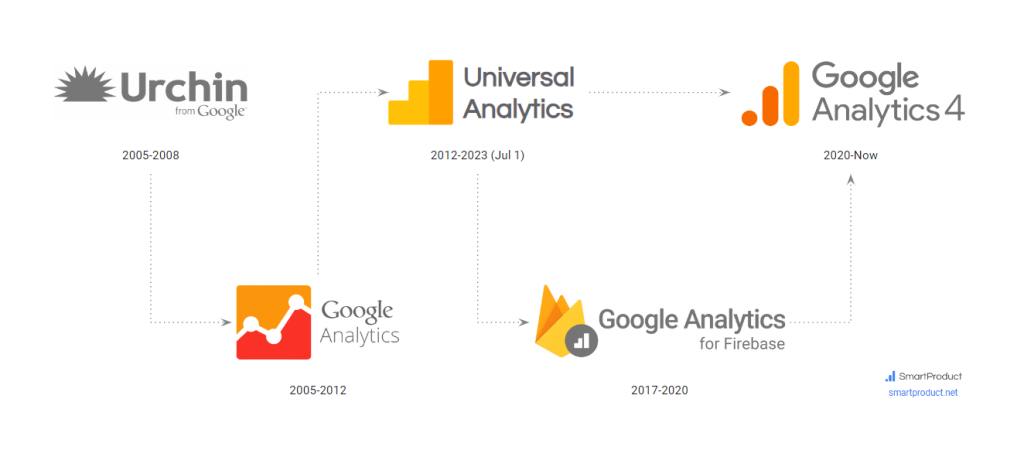
Compared to earlier versions, GA4 gives you a clearer, more complete picture of how people interact with your websites and apps, revealing how they find you, what they do, and why they convert (or don’t).
This allows you to make smarter, data-driven decisions that boost traffic, sales, and overall growth. Unlike older versions, GA4 is built for the future, with a focus on cross-device tracking, AI insights, and user privacy.
On July 1, 2023, Google retired Universal Analytics, making GA4 the new standard for websites as well as iOS and Android mobile apps.
How does GA4 work?
Think of GA4 as a powerful tracking system for your website or app. It works by installing a small piece of code (the “Google Tag”) that acts like an observer.
Ideally, the Google Tag is managed through Google Tag Manager (GTM), a free and popular tool provided by Google. GTM provides a friendly interface to add and update GA4 and other tags without having to directly edit your website’s code. This keeps things simple and reduces the risk of errors.
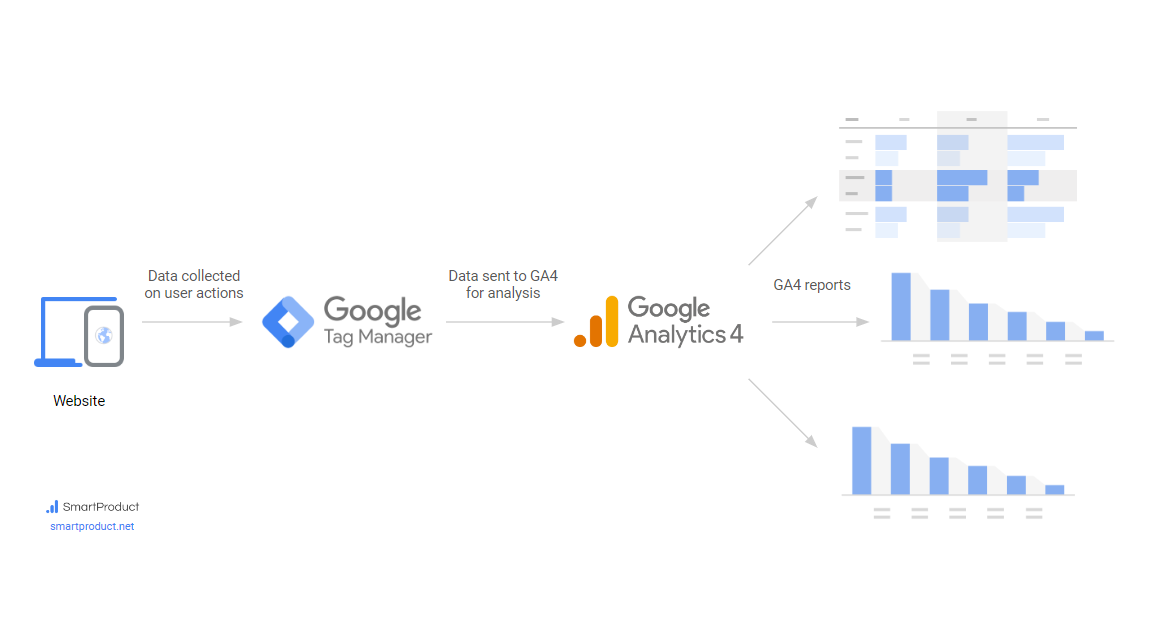
Every time a user takes any action (like visiting a page, clicking a link, or watching a video), GA4 captures that data as an “event”. These events are then processed, turning raw data into organised reports in your Google Analytics account. The reports reveal patterns in user behaviour, showing you how customers find you, where they get stuck, and what drives them to take action.
With GA4, you’re no longer in the dark – you can see exactly what’s working and where to focus your efforts for maximum impact.
Better privacy with Consent Mode V2
From March 1, 2023, Google has it mandatory for websites and apps that target EU residents to implement Consent Mode V2. Not doing so means you won’t be able to use the data of EU users in Google tools like Google Ads, GA4, etc.
With a proper Consent Mode V2 setup, users can easily grant or deny tracking permissions. If they consent, Google tools like GA4 and Google Ads can collect user data to personalise the user experience. Even if they deny, you can still collect anonymised data, ensuring you don’t lose valuable data.
Note: Implementing Consent Mode V2 requires technical expertise. The best way to do it is with a Google-certified Consent Management Platform (CMP) like iubenda or Cookiebot. Not sure if your GA4 is set up for privacy and maximum insights? Get a free privacy audit
How is GA4 different from Universal Analytics (UA)?
GA4 isn’t just an upgrade; it’s a complete overhaul. This means GA4 works in a different way and can do some things that UA (the old version) couldn’t.
For example, GA4 is better at tracking people across different devices. It’s also more flexible, so it can track specific things that are important for your business.
Important! On July 1, 2024, Google will delete all old Universal Analytics (UA) data. If you haven’t already, save your historical UA data before it’s gone forever.
Here’s how GA4 is different from UA:
| Universal Analytics (UA) | Google Analytics 4 (GA4) | |
|---|---|---|
| Cross-device tracking See the full picture | Limited | Tracks users across web and apps |
| Automatic data capture Crucial data points without delays | Manual setup needed | Tracks essentials out-of-the-box |
| Flexibility Track what matters to your business | Pre-defined format | Adapts to any business model |
| Custom reports Quick answers to any question | Lots of reports but limited insights | DIY funnels and deep-dives |
| Ecommerce tracking Measure and grow online sales | Complex setup, limited insights | Easier setup, actionable insights |
| AI insights Uncover hidden wins | Basic trend spotting | Predictions, anomalies, hidden trends |
| Privacy compliance Respect user choices, don’t lose data | Less adaptable | Consent tools, “cookieless” data |
| BigQuery export Keep data beyond 14 months, combine with other sources | GA 360 only (expensive, starts at $150k/year) | Daily or real-time BigQuery export (free tier, affordable paid plans) |
These GA4 features help you know your customers better, make smarter choices, and make more money.
Our favourite GA4 feature is the Funnel exploration. Together with automatic data collection, GA4 funnels have helped some of our customers boost their revenue by up to 121%.
Want to see how GA4 can boost your revenue? Get your free Google Analytics audit.
Why the basic GA4 setup isn’t enough
It’s important to know what GA4 can and can’t do out of the box, so you can set it up in a way that works best for you.
Google switched everyone over to GA4 in July 2023. While the default GA4 gives you a starting point, it won’t help your business reach its full growth potential.
Here’s why:
- Conversions are not tracked by default: The basic setup tracks general traffic, but it won’t track critical actions like purchases, leads, or signups.
- Pre-built reports are too basic: To uncover big wins for your unique business, it is crucial to set up custom reports (called “Explorations” in GA4).
- Not linked with other Google tools: GA4 needs to be linked with other Google tools like Google Ads, Search Console, CRM, etc. to assess and improve your marketing.
Here’s a quick look at what you get by default and what you’ll need to set up (either by yourself or with the help of an expert).
| Basic GA4 setup | Complete GA4 setup | |
|---|---|---|
| Basic GA4 property Basic analytics like website traffic |  | |
| Google Tag Manager setup Manage GA4 and other tags without code |  | |
| Pre-made reports Basic insights on visitors and usage | | |
| Pre-made report customisation For accurate data & simpler layout | | |
| Automatic events Track common user actions | | |
| Recommended & custom events Specific to your business | | |
| Explorations Custom reports for deep insights, answers to specific questions, funnels | | |
| Ecommerce tracking Measure online products sales | | |
| BigQuery export Keep data after 14 months, combine data with other sources | | |
| Data import from other sources Like social or CRM | | |
| Search Console & Ads integration See SEO & Google Ads data in GA | | |
| Email alerts Stay updated without logging in | | |
| Measurement plan Clear roadmap to track the right metrics | | |
| Training and support quick help when you need it | | |
| KPI dashboard Essential metrics from GA4 + other sources in one glance | | |
| Server-side tracking Keep more data, bypass blockers | | |
| Mobile app tracking Understand user behaviour on iOS & Android | | |
Important! In this business guide, we’re assuming your GA4 is already set up properly. If you’re unsure, check out our free step-by-step GA4 setup guide. Or just ask us and we’ll check it for you.
Next, we’ll look at a simple yet extremely effective way to use GA4 data to grow your business faster and more profitably.
3 steps for growing your business with Google Analytics 4 (GA4)
Every business is different. But successful ones have a secret weapon: data! They use data to understand their customers and make smart choices that boost customer experience, sales, and profit.
Here’s a simple 3-step process inspired by top tech companies that we’ve used to skyrocket growth for several small & mid-sized businesses:
- Know your most important numbers (goals and KPIs)
- Find those KPIs in Google Analytics 4 (GA4) to see how the business is doing
- Take action to boost the right KPIs
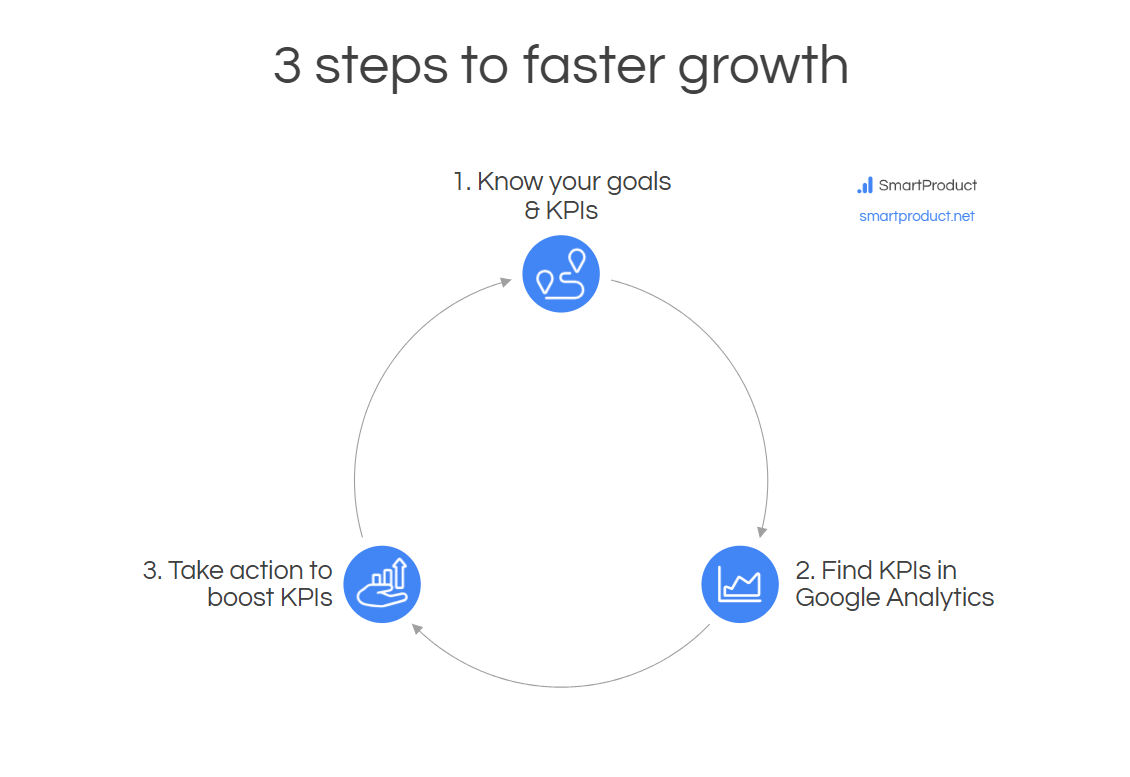
Whether you run an online store, sell subscriptions, work with businesses (B2B), or even have a law firm, this process can help you bring in more customers and increase sales and profit.
Ready to dive in? Let’s go!
1. Know your important numbers (goals & KPIs)
Want to make smarter choices that grow your business faster and more profitably? Start by setting clear goals, then track the right numbers to measure your progress. This is the key to data-driven decisions that get results.
Set clear goals
Start with the end in mind. Set clear goals for your business, so you know what you and your team are working towards. Here’s how:
1. Set a 3-year revenue target
It’s crucial that we take a moment to think about what success looks like.
Where do you want to be in 3 years in terms of revenue? Is it $1 million, $10 million, or more? Whatever your number is, there needs to be a number so you can work towards it.

Why 3 years? It’s a long enough timeframe to aim for big wins, but short enough to stay focused. For example, if you’re making $3M now, aiming for $10M in 3 years means growing at 50% (or 1.5X) each year. However, if you’re making $370K now, achieving $10M in 3 years means growing by 3X each year.
The 3-year goal can be made more actionable by breaking it down into yearly, monthly, and weekly milestones.
2. Set a bigger goal beyond money
Money’s great, but it should be the by-product of a big vision that keeps you going. A strong vision also attracts talent and helps customers connect with your brand, getting you ahead of competition.

For us, it’s about helping businesses achieve big goals with data and AI. One of our customers wants to make production greener through 3D printing. Another is helping older women with health needs. What’s your vision?
3. Make your goals SMART
To increase the chances of achieving your goals, make them SMART: Specific, Measurable, Achievable, Relevant, and Time-bound.

For example, instead of “increase sales,” say “increase sales of Product X by 15% in the next quarter by launching a search ad campaign.”
Action time!
- Write down your 3-year revenue goal and break it down into yearly milestones.
- Describe your big vision in one sentence without jargon.
Break down goals into KPIs
Goals are big numbers. Key Performance Indicators (KPIs) are smaller numbers that show if you’re on the right track to reach your goals. Here’s how to identify your most important KPIs.
1. Know the 7 essential business KPIs
Most businesses can track their health with these 7 KPIs:

- Visitors: How many people visit your site or app?
- Acquisition: How many show interest?
- Activation: How many complete an important task?
- Revenue: How many make a purchase?
- Retention: How many return to buy again?
- Referral: How many tell others about you?
- Profit: How much money do you keep after costs?
2. Match KPIs to your business
Businesses might use different names for these KPIs. For example:
- Ecommerce store: Visitors view a product (Acquisition) > Add item to cart (Activation) > Buy something (Revenue) > Buy again (Retention) > Write a review (Referral)
- B2B or professional services website: Visitors fill out a lead form (Acquisition) > Attend a sales call or demo (Activation) > Buy a product or service (Revenue) > Buy another product or service (Retention) > Write a review or provide a testimonial (Referral)
- SaaS/subscription app: Visitors sign up for a trial (Acquisition) > Complete onboarding (Activation) > Upgrade to a paid plan (Revenue) > Renew their plan (Retention) > Write a review or share on social (Referral)
- Marketplace site or app: Customers (who buy things) visit the site > View a product (Acquisition) > Buy something (Revenue). On the other side, Partners (who supply things) visit a different part of the site > Sign up via a form (Acquisition) > Publish a product or provide a service (Activation) > Pay commission when customers buy (Revenue).
Map your customer journey
A customer journey (also called “user journey) is a sequence of steps your customers (or “users”) take while interacting with your business. This helps you pinpoint the right KPIs to track.
Ask yourself these questions
- What steps do people take on your website or app before and after becoming customers?
- What pages or screens do they see?
- What emails do they receive?
- Do some parts of your journey happen offline (like visiting a store or receiving a product in the mail)?

Customer journey examples
- Purely online (like SaaS apps): Everything happens online.
- Online + offline (like ecommerce websites): Find online, buy online, receive offline, write a review online.
- Web + mobile (like car-sharing apps): Find online, use on mobile, get support on phone, go back online to write a review.
- Multiple customer types (like marketplaces): Different journeys for individuals and businesses.
Think about the steps your customers take from the first time they hear about you to when they become repeat customers and tell others.
Action time!
- List your top 3-5 KPIs. Don’t worry about getting it perfect yet.
- Sketch your customer journey. Think about the steps your customers take from awareness to purchase and beyond.
Turn KPIs into actionable metrics
You’ve defined your goals and KPIs to track your progress. Now, turn those KPIs into real metrics you measure and change in a data tool like Google Analytics 4 (GA4). To do this, we’ll use a nifty little tool called a “Goal Tree”.
1. Use a Goal Tree
Build a goal tree to break down big KPIs into the smaller, actionable metrics you’ll track directly in GA4. Start with your main goal (Revenue, Profit, etc.) and drill down until you see the levers you can change.
Example: Ecommerce goal tree
Imagine your online store’s monthly revenue is $370k and your goal is to double it within 6 months. How would you go about doing that?
You can’t touch change revenue directly, so the first step is to break it down into 3 KPIs.
Revenue = Customers x Purchase frequency x Average spend
A goal tree is an easy way to visualise how this works.

“Customers” is the number people who bought, and this can be further broken down into “Traffic” (people who visited your website or app) and “Conversion” (% of visitors who bought).
“Traffic” consists of visitors from search, social, email, etc. Break down traffic source further into organic and paid.
Likewise, split “Conversion rate” into conversion rates of smaller steps users take (like viewing an item or adding it to cart) towards the bigger conversion (like a purchase).
“Repurchase rate” (also called “Repeat purchase rate”) is the average orders per customer. For example, if in [current_date format=”M”], your web shop received 1,200 orders from 1,000 customers, then your Repurchase rate for [current_date format=”M”] is 1,200 / 1,000 = 1.2. This can be further broken down into % of repeat buyers and orders made by each repeat buyer.
Average Order Value (or AOV, also called “basket size”) is the average amount spent per order. For example, if in [current_date format=”M”], your ecommerce shop generated $370k from 3,700 orders, then your AOV is $370k / 3,700 = $100. This can be further broken down by the price of each item and quantity bought.
Now, it’s possible to take action. For example, better SEO and Google Ads campaigns would attract more visitors, which increases traffic, which increases revenue.
Example: SaaS goal tree
Goal trees vary by the type of business. If you’re selling a web or mobile app through subscriptions (also called Software-as-a-Service or “SaaS”), you’re after a special type of revenue called Net Recurring Revenue (NRR).
Here’s how you would break down NRR into components:

Again, we’re breaking down goals into higher-level KPIs, and then into lower-level metrics that we can directly influence. For example, we could increase Visitors through email marketing, or improve Conversion by optimising the free trial form, and both would result in higher revenue.
Example: Goal tree for a B2B lead gen website
Let’s take a look at one more example, this time for a very popular type of website. If you’re a business that sells to other businesses (B2B), then you likely have a Sales team that relies on the Marketing team to generate a good number of high-quality leads that they then convert into paying customers.
Here’s how one would calculate Revenue for a B2B business:
Revenue = Visitors x Conversion rate x Purchase frequency x Average deal size
The goal tree would look like this:

Here, Conversion rate could be further split into Visitor-to-lead conversion rate (usually after visitors submit a lead form) and Lead-to-customer conversion rate (after they actually purchase something).
Customise for your business
Adapt the goal tree to fit your business model. Here’s how different businesses might do their goal trees.
For example, a B2B site turns visitors into leads for the Sales team. Therefore, Revenue = Visitors x Lead conversion rate x Customer conversion rate x Average deal size.
Likewise, a SaaS app gets visitors to sign up for a trial, then upgrade to a paid subscription. So the KPIs are Growth (measured by “Net New Revenue”) and Profitability (measured by the “Customer Lifetime Value / Customer Acquisition Cost” ratio).
The goal tree approach is simple yet powerful, because it helps you prioritise actions that achieve goals and avoid actions that don’t.
Action time!
- Create a basic goal tree for your business. Don’t worry about perfection yet, just map out the main steps. Start with Revenue (or Profit), and drill down to smaller metrics.
- For each number, write down its current value if you know it. If you don’t know it, just leave it blank. We’ll show you how to find the current value shortly!
2. Analyse traffic and conversions
Traffic and conversion drive your key metrics. GA4 reveals the specific actions you can take to improve them.
How to analyse traffic
In GA4, you can see where visitors come from, like search, social, email, etc.
For example, say you’re getting 30k monthly visitors. Of those, 40% may come from search (like Google Ads and organic search), 30% from social (like LinkedIn or Instagram), and 10% from email (like newsletters).
GA4 also shows you which channels bring in customers who spend the most. Focus your efforts on those winners to boost overall traffic and revenue.
How to analyse conversions
Map out each step users take towards a conversion and see where people drop off.
For example, ecommerce store users view an item, add it to cart, and complete checkout on way to buying an item. GA4 reveals if how many people are taking (or not taking) those steps.
If only 3% of your web shop visitors are buying, this could be because 25% of visitors view an item, of whom 30% add to cart, of whom 40% complete checkout (because 25% x 30% x 40% = 3%). Improving the add-to-cart or checkout experience would boost your revenue by a lot.
You can use a goal tree to visualise these steps and track them in a GA4 funnel report. This technique is used by fast growing tech companies and is likely to deliver results for your business too.
Action time!
- List your traffic sources (all the ways people find you).
- Map your conversion steps. Keep it simple; sketch out the typical path to a conversion.
3. Use the power of small changes
Small tweaks can lead to big growth.
For example, say an online store making $1 million per year wants to double its revenue within 12 months. With GA4, they find they’re getting 30k visitors per month. 900 of them buy, spending $85 each time.
They could try doubling visitors (expensive) or doubling prices (might lose too many customers). But there’s a smarter way…
The power of 19
If you remember, Revenue = Traffic x Conversion rate x Purchase frequency x Average Order Value (AOV).
[Visual: Diagram showing how boosting 4 KPI by 19% doubles revenue]
Therefore, boosting Traffic, Conversion, Frequency, and AOV by just 19% each doubles their Revenue (because 1.19 x 1.19 x 1.19 x 1.19 = 2). This grows Profit too, as they’re not solely relying on expensive new customers.
The power of 26
Want an even bigger Profit boost? Focus on Conversion, Frequency, and AOV.
[Visual: Diagram showing how boosting 3 KPI by 26% doubles revenue]
Increasing those by 26% each also doubles revenue (because 1.26 x 1.26 x 1.26 = 2). You make more from existing customers, maximising your ROI.
Keeping it real: Some metrics are harder to change than others. If increasing Purchase Frequency by 26% feels unrealistic, you can still achieve the same result with a lower Frequency (like 20%), but a higher conversion and AOV (like 30% each).
Action time!
- What ONE small change can you make today to improve a key metrics?
- Will the improvement impact a high-level goal like Revenue or Profit? If yes, by how much?
Now that you know your goals and KPIs, let’s find the current values of your KPIs in GA4, so you know how your business is currently doing.
2. Find your KPIs in Google Analytics 4
In Step 1, we broke down your big goals into trackable metrics called Key Performance Indicators (KPIs).
Now, let’s locate these crucial metrics within Google Analytics 4 (GA4). By tracking these KPIs, you’ll be able to see what’s working and where to focus your efforts.
Important! This guide assumes your GA4 is set up to track these KPIs. If you’re unsure, check out this GA4 setup guide or apply for a free GA4 audit.
Understanding the GA4 layout
Google Analytics 4 (GA4) has a new interface. Here’s a quick breakdown to help you find what you need.
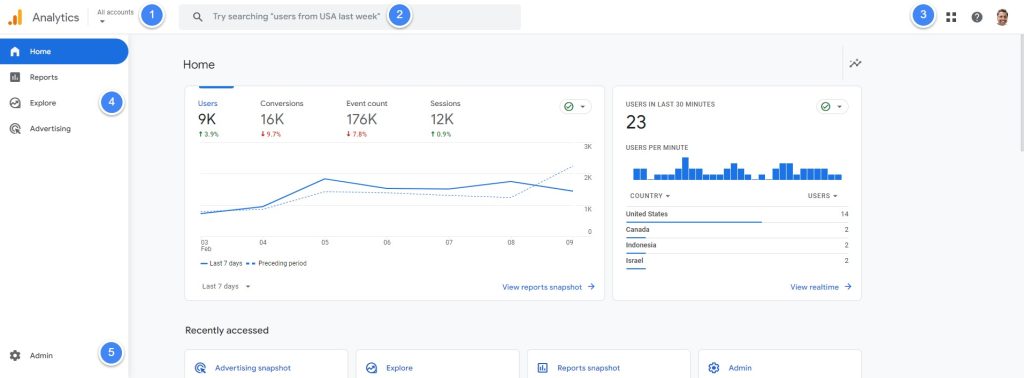
When you login to your Google Analytics account, the first thing you’ll see is the Home screen with the below areas:
- Account and Property selector: Make sure you’re looking at the right business (Account) and website or app (Property).
- Search bar: Know what you’re looking for? Type the report or setting name and go straight into it.
- Product selector: Quickly open other Google tools, like Google Tag Manager or Search Console.
- Left navigation: This is how you move around GA4. It has 4 main areas:
- Home: Get a snapshot of your key metrics.
- Reports: View pre-built reports with essential data about your visitors and their actions.
- Explorations: Create custom reports for in-depth analysis.
- Advertising: See how your ads are performing.
- Admin settings: Click the gear icon at the bottom-left of the screen to customise your GA4 setup.
Once you understand this layout, you can easily find the reports and data you need to make better decisions.
Reports in GA4
GA4 “Reports” show pre-built insights into how your website or app is performing.
Use them for quick answers to questions like:
- Are my marketing campaigns working?
- What content do people love?
- Where are we losing potential customers?
Let’s see how GA4 reports are organised, so you can quickly find the info you need.
How GA4 reports are organised
GA4 reports are grouped into “collections” and “topics”. Click on “Reports” in the left menu to see these.
Collections
Broad categories of reports, like “Business objectives” and “Life cycle”.
Topics
Within each collection, reports are grouped by purpose. For example, reports in the “Business objectives” collection are grouped into 4 topics: “Generate leads”, “Drive online sales”, “Raise brand awareness”, and “Examine user behaviour”.
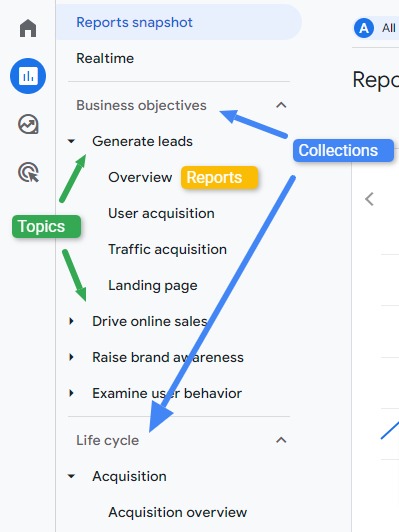
Each topic has 2 types of reports:
- “Overview” reports: Cards with key stats
- “Detail” reports: Show charts and tables that can be filtered and sorted.
GA4 Reports Library
The Reports Library is a little known yet very useful feature that lets you choose collections, topics, and reports to show on your Report menu.
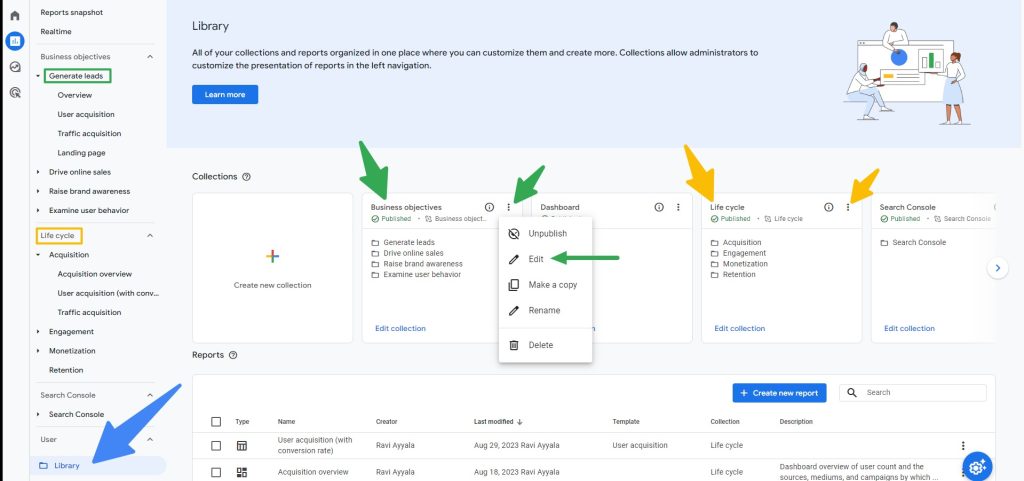
For example, if you can’t see the “Business objectives” collection and want to see it, simply publish it here. Likewise, if you no longer want to see the “Life cycle” collection, then unpublish it here.
Pro tip! If you want to customise a report but don’t want to change the original, you can duplicate the report here and work with that.
Let’s go through the reports and collections one by one, so you’re familiar with them.
Reports snapshot
The GA4 Reports snapshot is a high-level overview of other reports, and not part of a collection.

Pro tip 1: GA4 lacks a “Dashboards” feature. But the Report snapshot can be turned into a dashboard. Click the pencil icon to add or rearrange “cards” to see your key metrics in one place and share them with others.
Pro tip 2: Reports snapshot can only show info from GA4 and linked tools (like Google Ads). To get a holistic view, use a KPI dashboard tool (like Looker Studio) to bring together data from different tools (like GA4, G Ads, social media, CRM, spreadsheets, etc.) We’ll cover this later in the guide.
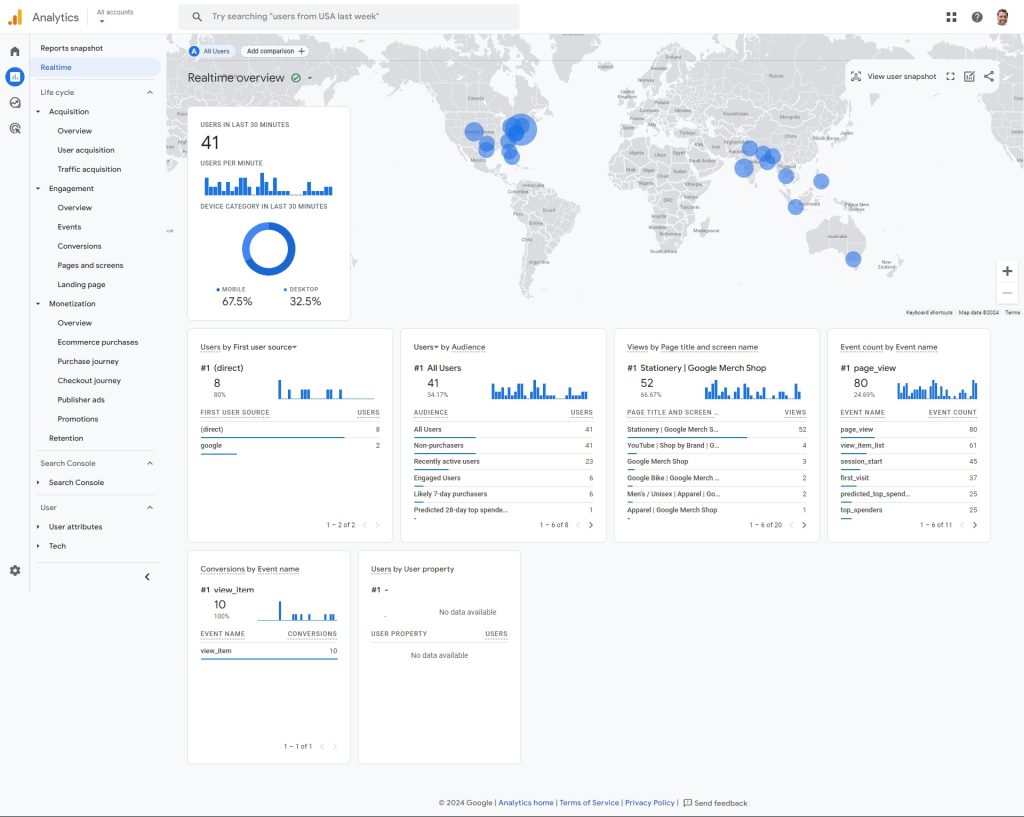
Realtime report
The GA4 Realtime report shows who’s on the site right now, and is not part of a collection. It’s great for testing your GA4 setup, or if a new marketing campaign is driving traffic.
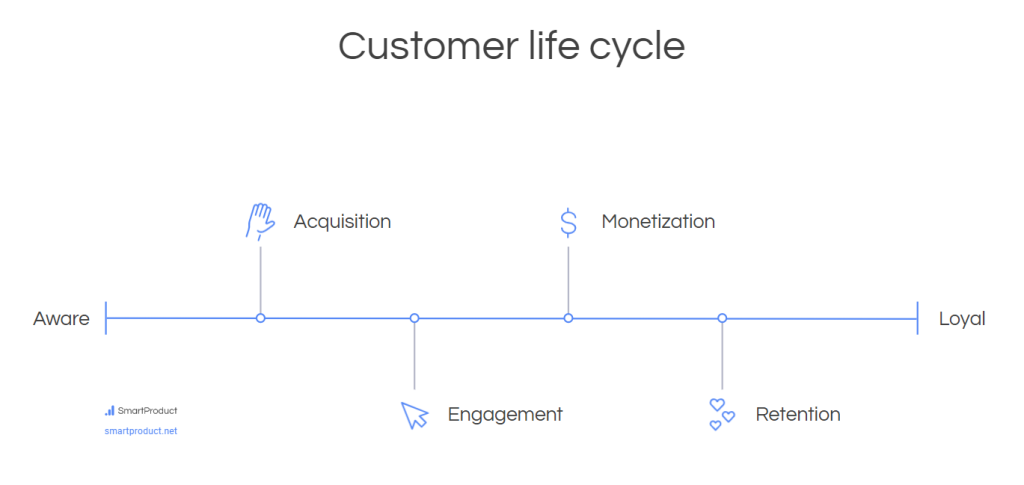
Life cycle collection
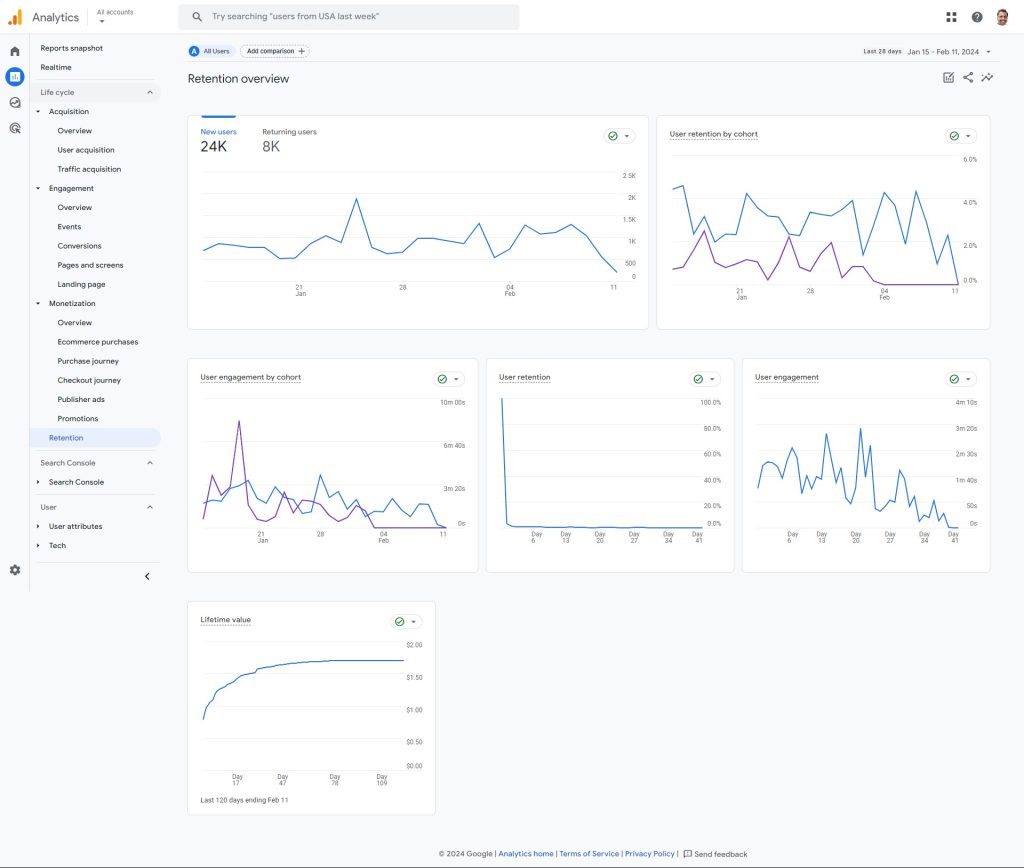
This collection tracks users from first interaction to purchase and (hopefully!) loyalty. It includes several useful reports organised into 4 topics: Acquisition, Engagement, Monetization, and Retention.
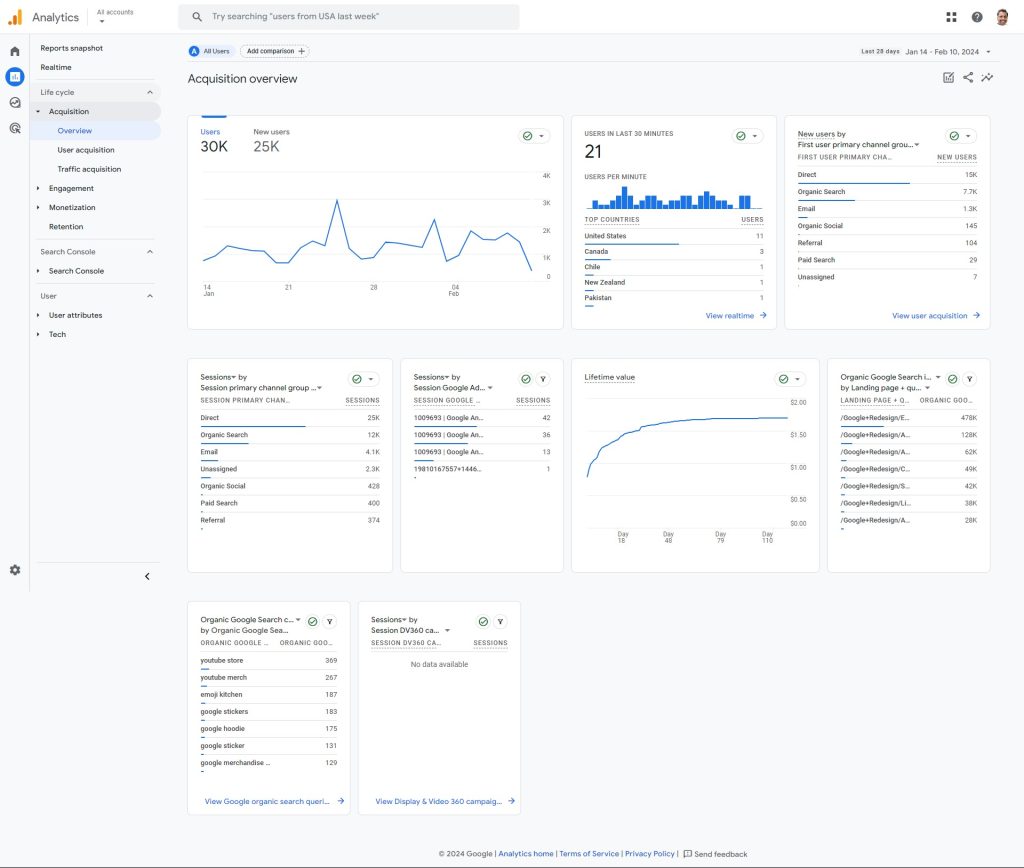
Acquisition
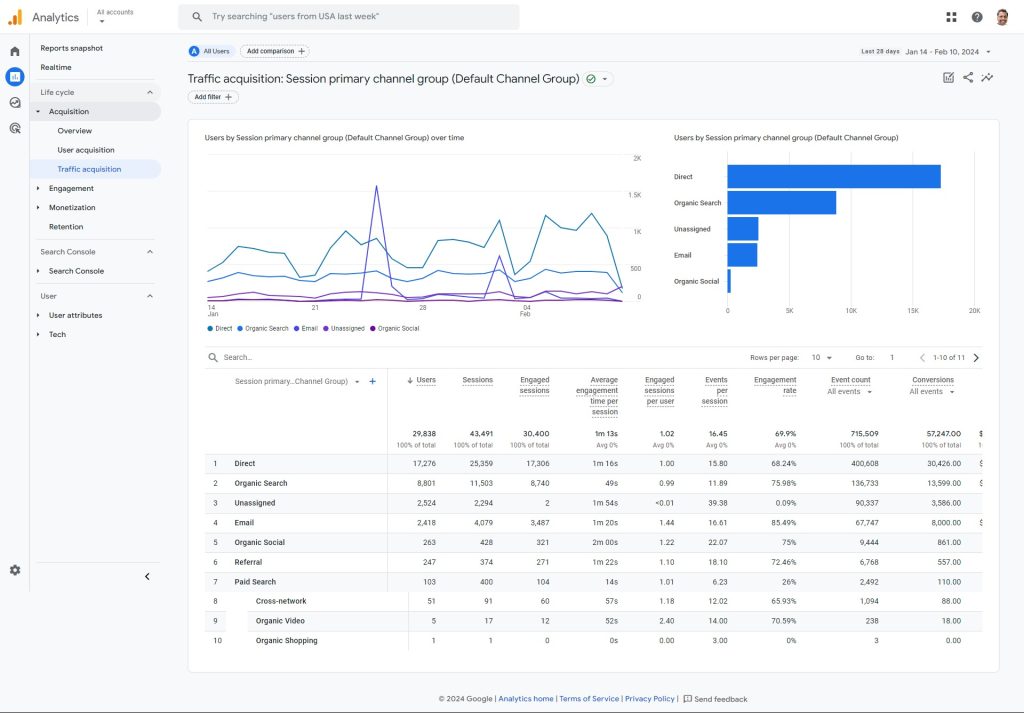
Understand where your visitors come from. Reports include:
A snapshot of your traffic sources
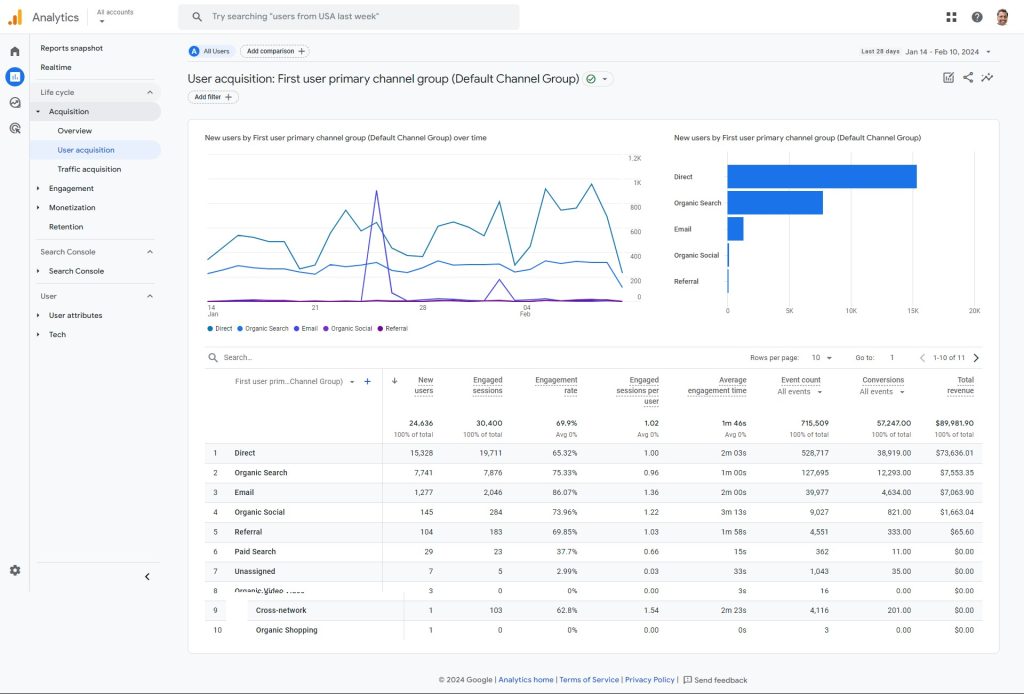
How new visitors discover your website or app. For example, see if your social media ads are bringing in the right audience.
Where traffic comes from, split by new vs returning users. For example, spot if an email campaign boosted return visitors
Engagement
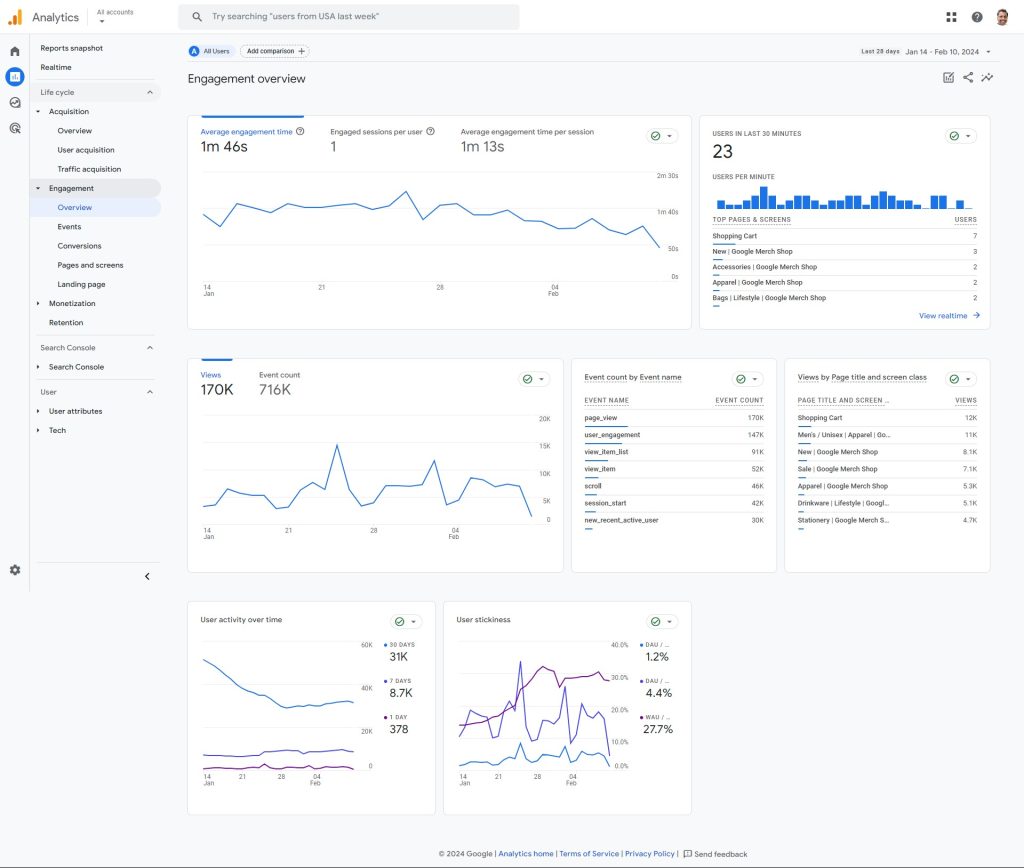
Dive into how users interact with your site. Key reports include:
Summary of engagement metrics.
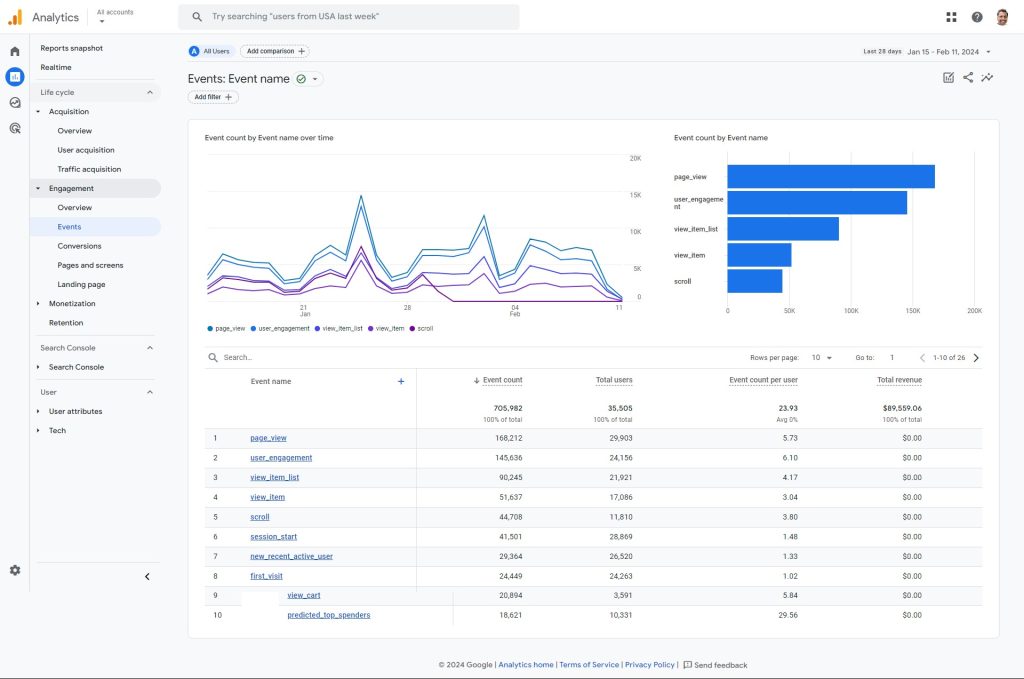
Track specific actions users take, like page views, button clicks, form fills, video views, etc. For example, see if users watch your demo videos.
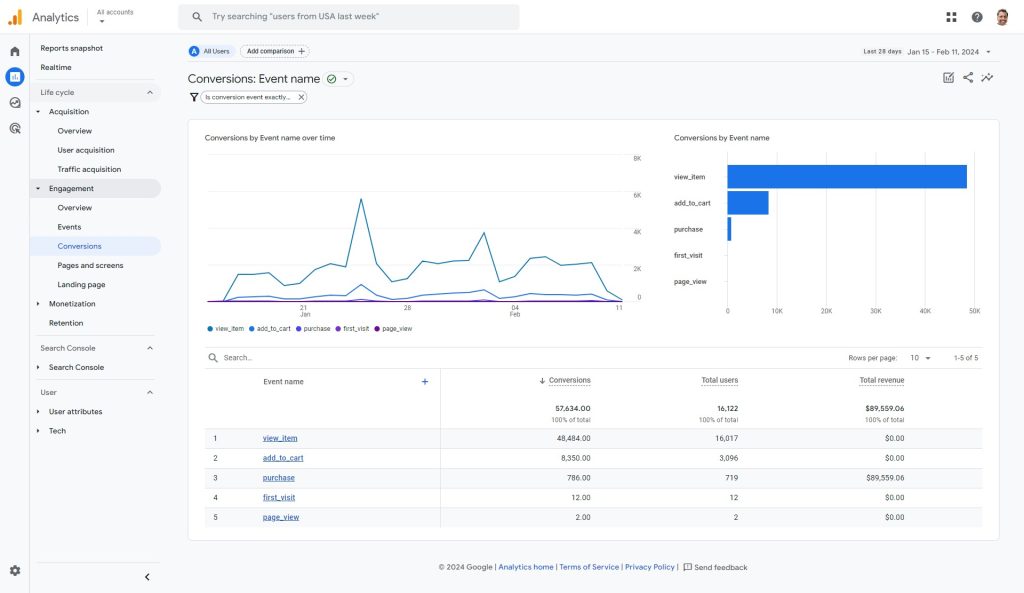
Mark actions that are crucial to your business, like purchases and sign-ups. For example, if your newsletter sign-up conversion rate is low, tweak the form or offer.
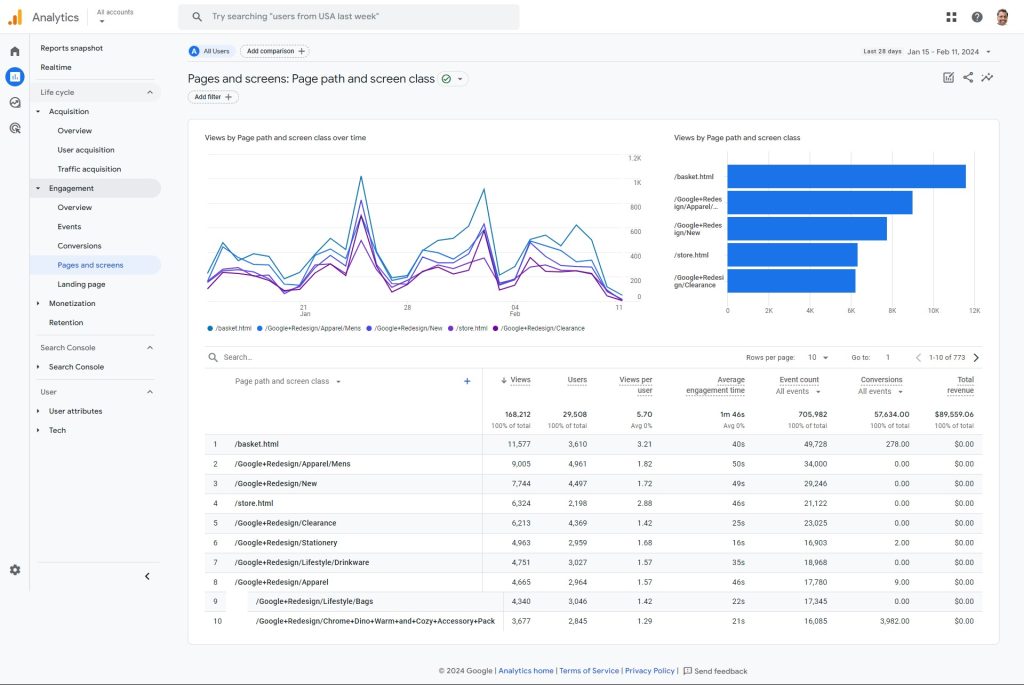
See your most popular content, so you can optimise it, promote it, and repurpose it for other channels. Good content drives sales and marketing results, so if you’re serious about growing your business, you’ll want to use this report a lot.
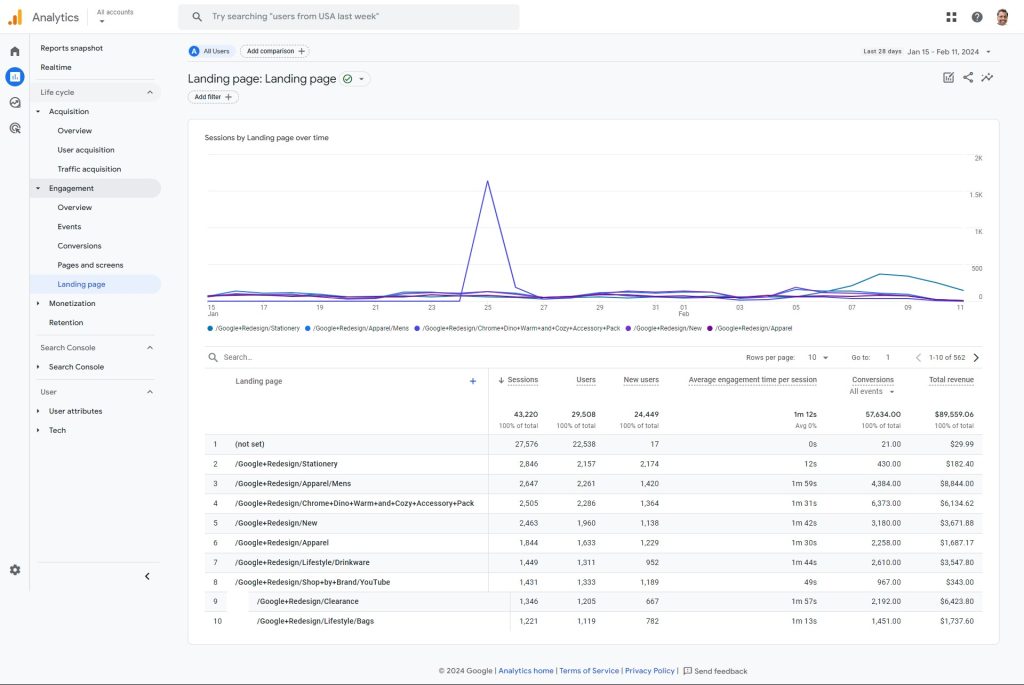
See which pages people enter your site through. For example, if ad traffic lands on a product page but bounces off, you’ll want to improve that page asap.
Monetization
Understand your revenue sources. Reports include:
Summary of revenue metrics.
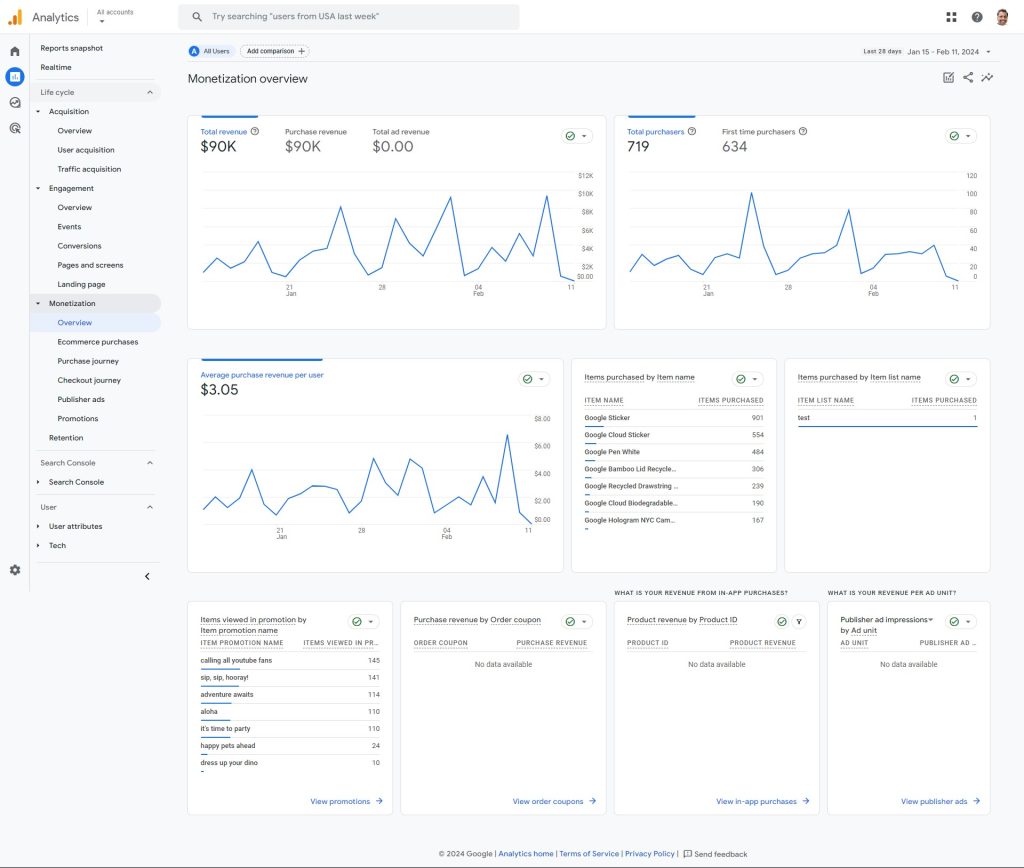
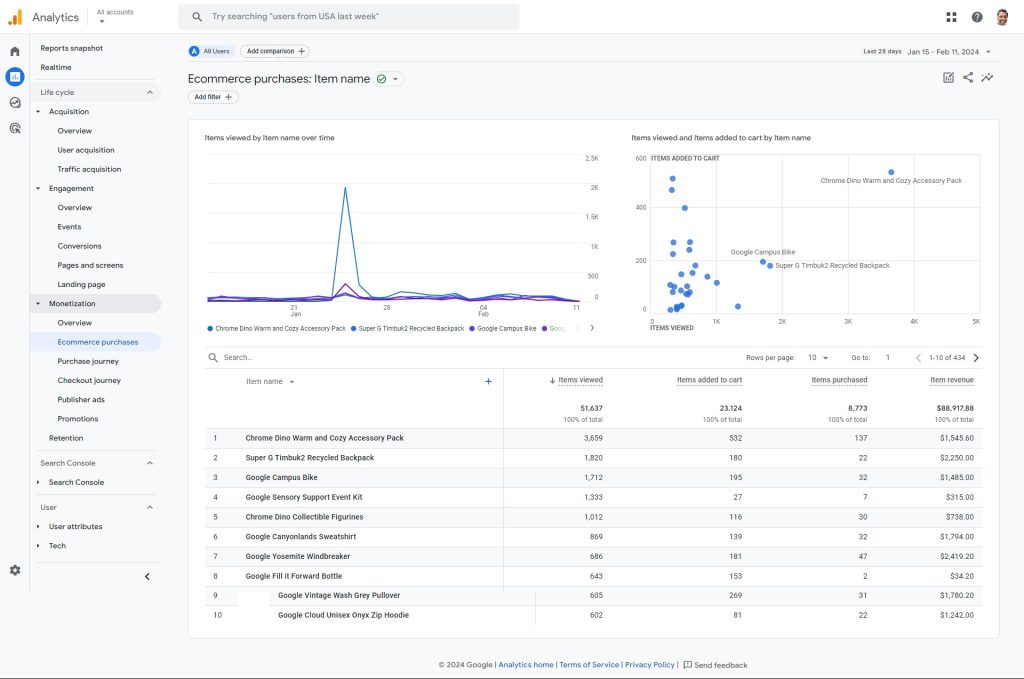
Track sales performance. See your like revenue, best-selling products, and seasonal trends.
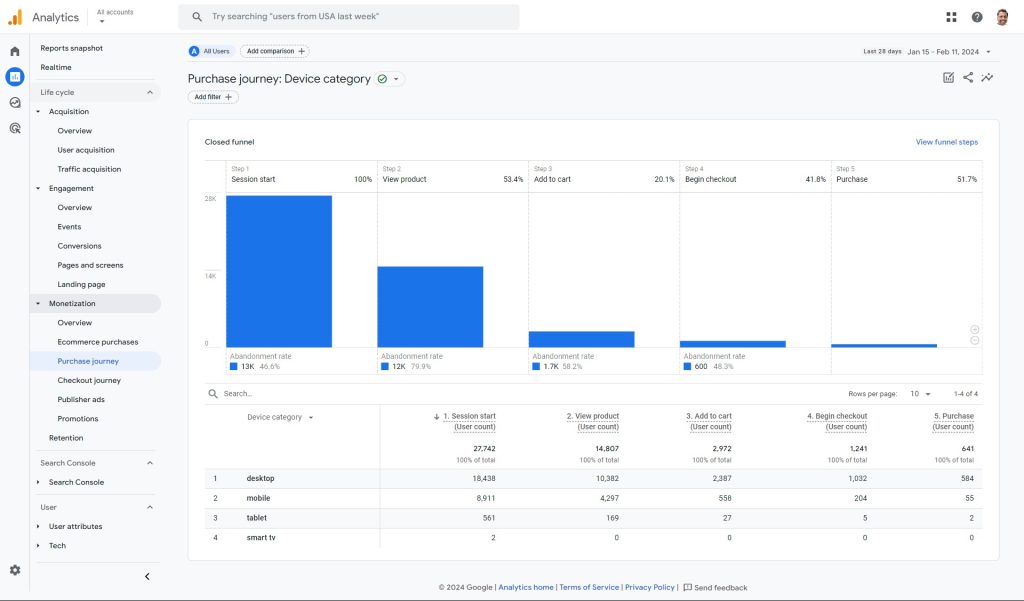
Visualise the steps customers take from first interaction to purchase. Identify where people drop off, so you can fix those issues.
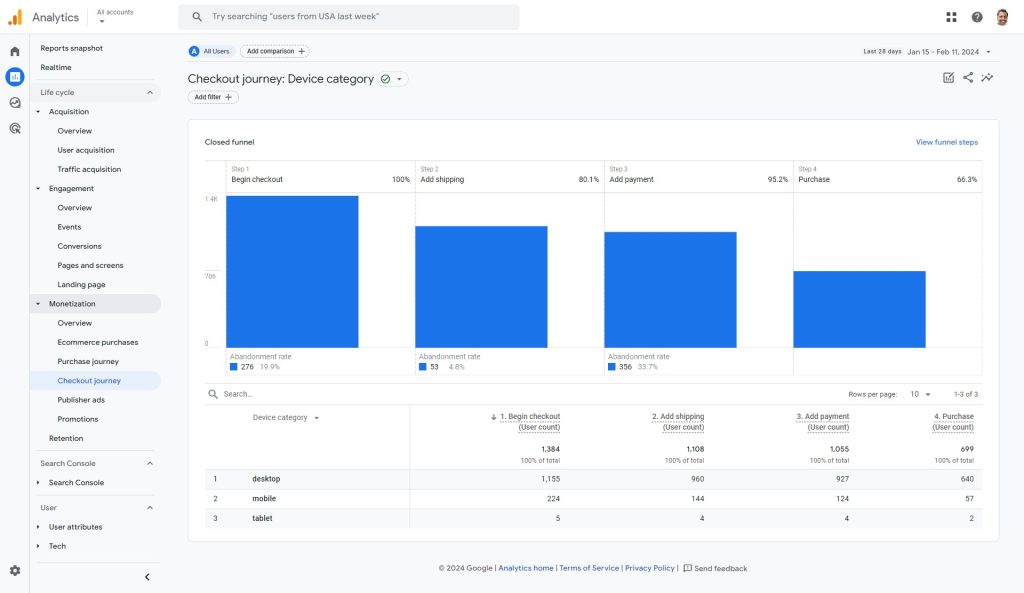
Visualise the steps customers take just before buying. These are valuable users who decided to buy from you but couldn’t. Find and fix any issues asap.
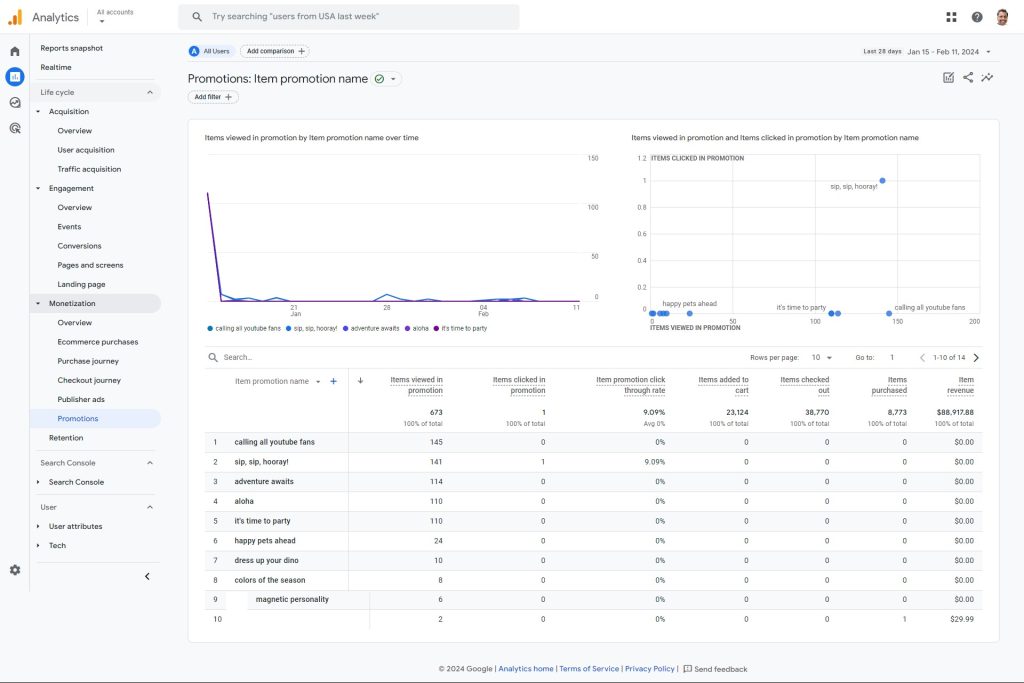
Understand how well your promotions are working. See how many users viewed a promotion, clicked on it, and eventually made a purchase. Or compare the results of a discount code vs a free shipping offer.
Measure the performance of your iOS and/or Android mobile app. This report is built around the special “in_app_purchase” event, which sends data to the Apple App Store or Google Play Store.
[Visual: Screenshot of in-app purchases report]
Revenue from ads on your site.
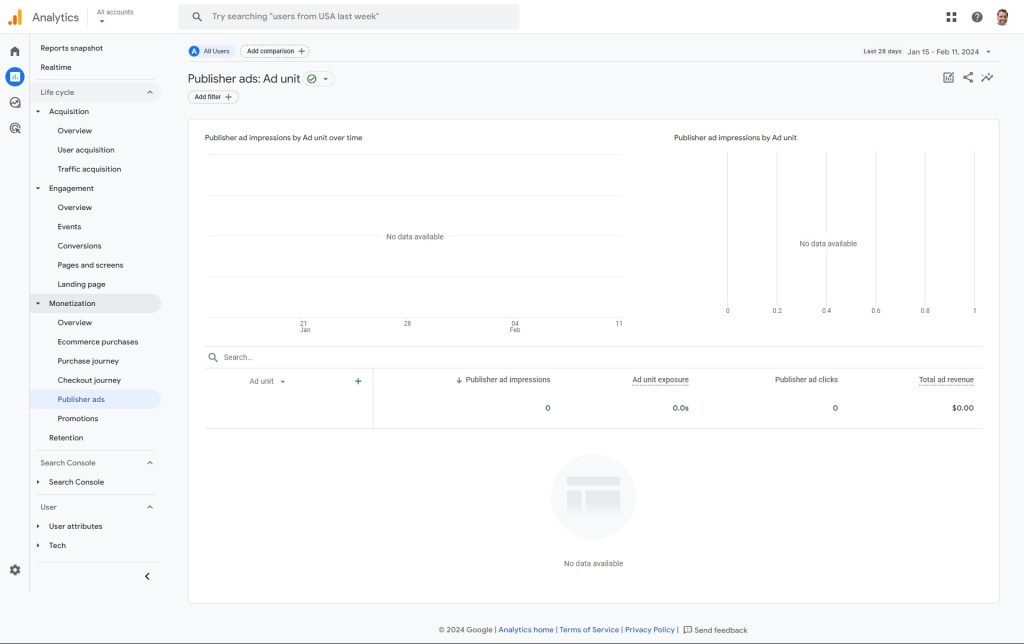
Retention
See how often users return after their first visit.
Business objectives collection
The “Business Objectives” collection is designed to align with your business goals. It replaces the standard “Life cycle” collection in GA4 when you provide specific details about your business during initial setup.
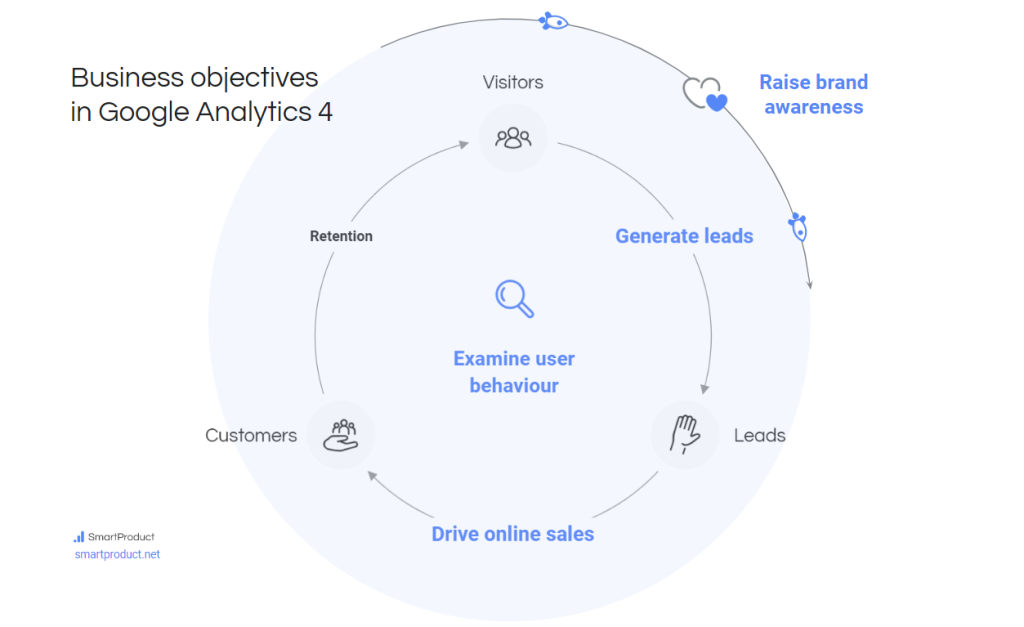
The “Business objectives” collection can be enabled in 2 ways:
- During setup: GA4 will ask which reports you want to see. Choose business objectives to see the “Business objectives” collection. Choose “Baseline reports” to see the “Life cycle” collection.
- Report Library: If you didn’t add it during setup, you can find the “Business objectives” collection in the Reports Library. To add it to your Reports menu, go to Reports > Report Library (requires Editor or Admin role) > 3 dots > Publish.
“Business objectives” includes roughly the same reports as “Life cycle”, but organised differently into 4 topics: Generate leads, Drive online sales, Raise brand awareness, and Examine user behaviour.
Generate leads
Understand how potential customers find your site and take the first steps. This topic includes the below reports:
Provides a summary of lead generation performance and key metrics.
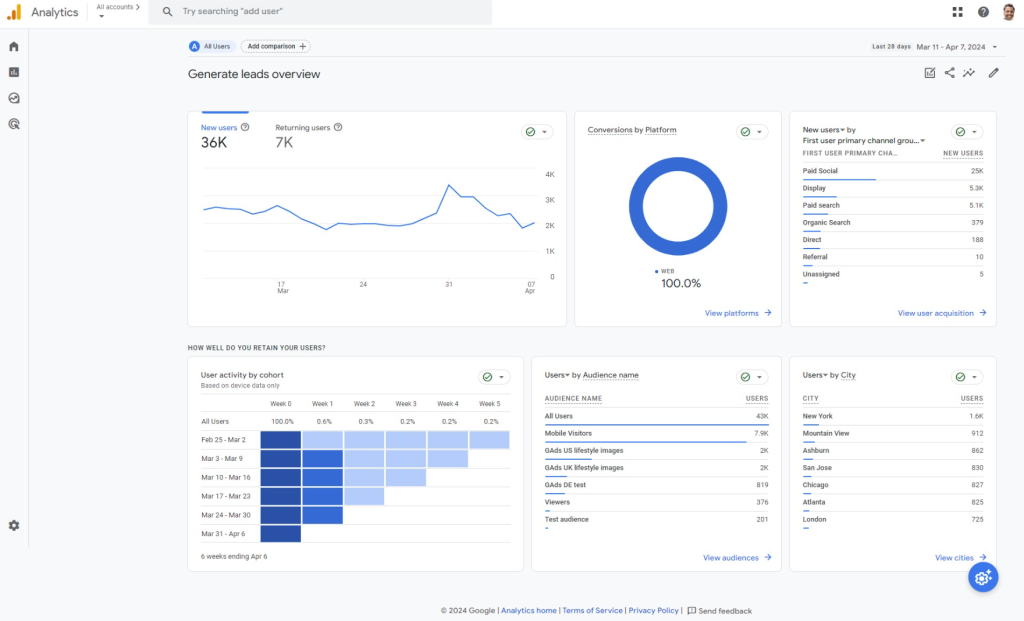
Segments your potential leads based on demographics, behaviour, and other characteristics.
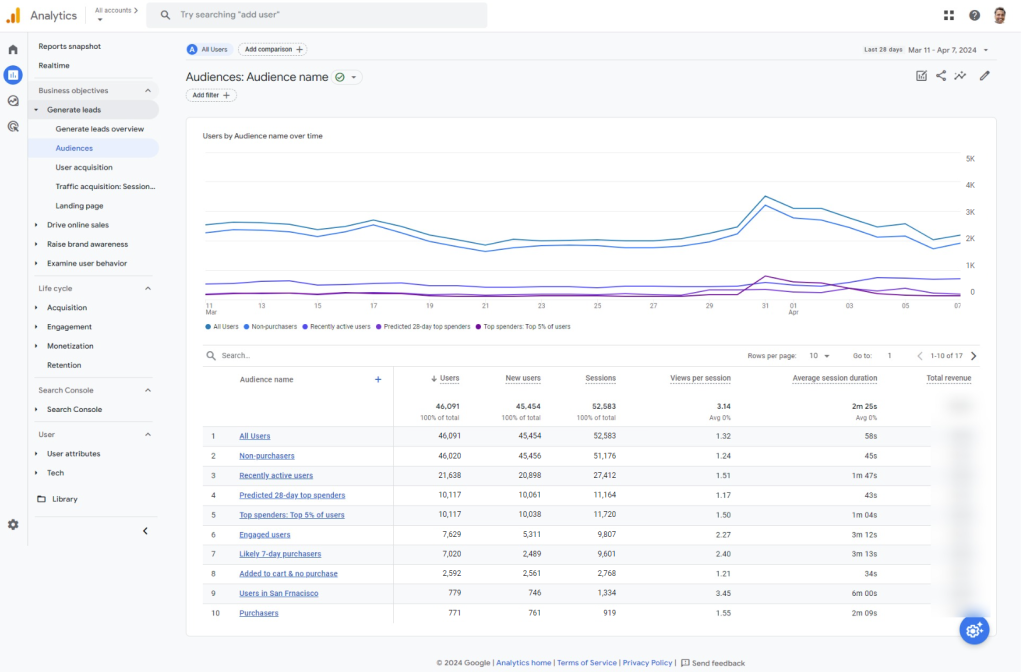
Shows how you’re acquiring potential leads through various channels.
Details the sources driving traffic to your lead generation pages.
Analyses performance of specific landing pages used for lead capture.
Drive online sales
Turn visitors into customers! Reports include:
Gives a high-level picture of e-commerce sales and key metrics.
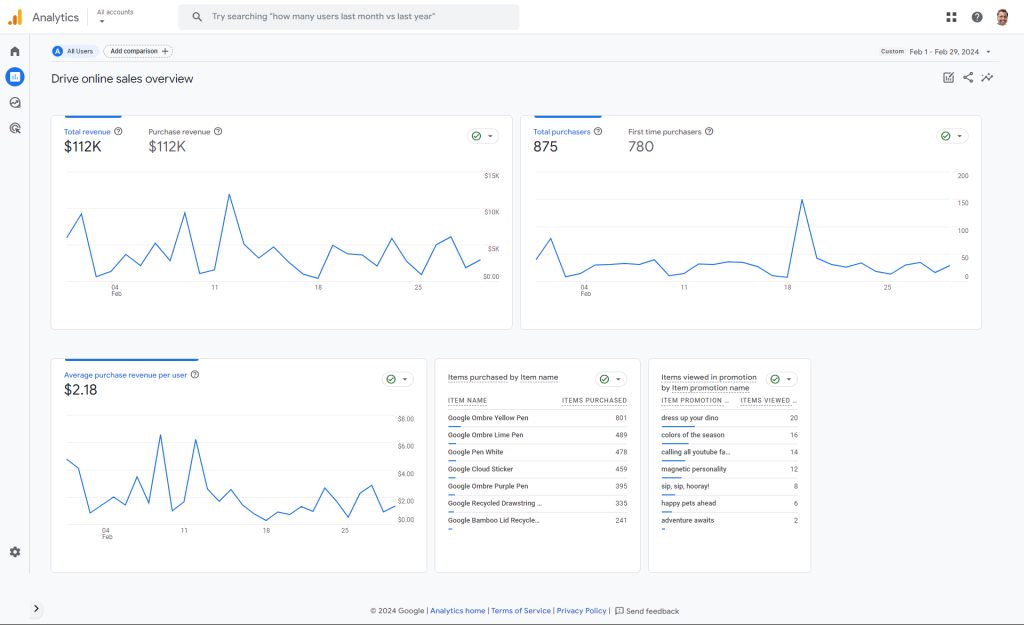
Breaks down purchase behaviour, product performance, and transaction details.
Evaluates the effectiveness of promotional offers and discounts.
Visualizes the steps users take before completing a purchase.
Analyzes the checkout process, identifying potential friction points.
Raise brand awareness
Learn about your audience. Reports include:
Summarizes metrics related to visibility and brand recognition.
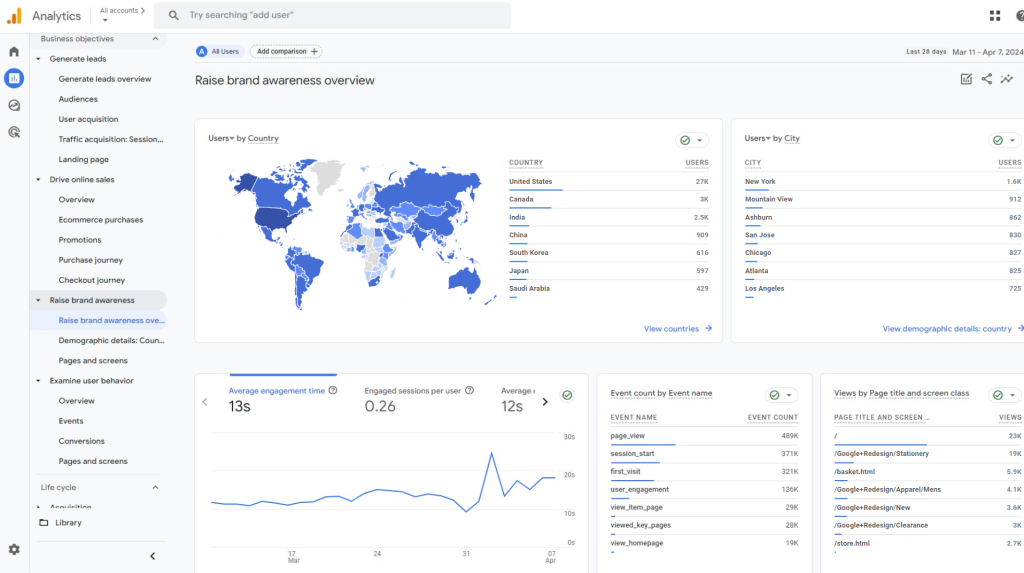
Provides insights about your audience’s demographics (age, gender, location, etc.)
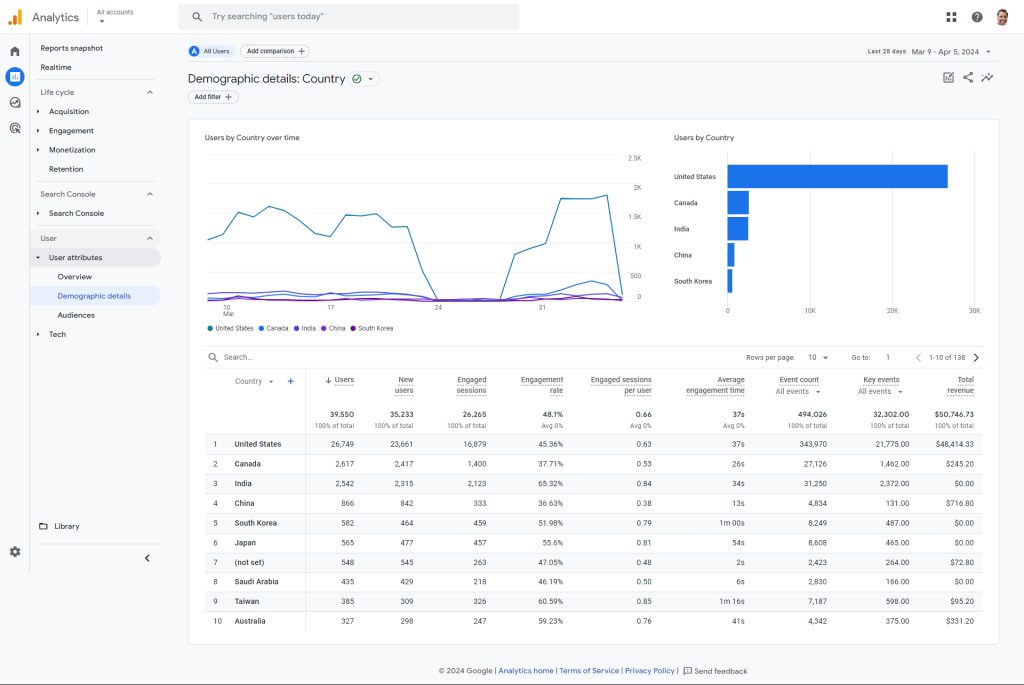
Provides insights about your audience’s demographics (age, gender, location, etc.)
Examine user behaviour
See what people do on your website or app with reports like:
Offers an overall look at how users engage with your site or app.
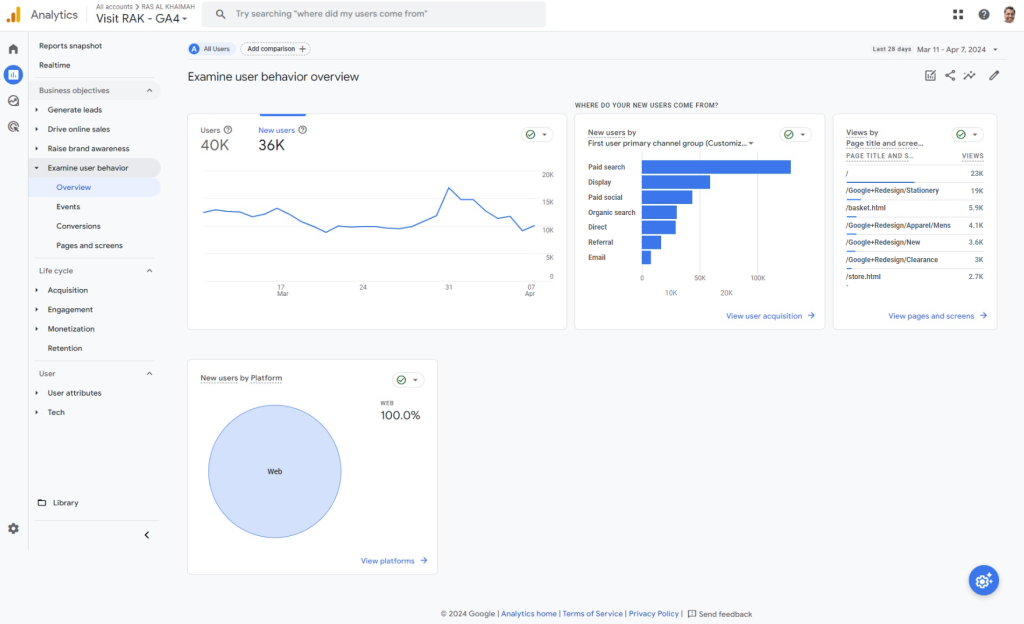
Tracks specific user actions and interactions.
Tracks and analyses the most important user actions on your website or app, like purchases.
Details which pages are viewed most frequently and for how long.
User collection
Learn about visitor demographics, tech, and more. This collection contains 2 topics: User attributes and Tech.
User attributes
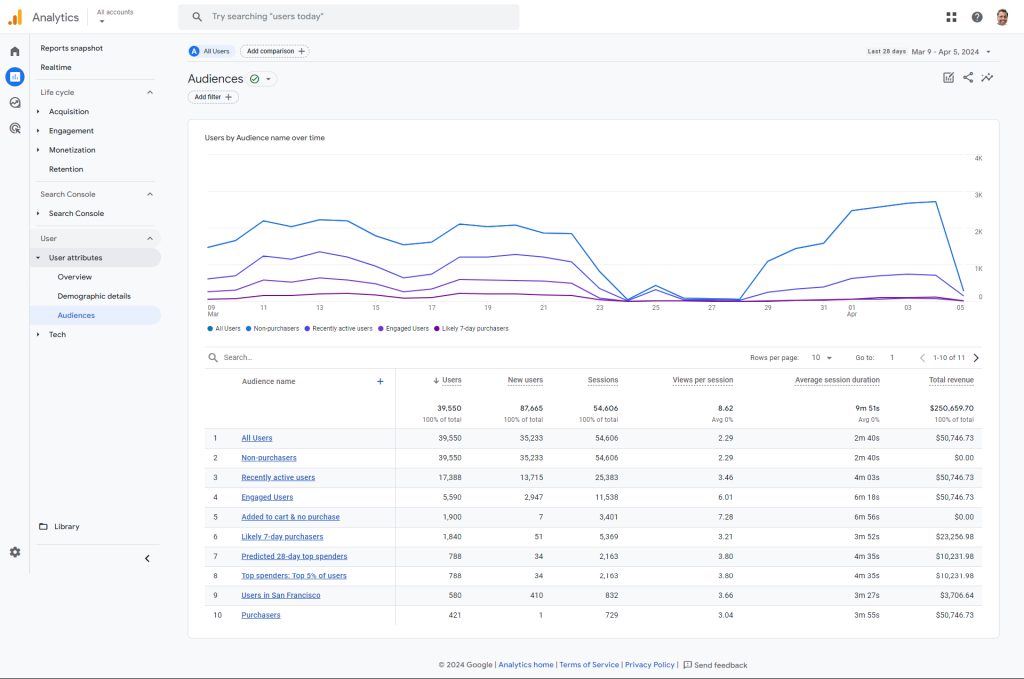
Learn about your visitors and audiences.
Summary of demographics and audiences.
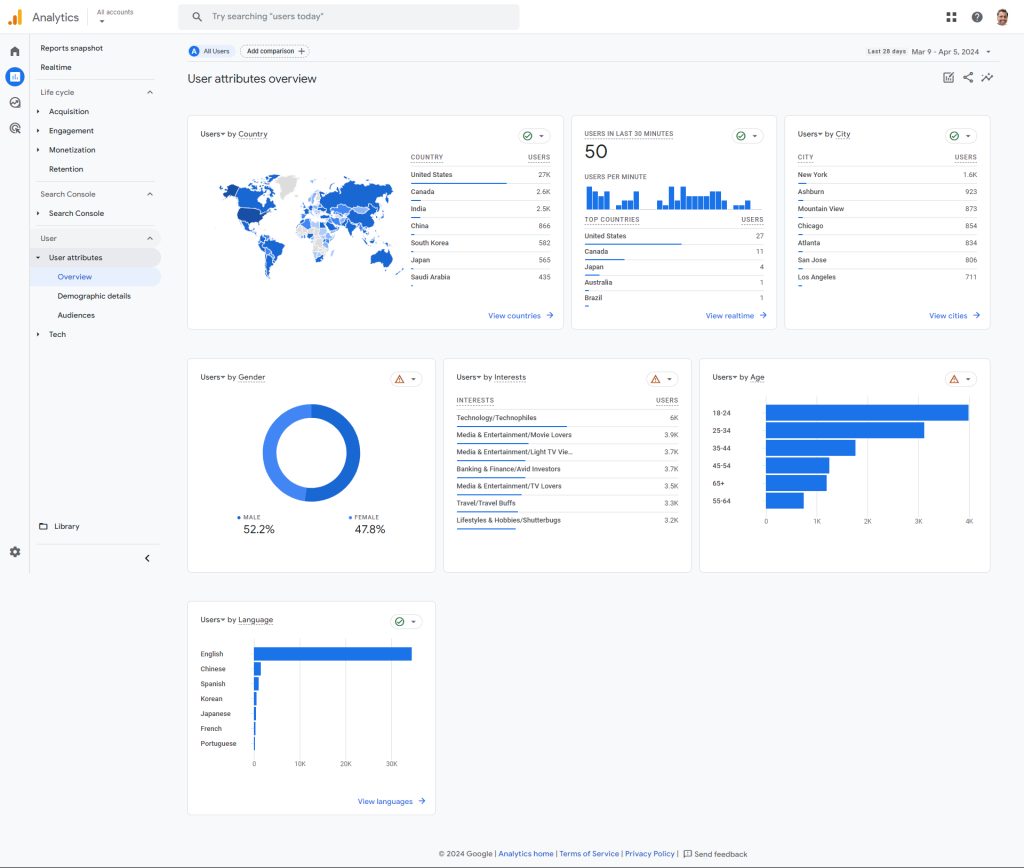
Discover locations, interests, age, gender, etc. of consenting users.
Explore your audiences and how they grow and behave over time.
Tech
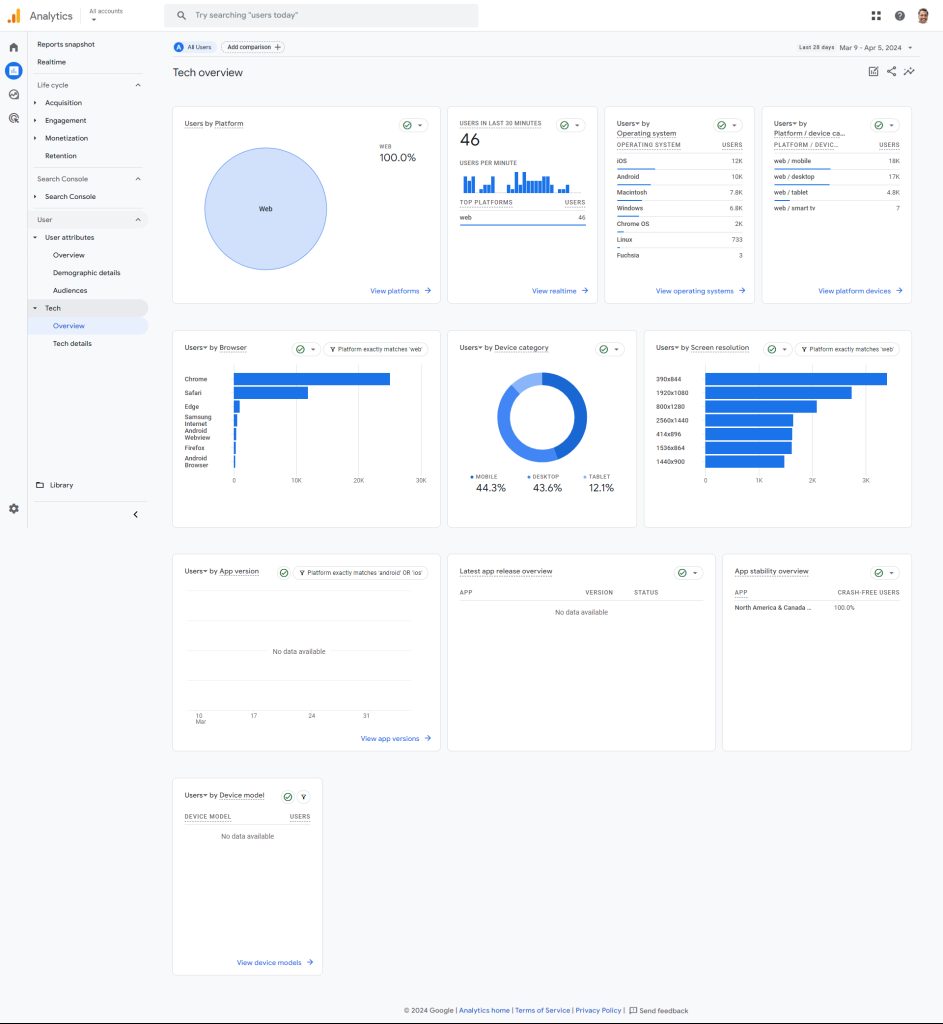
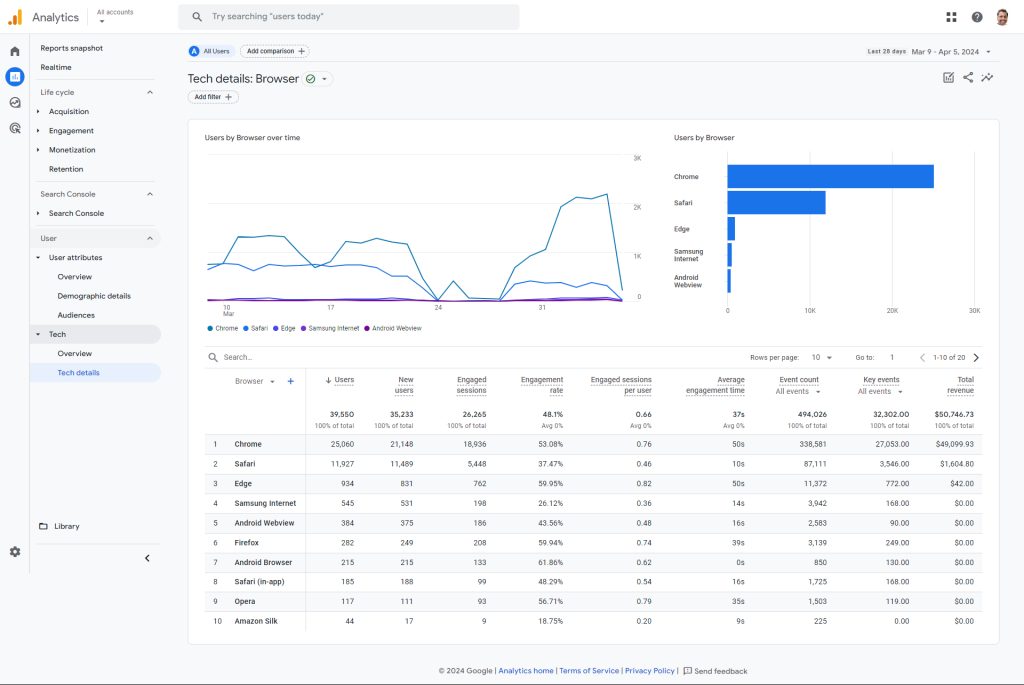
Learn about the tech used by your visitors.
Summary cards showing metrics by platform (like web, iOS, or Android), operating system (like Windows or iOS), browser (like Chrome or Safari), device category (desktop, mobile, or tablet), and screen resolution.
Browsers, devices, and operating systems used by your visitors. Ensure your website works well on the most popular tech.
Customising a GA4 report
Need to tweak a report?
- Click the pencil icon.
- Add/remove cards (in Overview reports) or fields (in Detail reports).
- Click Save. Btw if you mess up, you can always restore the original from the GA4 Report Library.
For example, let’s say we wanted to find out which of our marketing channels has the best conversion rate. However, there’s no column for conversion rate in the default Acquisition reports. Here’s how we would customise the GA4 user acquisition report to add the conversion rate column. Then we can sort by conversion rate to find the answer (in this case, it’s Organic Search with a conversion rate of 35.78%.
GA4 reports help you spot wins, areas for improvement, and how to adjust your marketing strategies. For deeper analysis, you’ll want to turn to “Explorations”, which we’ll cover next.
Important! Accurate data depends on proper setup, so make sure you’re tracking your key events / conversions correctly. If you’re unsure, apply here for a free GA4 audit.
Explorations in GA4
Think of Explorations as your custom analysis toolkit. While GA4 Reports provide valuable overviews, Explorations let you dig deeper to answer specific questions and optimise your website or app.
Why Explorations matter
- Get the “Why” behind the numbers: See What’s driving changes in your Reports data. For example, if your Landing page report shows a high bounce rate, Explorations can reveal what users were doing before leaving and where they go next.
- Understand customer journeys: Map how users actually navigate your site compared to your ideal path. This helps spot bottlenecks in your conversion funnels and improve performance.
- Data your way: You choose what to see and how to visualise it with tables, charts, funnels, and more.
Template gallery
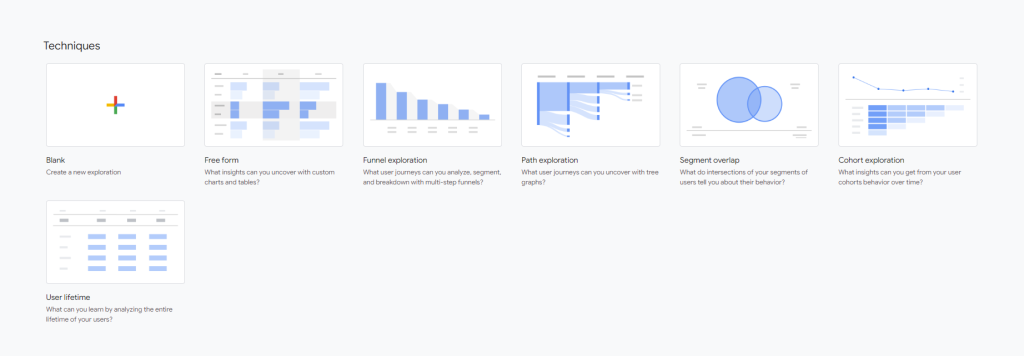
GA4 doesn’t include explorations out of the box. However, GA4’s template gallery makes it easy to get started.
Click “Explore” in the GA4 sidebar, then click on a “Technique” to open a ready-to-use exploration. “Free form” is usually a good place to start; it gives you a table that you can start filling up.
Exploration layout
All explorations have 3 areas:
- Variables sidebar (left): Decide what data is available.
- Settings sidebar (middle): Decide what data to examine and what it’ll look like.
- Main area (right): This is where the data will be shown.
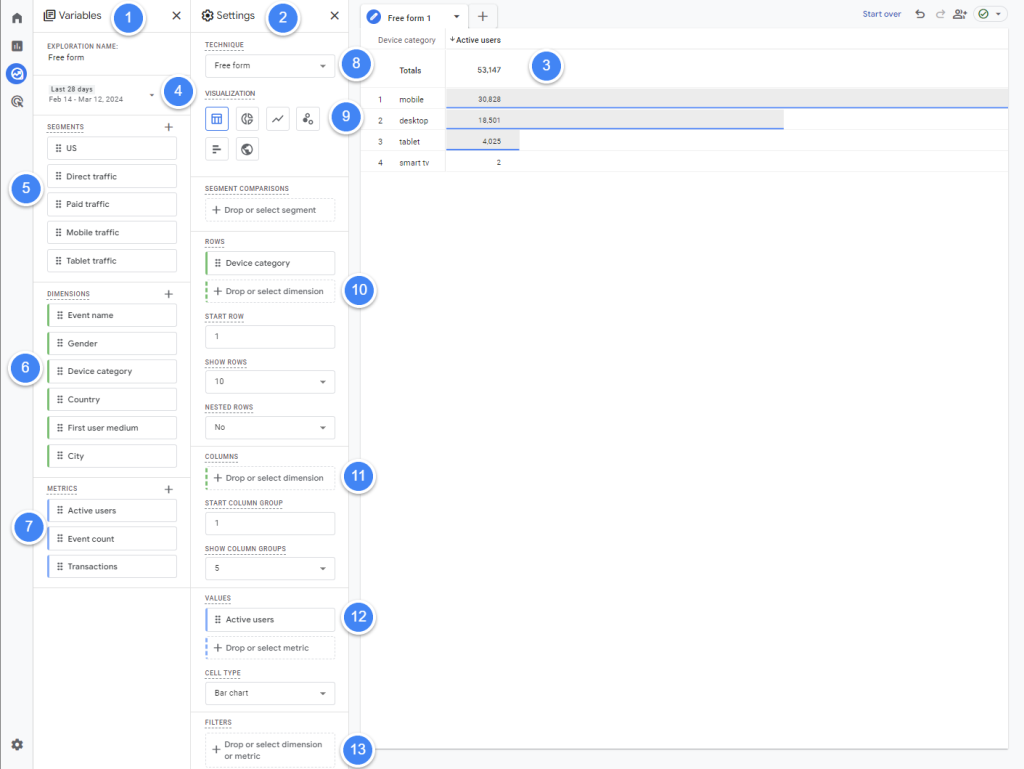
In those 3 areas, you’ll find these key elements:
- Date range: Set a date range you want to explore. The default is “Last 28 days”.
- Segments: Groups of users with something in common, like traffic source, location, action, etc. (e.g. “LinkedIn traffic”, “UK users”, “Added to cart but didn’t buy”) It’s the best way to narrow down users for analysis and comparison.
- Dimensions: Things, like Country, City, Device, etc.
- Metrics: Numbers you care about, like Active users, Revenue, etc.
- Technique: Switch between Exploration types (like Path or Funnel).
- Visualisation: How you want to see the data, like tables, charts, and maps.
- Values: The numbers you want to see. Add Metrics to measure users, purchases, revenue, etc.
- Rows: Add a Dimension to break down values by countries, devices, product names, etc.
- Columns: Use another Dimension to break down rows by city, product categories, etc.
- Filters: Filter by traffic source, user location, or any other dimension or metric to focus on a specific slice of data.
Now you’re familiar with the layout of explorations, let’s look at how to use them.
Exploration techniques
Each exploration technique is designed to surface a specific type of insight. Take the time to understand what each exploration does, so you can quickly pick the right one to answer your questions.
The most flexible exploration type for quick answers or a fast overview.

For example, here’s how to find your top 3 cities:
- Go to Explorations and select “Free form”.
- Add Dimensions: In the “Variables” tab, select a date range and make sure “City” is a Dimension (if it isn’t then click “+” to import it).
- Add Values: In the “Settings” tab, under “Rows” select “City”, and under “Values” select “Active users”. A table will appear in the main area.
- Get answers: Click the column header to sort your cities by most users.
More examples:
- Campaign performance: Dimension “Campaign name”, Metric “Active users”. Under Visualisations, click “Line chart” to see which campaigns have been driving traffic over time.
- Top selling products in the last month: Date range “Last 30 days”, Dimension “Product name”, Metric “Product revenue”. Sort the table to find your bestsellers.
Need help with using the Free Form Exploration to answer your questions? Click here to send us a message.
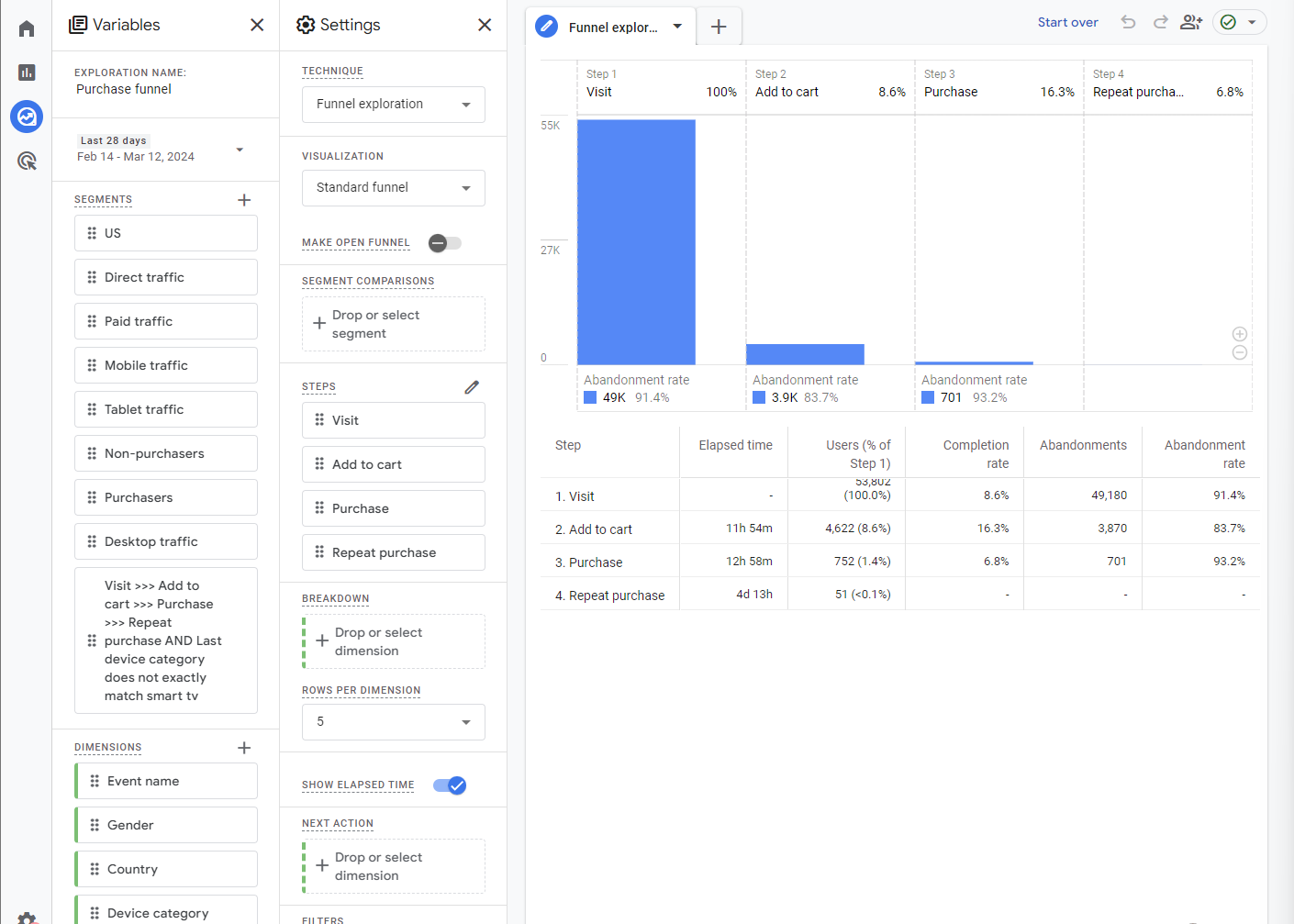
Visualise how users move through key steps on your site or app. See where they drop off (and why), so you can fix those issues and boost your sales. Funnels help you find improvement areas in your marketing and site or app.
Define your user journey
Building a funnel requires some prep work, but it’s worth it. First, define the steps taken by users. For example, here’s a typical ecommerce funnel: First visit > View product > Add to cart > Begin checkout > Purchase > Purchase again > Write review.
Track those steps with events
The main way to track those steps in GA4 is through user actions (also called “events”) like page views, clicks, form fills, etc. GA4 collects 3 types of events:
- Automatic events (like “page_view”): Use these as much as possible because no setup required (full list here).
- Recommended events (like “purchase”): If you can’t find an automatic event for your step, look for a recommended event (full list here). These are pre-defined by Google but still need setup.
- Custom events. Create these only if you can’t find an automatic or recommended event for your step (how to implement).
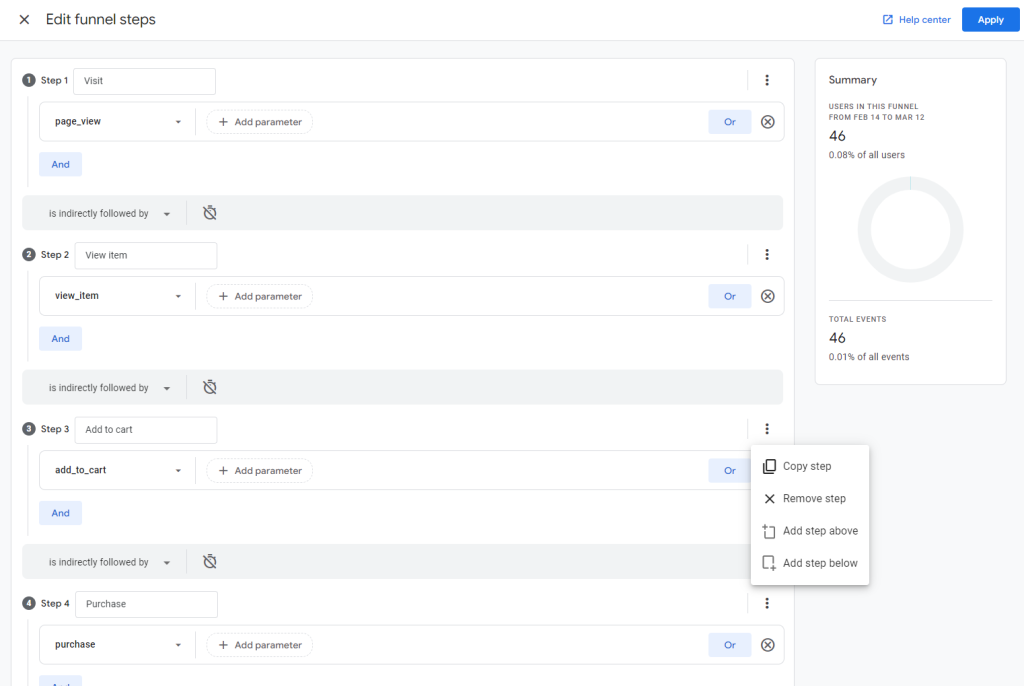
Pro tip 1: Practise using the automatic event “page_view” event with its “page_location” parameter. It’s super versatile and can track most actions by itself, because most events happen on a page.
Pro tip 2: If you must set up an event, do it with Google Tag Manager (GTM) so you can avoid touching code. Popular platforms like WordPress and Shopify have plugins for this.
How to build a funnel exploration in GA4
Now you’re ready to build a funnel. Follow these steps:
- Go to Explorations and select “Funnel exploration”.
- Add the 1st step: Click on the pencil icon next to “Steps” to open the “Edit funnel steps” screen. In our ecommerce example, name the 1st step “Visit” and select the event “page_view” to view the data for any time a page has been viewed.
- Continue adding steps: Click on “Add step”. Name the 2nd step “View product” and select the event “page_view” and set “page_location” to match the correct page URL. Repeat for all steps.
Funnels help you spot where customers drop off. For example, an online store we work with noticed a high drop-off between “Add to Cart” and “Begin Checkout.” Fixing their mobile checkout process led to a big increase in sales.
Funnel exploration tools can be very expensive. With GA4 this powerful feature is free, making it a smart choice for businesses of all sizes. If you need help setting up funnels to reflect your customer journey, get in touch for expert guidance.
Funnels are great for visualising ideal paths. But what if you don’t know which steps your users actually take? Path exploration reveals this, helping you to find unexpected routes and build better funnels.
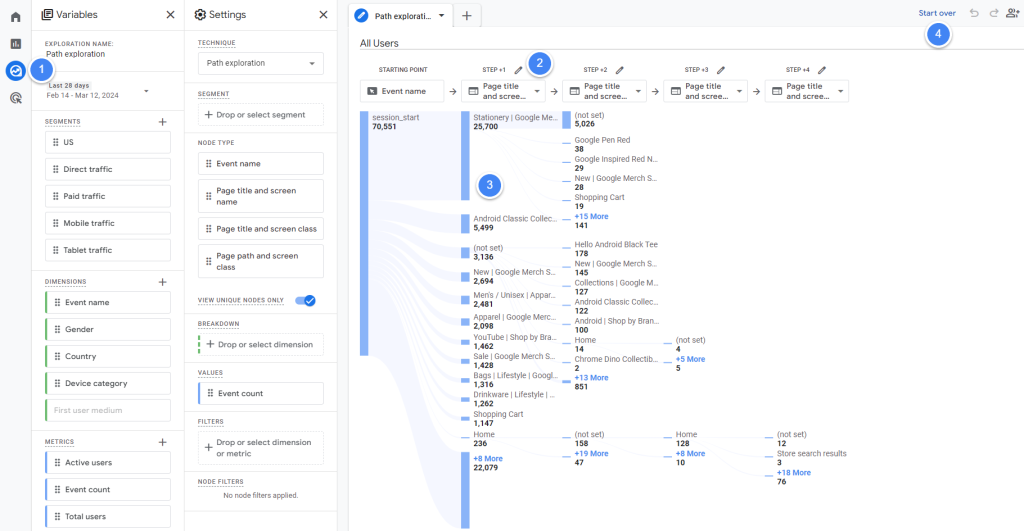
Follow these steps to get started:
- Go to Explorations and select “Path explorations”.
- Under “STEP +1”, choose “Page title and screen name” to see which pages people are viewing.
- Follow the flow: The visualisation shows where people start, and what they view next. Click on any node to drill down further.
- Reverse the path: Find out what pages people viewed before landing on a key page (like a checkout page or purchase confirmation).
Try to connect popular entry paths with popular conversion paths. For example, an agency we work with used Path exploration to see where people went after reading an article. They discovered many users weren’t finding related content, and that users who viewed at least 2 articles were more likely to opt in to their newsletter. Adding links within articles boosted engagement opt-ins significantly.
The Path exploration is useful for understanding the key funnels on your site or app. Use it together with the Funnel exploration to get the most out of GA4.
Even the best funnels won’t work if you’re targeting the wrong audience. Segment overlap helps you identify and reach the people most likely to convert.
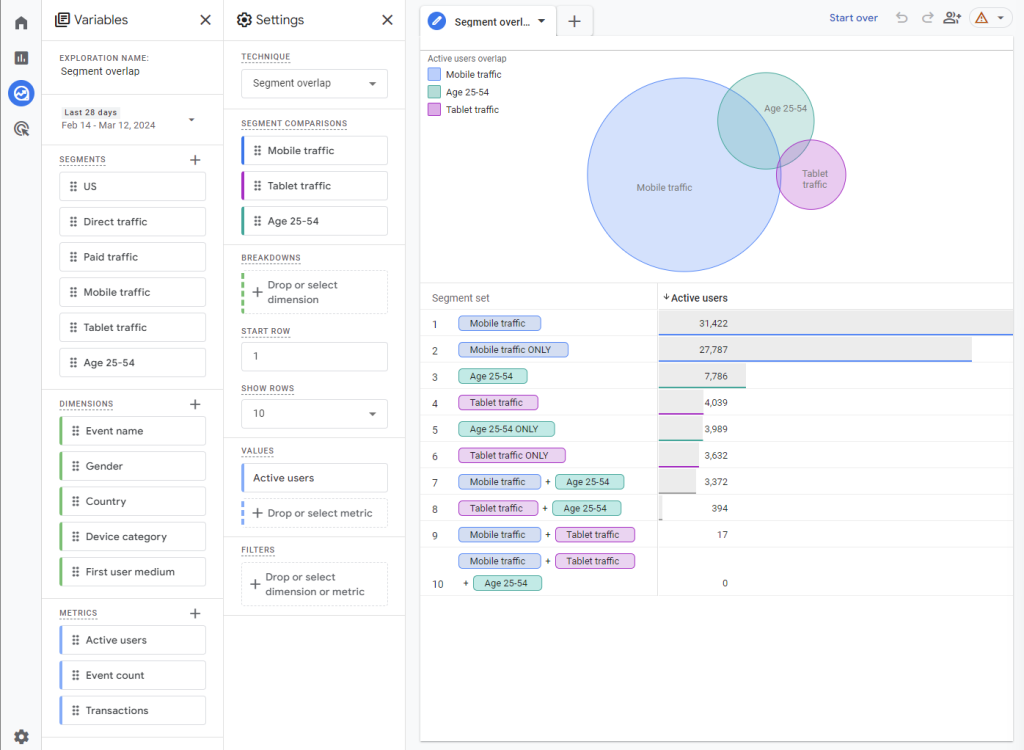
For example, here’s how you would use this report:
- Go to Explorations and select “Segment overlap exploration”.
- Evaluate traffic sources: See how many users from organic search, paid ads, etc. actually become customers.
- Refine ad targeting: Overlap your purchasers with Google’s pre-defined audiences (like “Business Travelers”, “Auto Enthusiasts”, etc.) Target those with high overlap, and avoid those with low overlap. For example, a fitness equipment store we work with discovered a strong overlap between their purchasers and Google’s “Prefers Organic Food” affinity segment. Their focused spend on this audience led to a huge sales increase.
The GA4 segment overlap exploration is an under-used exploration, which can help you get ahead of competitors. This exploration is especially powerful when combined with your data from other marketing tools, like your CRM or email marketing platform.
See how different groups of users (cohorts) behave differently over time. This is essential for understanding:
- Long-term impact: Do your marketing campaigns lead to lasting customers, or just a quick spike in sales?
- Customer retention: Are certain user groups more likely to return and purchase again?
- Hidden trends: Identify problems or opportunities that only become clear over weeks or months.
Feature effectiveness: Did your website or app improvements actually result in a better user experience?
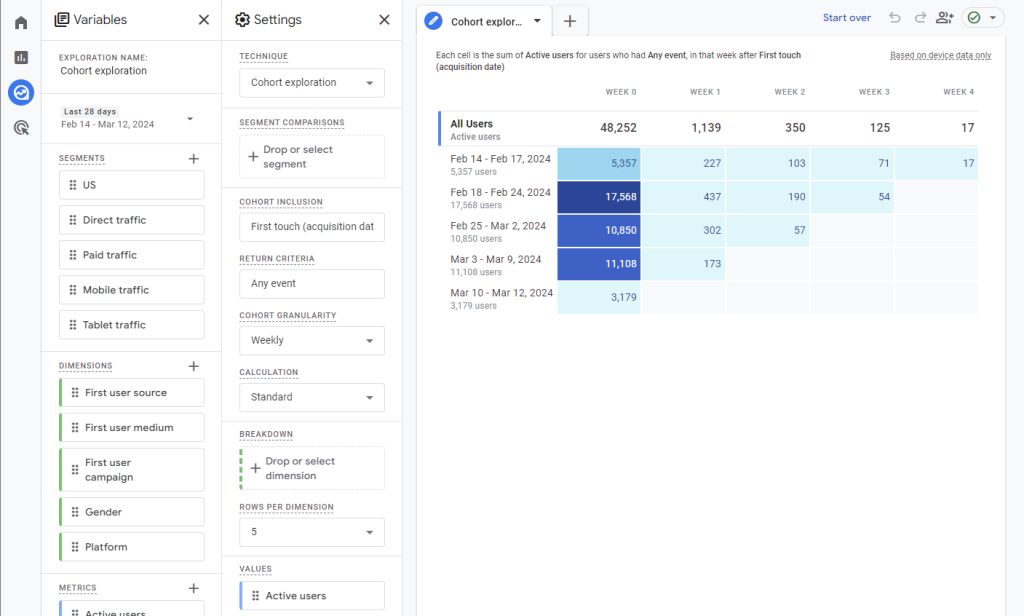
Here’s how you could use the Cohort exploration:
- Go to Explorations and select “Cohort exploration”.
- Define cohorts: Decide which groups to track, like users acquired on the same date, from the same traffic source, or who took a specific action.
- Analyse retention: See how many users from each cohort come back over time. This is key to understanding customer loyalty.
- A/B test changes: Compare how different versions of your website, app, or marketing campaigns affect long-term user behaviour.
All the KPIs are important, but few companies do Retention well. Their focus on acquiring new customers at the expense of looking after their existing customers hurts their profitability. The Cohort exploration could be your secret weapon in getting this right.
While other Explorations look at groups, User Explorer lets you zoom in on a single user’s journey across your site, app, and over time.
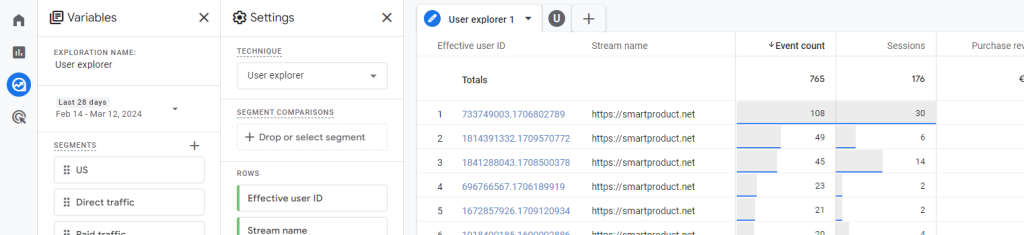
This can be very useful for:
- Troubleshooting: For example, if you see a discrepancy between what GA4 shows you and what you expect, look into a few users’ exact steps and data generated to identify the issue.
- Personalisation: See a user’s past behaviour to tailor your offers or messaging. This works well for your high-value users, yielding a huge ROI on effort.
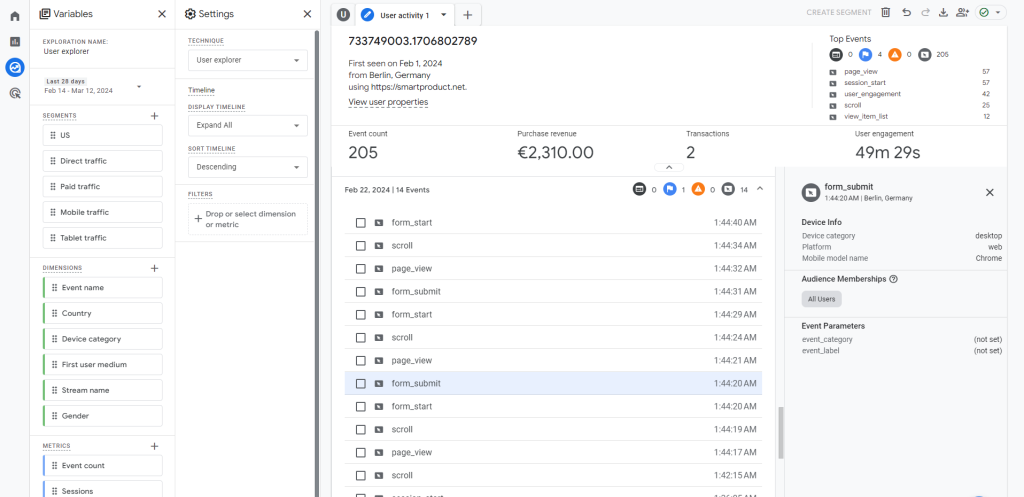
Important! User Explorer requires careful setup to protect user privacy and comply with data regulations. If you need help to set this up the right way alongside Consent Mode V2 for European users, get in touch with our Google-certified team.
The purpose of this guide is to find your key metrics in GA4, so let’s do that in the next section.
Where to find your KPIs in GA4
Now that you’re familiar with GA4, let’s locate those crucial metrics. Below, we’ll cover key business types and guide you step-by-step.
Ecommerce KPIs in GA4
Remember your goal tree from Step 1? For most online stores, Revenue = Visitors x Conversion rate x Purchase frequency x Average Order Value. Here’s how to find those crucial metrics in GA4.
| KPI | Where to find in GA4 | Example |
|---|---|---|
| Traffic (Visitors) | Reports > Life Cycle > Acquisition > Overview > “Users” | 73,000 |
| Conversion rate | Acquisition Overview (Users) > Monetization Overview (Total Purchasers) | 994 Customers / 73,000 Visitors = 1.36% |
| Purchase frequency | Reports > Life Cycle > Engagement > Conversions > Find “purchase” event | 1,109 Purchases / 994 Customers = 1.12 |
| Average Order Value (AOV) | Reports > Life Cycle > Monetization > Overview > “Total revenue” | $128,000 / 1,109 Purchases = $115 |
The big picture
Multiply your KPIs for exponential growth: 73K visitors * 1.36% conversion * 1.12 frequency * $115 = $128K revenue. Step 3 shows you how a small boost to each KPI can have a dramatic impact on your bottom line!
B2B KPIs in GA4
B2B is about more than just getting leads. Same with professional services companies like law firms, accountants, and agencies, You want leads that turn into loyal, paying customers. Here’s how to use GA4 to track this journey.
| KPI | Where to find in GA4 | Example |
|---|---|---|
| Visitors | Reports > Life Cycle > Acquisition > Overview > “Users” | 21,000 Visitors |
| Lead conversion rate | Reports > Life Cycle > Engagement > Events (find your custom lead capture event, see below) | 1,500 Leads / 21,000 Visitors = 7.1% |
| Customer conversion rate | Calculation: Customers / Leads Check CRM, or Monetization > Overview > Total purchasers (if selling online) 3 ways to check CRM: 1. Connect GA4 and CRM in Looker Studio (recommended) 2. Import CRM into GA4 (not recommended, can’t sync) 3. Check manually | Customers / Leads |
| Average deal size | Calculation: Revenue / Customers Check CRM, or Monetization > Overview (if selling online) | Revenue / Customers |
The big picture
Focus on KPIs that can be multiplied together for significant impact. For example, 21K visitors * 7.1% lead conversion * 8.1% customer conversion * $1261 average deal size = $156K monthly revenue. Step 3 will show you how small improvements to each KPI can significantly increase your revenue!
Subscription KPIs in GA4
For subscription businesses, acquiring new users and converting them into paying customers is essential. Every subscription business should ask themselves 2 questions: Is the business growing? And is it profitable?
Therefore, your main KPIs are Net new ARR (revenue from existing & new customers minus revenue from churned customers) and Profitability (LTV:CAC ratio; should be at least 3X).
Here’s how to track those key metrics in GA4:
| KPI | Where to find in GA4 | Example |
|---|---|---|
| Visitors | Life Cycle > Acquisition > Overview > “Users” | 10,000 |
| Trial sign-up rate | Life Cycle > Engagement > Conversions > (custom “trial_signup” event) | Trial Signups / Visitors |
| Feature usage rate | Life Cycle > Engagement > Events > (custom “engagement_rate” event) | Analyse usage of key features, like “view_dashboard” or “write_comment” |
| Paid conversion rate | Life Cycle > Engagement > Conversions (custom “subscription” event) | Paid subscribers / Trial signups |
| Net new ARR | Life Cycle > Monetization > Overview > (combine custom “purchases” and “renewal” events) | Revenue from “purchases” + revenue from “renewals” – revenue from “cancellations” |
| Churn rate | Life Cycle > Engagement > Conversions (custom “cancellation” event) | Cancellations / Total subscriptions |
| Customer Lifetime Value (CLV) | Monetization > Life Time | |
| Customer Acquisition Cost (CAC) | Cost of Sales and Marketing / Customers |
The big picture
Track your funnel and identify drop-off points to optimise the user journey. A strong SaaS business focuses on a growth machine that’s repeatable and profitable by moving users smoothly from one stage to the next. Use the funnel to spot drop-offs and fix them. For example, if you see a big drop between dashboard view and a desired action, maybe your dashboard is too complicated or the action is hard to find.
In Step 3, we’ll show you how to analyse your funnel and make the right decisions to improve your revenue and profit.
3. Take action to boost your KPIs
Data without action is useless. Top tech companies use this 5-step plan to turn data into growth. Let’s get started.
5-step action plan
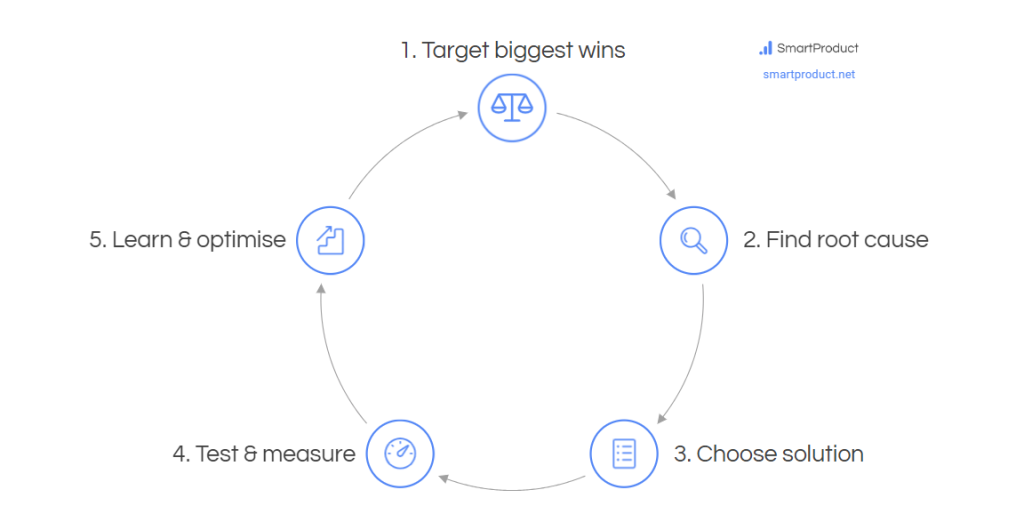
Example: How an online grocery store fixed flat sales
An online grocery store we worked with saw their revenue wasn’t growing unless they ran a lot of ads, which meant less budget for strategic initiatives.
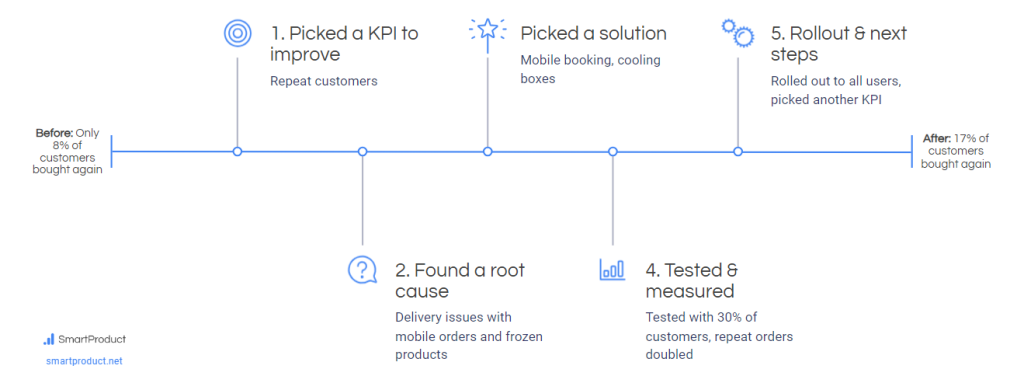
Google Analytics showed a high number of new users, reasonable conversion to sales, but very low repeat purchases. It also showed that the biggest difference between people who bought again and those who didn’t was late delivery. They tested 3 solutions and the 3rd one worked, more than doubling the number of customers who bought 2 or more times.
Let’s go through each step of the action plan, including how the grocery shop tackled it.
1. Target your biggest wins
You might already know your biggest opportunities. But what does the data say? Here’s how to find the KPIs with the most potential for revenue and profit.
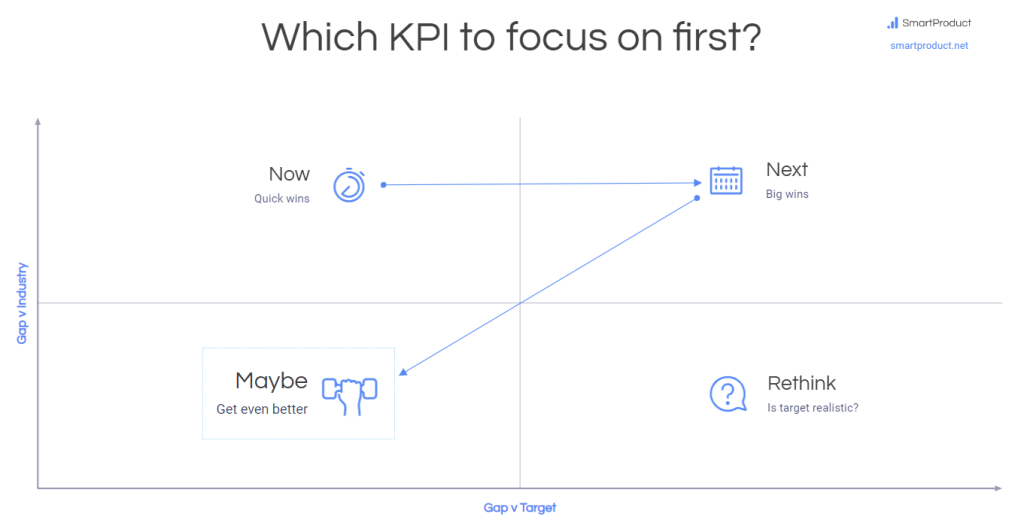
Compare vs goals
What are your goals for each KPI and where do you stand currently?
For example, if your revenue goal requires a 5% conversion rate and you’re currently at 2%, there’s work to be done.
Benchmark vs industry
How does your performance stack up vs the industry average and competitors?
For example, if you’re a law firm with a 3.5-star Google rating from 11 reviews while the top 10 firms in your area have a 4.5-star rating from 50+ reviews, that’s a gap you need to close urgently.
Where to find industry or competitor numbers
Some KPIs are public, while others can be found within paid tools or estimated:
- Use Google to find conversion rates for Ecommerce, B2B sales, SaaS, etc.
- Google Maps is a great way to find Google reviews.
- Use paid tools like SEMrush and SimilarWeb to find KPIs like Visitors and Revenue businesses in your niche.
Estimate whatever you can’t find
For example, here’s how to estimate Sales, Conversion rate, and Customers:
- Sales = Revenue / Average Order Value (AOV). Find Revenue in Semrush or SimilarWeb. Estimate AOV from the website’s top products (e.g. for Shopify stores, enter the store’s URL and add “/collections/all?sort_by=best-selling” at the end).
- Conversion rate = Revenue / (Visitors x AOV x Repeat rate). Find Visitors and Revenue in Semrush or SimilarWeb. Estimate AOV as shown above. Repeat rate is typically between 1.1 and 1.3.
- Customers = Visitors / Conversion rate. You get the idea!
Need help to find industry averages or competitor numbers? Ask our team.
Where’s the biggest gap?
The KPI where you lag the most compared to your goals and industry is your bottleneck. Fixing this will have the highest impact.
Example: The online grocery store’s revenue goals assumed 30% of customers would buy twice. However, their Google Analytics funnel revealed that only 8% were buying again, even though the industry average is 22%. This became their immediate focus.
The KPI with the largest gap vs. your goals and industry standard is your biggest opportunity for growth — focus on that one first.
Next, let’s find out why it might be underperforming.
2. Find the root cause
Understand why your bottleneck KPI is lagging to fix it. Here’s how to pinpoint the issues.
Dig deeper with a a GA4 funnel
A GA4 funnel helps you to visualise the steps visitors take towards your desired behaviour, like sign-up, purchase, delivery, repeat purchase, etc.
Examine your GA4 funnel
In your Google Analytics account, click Explore in the left nav bar. Does a funnel already exist for these steps? If not, click “Funnel” to make a new funnel and add steps to see how many visitors complete each step.
Look for unusually big drop-offs between steps. For example, Or if there’s a big drop-off on the sign-up page, then people might be struggling to fill out the form.
Likewise, if there’s a big drop-off on the Pricing step, people might have trouble understanding the value of your product or service.
Uncover hidden issues
Try to uncover the underlying pain point with segments or breakdowns:
- Add the segments you want to compare (like “1-time buyers” and “Repeat buyers) to spot differences.
- Use the “Breakdown” feature (by country, device, traffic source, etc.) to reveal specific pain points.
Example: The online grocery store in our case study used GA4 to see that only 8% of their customers were buying again. They create segments for 1-time buyers and repeat buyers and compared those to find the below insights:
- Repeat buyers received on-time delivery (99%) while 1-time buyers didn’t (only 68%).
- 1-time buyers’ orders were 61% more likely to include a frozen product, whose quality would be affected by late delivery.
- Orders placed via mobile were more likely to be late compared to those placed on desktop.
If you need help to set up a GA4 funnel to track your customer journey, check out our free GA4 setup guide or click here to ask our team.
Now we know where people are leaving. But why exactly are they leaving?
Find out why they’re leaving
Understanding why your KPIs are lagging is the key to fixing them. This is where you bridge your data with real-world experiences of your customers. Here’s how:
Test it yourself
Put yourself in your customers’ shoes! Go through the key actions on your site (sign-up, purchase, etc.) on both desktop and mobile.
Here’s what to look for:
- Can you complete tasks without struggling?
- How many clicks does it take?
- Do forms and buttons work correctly?
- Is the order confirmation email clear and helpful?
Pro tips!
- Buy at least 2 times to understand how it works for repeat customers. Test it on a staging site or get a voucher from your Marketing team.
- If the product doesn’t cost a lot, make a real purchase to experience delivery, returns, and other touchpoints.
By testing multiple times and going the extra mile, you can uncover and fix issues before customers encounter them, leading to higher conversion, sales, and loyalty..
Watch Session Recordings
See your website or app through your customers’ eyes! Behavioural analytics tools like Hotjar can record real user sessions (with entered text masked for privacy). This helps you spot exactly where they get stuck.
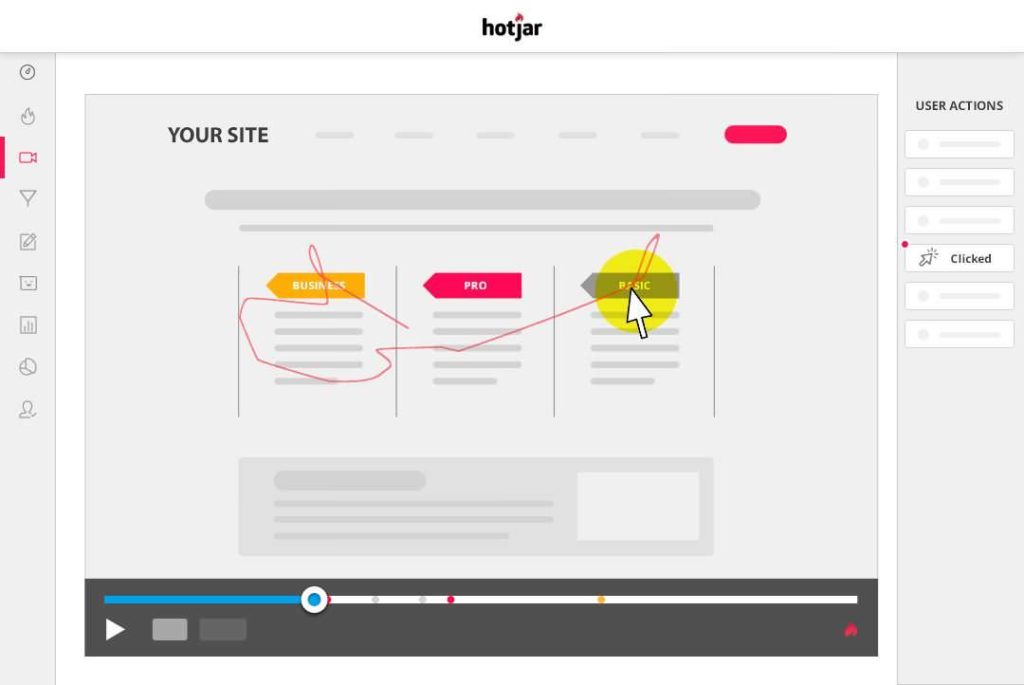
Getting started with Hotjar
- Create a free Hotjar free account.
- Add the Hotjar code to your site (use Google Tag Manager if you have it).
- Go to Session Recordings in Hotjar and turn it on.
- Filter recordings by the page URL you want to analyse.
- Watch a few recordings. Look for stuck points (hesitation, repeated clicks), confused scrolling or navigation, etc.
Spotting these issues can help you find the right solutions, which your competitors are likely missing.
Do customer interviews
Customer interviews provide the deepest insights into their pain points and needs. They’re woefully underused by companies because many people don’t know how to do them.

Quick guide to customer interviews
- Target the right people: Focus on people who have faced the problem your product/service solves. Look for those using alternatives or workarounds, indicating that the problem is worth solving.
- Recruit interviewees: Reach out via email or LinkedIn with a clear message. Emphasise it’s for research and include a scheduling link for easy booking (use a tool like Calendly). Face-to-face interviews are the best, but video calls are a great option too.
- Run effective interviews: Prepare 3-5 open-ended questions. Focus on past experiences, motivations, and pain points. Avoid leading questions that suggest solutions. Do not pitch your product or service. Examples of effective questions:
- What prompted you to look for a solution like this?
- How were you solving this problem before?
- What made you choose this product/service over others?
- How has it worked for you so far?
- Capture insights: Take notes after the interviews while details are fresh in your mind. Look for patterns and motivations across multiple interviews.
After doing 10-20 interviews, you’ll start seeing patterns and will be able to predict what the next interviewee will say. That’s when you’re done.
Rank problems
Not all problems are equal. Focus on problems that are both:
[Visual: 2×2 matrix showing issues categorised by number of users affected and business impact]
- Painful: Directly prevent customers from getting their job done. Your user journey and customer interviews will reveal these.
- Widespread: Affect a large segment of your audience. Your GA4 and customer interviews will highlight the scale of the problem.
Fixing the most impactful problems first maximises the return on your time and money.
Congrats! You’ve taken a BIG step towards achieving your business goals. By pinpointing the root cause, you’re on your way to finding a solution that boosts your KPIs and drives growth.
Let’s explore those solutions.
3. Find and rank solutions
You’ve zero-ed into a problem — now it’s time for solutions!
Brainstorm solutions
Think creatively! List every possible solution, even those that seem outlandish.
The online grocery store in our example faced low repeat orders due to delivery issues, especially for orders placed via mobile and orders containing frozen products. Possible solutions included:
- Fix mobile booking: Make it easy to choose delivery times.
- Set expectations: Clearly warn about quality issues with delayed frozen items.
- Free express shipping: Encourage timely delivery on frozen orders.
- Use cooling boxes: Ensure freshness even with delays.
- Partner with a specialist: Outsource orders with frozen products.
- Don’t accept orders via mobile: Extreme, but forces the issue to be addressed!
- Don’t sell frozen products: Simplifies the problem, but limits the offering.
Rank solutions by impact and effort
Not all solutions will be equally effective. So focus on solutions that are:
- High-impact: Likely to deliver the biggest improvement.
- Low-effort: Quick and easy to put into action.
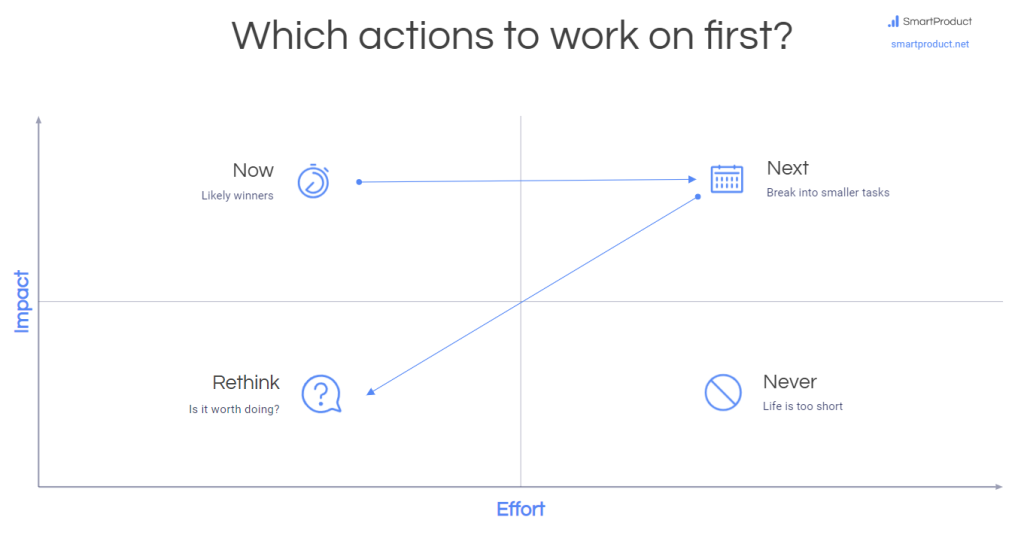
Pro tip! Big fixes can be daunting. Break them into smaller, actionable steps and rank each step on the matrix.
Work across teams
Getting different teams to work together can be tough. The key is to rally everyone around a real customer problem, so they can decide solutions together.
Here’s how the online grocery store in our example tackled their repeat order issue:
- Product: Fixed the mobile booking widget, so more customers could choose convenient delivery times.
- Marketing: Raised awareness of cooling boxes for added peace of mind.
- Operations: Made sure they had enough cooling boxes and staff were trained to use them.
This unified effort doubled their repeat customer rate (from 8% to 17%), making their business less reliant on expensive ads.
Customers don’t care how you’re organised internally. They want a seamless experience to achieve their goals. By thinking and working across teams, you’ll solve problems faster and create happy, loyal customers.
Ready to test those solutions? Let’s move on to the next step.
4. Test & measure your solutions
Don’t go all in without proof! Split tests let you see if changes work before wasting expensive developer time.
Split testing is also called “A/B testing” because it compares two versions of your site – Version A is your existing setup, while Version B has your proposed change.
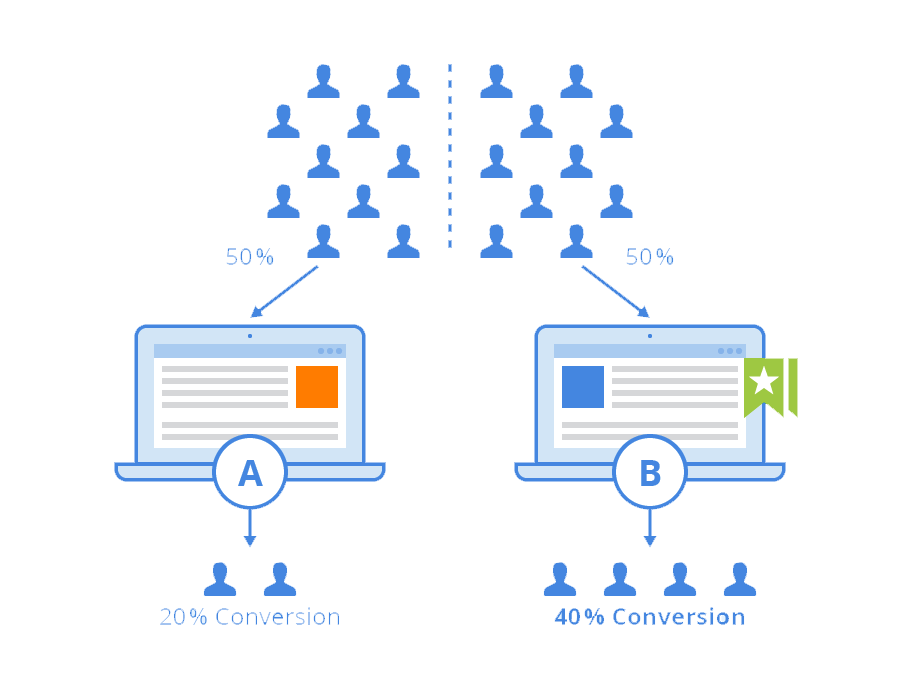
The grocery shop in our example tested their delivery fixes with 30% of visitors for 5 weeks. They rolled out Version B to all visitors, but only after they were convinced it actually boosted their target KPI (repeat orders).
How to test and measure
- Choose a tool: Split testing tools like VWO make it easy. Sign up for a free account and follow their setup instructions (often as simple as adding a code snippet to your website).
- Set up test: Create a Version B of the page(s) you want to improve. Then split your traffic (like 50/50 between old and new versions).
- Make a prediction: What improvement do you expect? Set a specific goal (like, “30% increase in repeat orders”), so you can evaluate the results.
- Run and measure: Let the test run for a meaningful period (this depends on your traffic and buying cycle). Keep an eye on your target KPI. Did Version B perform as well as you expected it to?
- Implement the winner: If Version B outperforms, roll it out to everyone. If not, extend the test, refine Version B, or try another solution.
In our example, the online grocery store initially didn’t see results after 2 weeks. However, since their average repeat purchase cycle was 5 weeks, they extended the test and saw a clear winner towards the end of that cycle.
Why test and measure?
Don’t waste time, effort and money!
Every time you build something, you’re not investing in something else. So test your solutions before committing expensive developer time. This ensures your engineers are focused on tasks that deliver the biggest business results.
5. Learn and repeat
Data is the fuel for continuous growth. This final step ensures you’re constantly learning and optimising to achieve your goals faster and with less effort.
[Visual: A simple chart showing the KPI before and after the change, clearly indicating the improvement or lack thereof.]
Analyse results
Did you hit your KPI target?
- If yes, build on it! Look for ways to get even better results or tackle a new KPI.
- If not, don’t give up! Test different solutions or try to tackle a different problem or KPI.
The grocery shop in our example was aiming for 30% but their solution was so spot-on, they got a 110% increase in repeat customers (tracked by their GA4 funnel).
Rather than trying to increase it further, they moved on to the next KPI (Average Order Value), which research showed was lower than their competitors.
Set milestones
Big goals are inspiring but can feel overwhelming. Break them down into smaller, manageable steps to stay motivated and on track.
Pro tip!
Think like a gamer! Start with easy wins and get stronger over time. Games don’t throw the final boss at you right away. The same principle applies to business goals. Don’t die at Level 1, work your way up.
For example, an online store’s Revenue = Traffic x Conversion rate x Average Order Value (AOV) x Repeat purchase rate.
Let’s say your online shop’s KPIs currently look like this:
- Traffic 63k monthly visitors
- Conversion rate 3%
- AOV $40
- Repeat purchase rate 1.1 (10% of customers buy again)
- Revenue = 63k x 12 months x $40 x 3% x 1.1 = $1M per year
If you want to double your revenue within a year, then in 12 months your KPIs might look like this:
- Traffic 64k monthly visitors
- Conversion rate 4.5%
- AOV $50
- Repeat purchase rate 1.15 (15% of customers buy again)
- Revenue = 64k x 12 months x $50 x 4.5% x 1.15 = $2M per year
Notice that to double your revenue, you don’t need to double your traffic. This means you don’t have to rely on expensive ads that kill your profit.
Instead, aim for a higher conversion rate (3.5% in 3 months, 4% in 6, etc.), a larger order value ($43 in 3 months, $46 in 6, etc.), and get more customers to buy again (12% in 3 months, 14% in 6, etc.).
Small, steady improvements keep you motivated and add up to big results over time. It works because it tells the brain it’s achievable. Neuroscience suggests goals should be challenging, but not so difficult that they seem impossible (source: Huberman Lab).
So track your progress regularly and fine-tune your approach based on the data.
Stay focused with an Action Plan
A n action plan keeps you focused. It links your goals to specific actions and the metrics that track your progress.
For example, here’s the action plan for an online shop we worked with. The team’s aim was to double their annual revenue from $1 million to $2 million in 12 months.
Business goal: Grow annual revenue from $1M to $2M in 12 months
| Strategy | Attract new users | Improve conversion | Create repeat buyers | Increase AOV |
|---|---|---|---|---|
| Action 1 | More product visits (search) | Optimise product page | Targeted emails to 1-time buyers | Test bundles solving core customer problem |
| Metric 1 | New product visitors (organic search & ppc) | Add-to-cart rate | % repeat buyers (email) | % AOV increase (bundles) |
| Action 2 | More blog visits (search) | Streamline checkout | Remarketing to 1-time buyers | Upsell higher-priced options |
| Metric 2 | New blog visitors (organic search & ppc) | Checkout completion rate | % repeat buyers (remarketing) | % AOV increase (upsells) |
| Action 3 | More blog visits (social) | Increase email subscribers | Timely churn prevention offers to high-value customers | Cross-sell related products |
| Metric 3 | New blog visitors (referral / social) | Email signup rate | % of valuable, high-risk customers who stay | % AOV increase (cross-sells) |
This shows how a simple plan turns big goals into concrete, focused actions.
For an online store’s Revenue = Visitors x Conversion x Frequency x Spend. That’s why this team built the above measurement plan.
Adapt this approach to your business for clearer goals, stronger teamwork, and profitable growth. For example, if you’re running a B2B website, you’ll want to focus on actions that boost KPIs like Lead conversion rate, Customer conversion rate, and Average Deal Size. Likewise, for a SaaS app, the actions would boost trials and paid upgrades while reducing churn.
Now that you have an action plan, let’s take a look at why GA4 is most effective when used together with a KPI dashboard tool (like Google Looker Studio).
Use a KPI dashboard
So you’ve got your KPIs and you’re ready to improve them. But are you using the right tools? Let’s get the full picture.
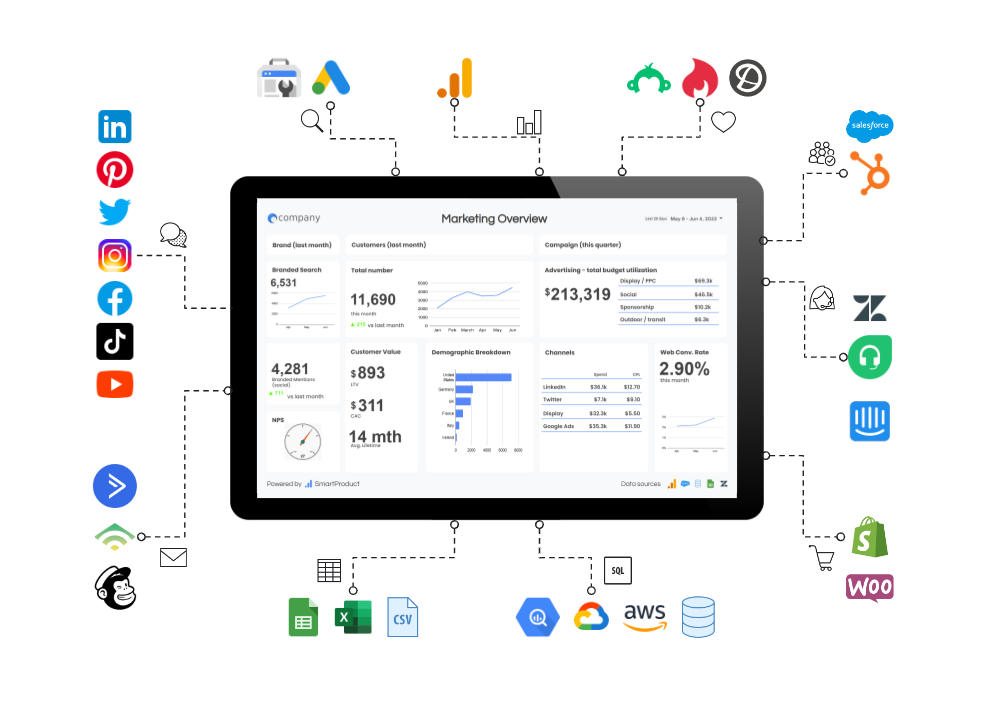
Why not just GA4?
GA4 is cool for tracking how people use your site. But it’s not perfect for exact numbers like money.
We suggest using GA4 numbers for finding trends rather than for accounting. The purpose of GA4 is not to track metrics to 100% accuracy, but to track user interactions that produce those metrics, and trends in those interactions, so that you can take action to change them and observe the impact of your changes.
Other important tools
- Ads (like Google Ads, Facebook, Instagram, or LinkedIn)
- CRM (like Salesforce or HubSpot)
- Support (like Zendesk or Intercom)
- Spreadsheets (like Google Sheets or Excel)
- Databases (like BigQuery or MySQL)
To see a holistic view of your business, use a KPI dashboard
We recommend pulling accurate revenue numbers from your CRM or database instead. In fact, the best way to get a clear view of your business at a glance is a Google Looker Studio dashboard, which can bring together data from multiple sources e.g. Revenue and LTV numbers from a CRM like Salesforce, traffic and conversion numbers from GA4, customer support numbers from a tool like Zendesk, NPS from a spreadsheet tool like Google Sheets, etc.
What is a KPI Dashboard?
It’s a tool that shows your most important business numbers. Think of it like a car dashboard, but for your business.
Why We Like Google Looker Studio
- Simpler than alternatives: Looker Studio is much easier to get started with (unlike alternatives like Tableau and Power BI, which require a lot of time, money, and people to set up and understand). For most smaller & midsize businesses, Looker Studio does the job well without bells and whistles, so we recommend starting with it.
- Lots of data sources: It can gather data from over 800 places including analytics (like GA4), ads (like Google Ads or LinkedIn), CRM tools (like Salesforce or HubSpot), support tools (like Zendesk or Intercom), spreadsheets (like Google Sheets or Excel), databases (like MySQL), and many more.
- Your way: You can set it up to show just what you want.
- Easy sharing: You can show your team the numbers easily.
Why GA4 is Important for your dashboard
Metrics like revenue give a high-level view but don’t offer actionable insights. Breaking them down into detailed lower-level metrics (like signup, add-to-cart, or purchase) reveals the customer interactions driving them. And GA4 excels at tracking these interactions:
- Deep dive: GA4 shows how people use your website or app.
- Clear actions: With GA4, you can see what needs fixing in your marketing or website.
- Stay up-to-date: Many businesses switched to GA4 recently. We help make sure it’s set up right.
Our Smart KPI Dashboard
We’ve built a dashboard that gives you your numbers, compares them with industry, and suggests the best actions to boost them, all in one spot.

Smart KPI dashboard features
- See everything: All your key numbers, like visits and sales, in one place.
- How do you compare? See how you’re doing compared to others.
- Action tips for you: Our human + AI team of experts give you simple steps to do better, ranked by impact (high is better) and effort (low is better).
Get help from our experts
Struggling with Google Analytics 4 or your Google Looker Studio dashboard?
We help businesses with:
- Google Analytics 4 setup and training
We’ll set up your Google Analytics 4 (GA4) and KPI dashboard properly, so they’re collecting and showing the right data. You’ll be able to see your KPIs from GA4, Google Ads, reviews, email marketing, support tools, spreadsheets, and more, all in one place. - Ongoing help and data tips
We’ll teach you how to read the data and find actionable insights to boost your sales, revenue, and profit. Plus, we offer ongoing support, answers to your questions, and monthly human + AI action tips based on your data.
Our goal is not just to install some code, but to help you get real business results. Click here to send us a message and we’ll get back to you asap.
Conclusion
Congrats! You now have a clear roadmap for using data to get business results faster 🎉
In this guide, we covered how to identify your important numbers, find their current values in Google Analytics 4 (GA4), and take informed actions to boost the right KPIs and achieve your business goals. Armed with these tools and insights, you’re ready to accelerate your revenue, profit, team morale and customer happiness. It’s time to take action.
Got questions? Need a hand? Our team is always here to help so feel free to reach out 😊