How to set up Google Analytics 4 (GA4): A complete guide

How can a proper Google Analytics 4 setup supercharge your team’s efforts? In this guide, we’ll show you how to set up Google Analytics 4 (or “GA4” for short) properly, so your team has the right insights for growing your business. If you get stuck, ask our team, we’ll be happy to help.
Every business is unique, but there are some common steps that can help any business grow. By setting up GA4 the right way, you can track the right data to help your business make more money.
Why the default GA4 setup is not enough
GA4 is useful out of the box, but it doesn’t fit your business like it should.
It tracks general stuff like visitors, but doesn’t track key unique actions that matter to your business, like when a customer makes a purchase or when you get a new lead. It also won’t automatically link up with your Google Ads or your CRM system, nor does it come with custom reports needed to achieve serious growth.
Here’s a quick look at what you get by default and what you’ll need to setup (either by yourself or with the help of an expert). If you get stuck, feel free to reach out and we’ll be happy to help.
It’s important to know what GA4 can and can’t do out of the box, so you can set it up in a way that works best for you. If you’re unsure, just ask us!
Next, we’ll look at how to set up GA4 properly, so it’s collecting the right data for your business team to act upon.
3-step GA4 setup
Here’s a simple 3-step method, inspired by top tech companies, that we’ve used to help many small and medium-sized businesses:
- Decide what to measure (goals and KPIs)
- Set up GA4 to track your KPIs
- Use the data to grow your business
[Visual: Diagram showing 3-step approach to setting up GA4 for a business]
No matter what kind of business you run – an online store, a software product, a B2B service, or even a law firm – these steps will help you set up GA4 correctly, so your business team has the insights they need to increase your revenue and profit. Let’s take a closer look.
1. Decide what to measure (goals and KPIs)
Before you start setting up GA4, you need to know what you want to track. This means creating a measurement plan that includes clear goals for your business and the Key Performance Indicators (KPIs) that will show you’re achieving those goals.

[Visual: Diagram showing the link between goals, KPIs, and GA4 setup]
A measurement plan is like a roadmap for your GA4 setup. It helps you stay focused on what really matters to your business. For a detailed guide on how to create a measurement plan, check out our free GA4 business guide.
For example, if you run an online store, your goals might be to increase revenue, improve customer satisfaction, and decrease cart abandonment. Your KPIs would include average order value, customer satisfaction scores, and cart abandonment rates.
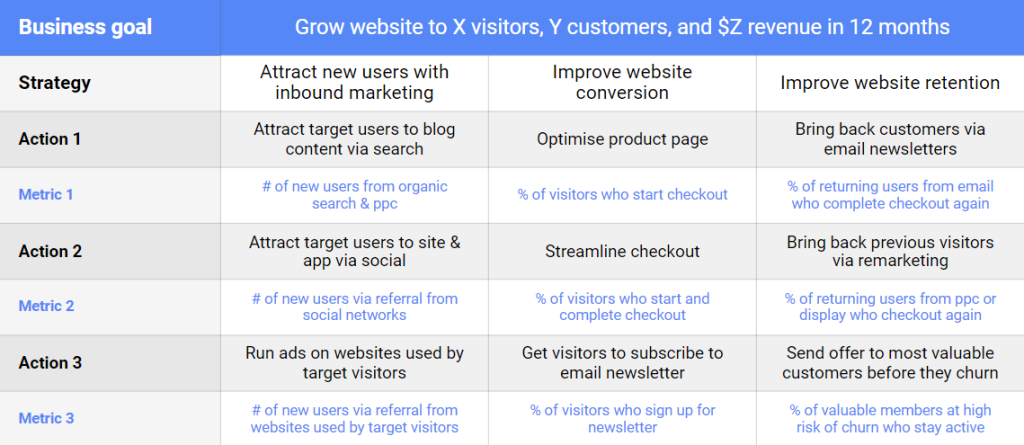
[Visual: Example measurement plan for an ecommerce store]
Here’s a simple way to create your own measurement plan:
- Start with your business goals. What do you want to achieve? It could be more sales, happier customers, or something else.
- Break down each goal into smaller, measurable steps. These are your KPIs.
- Put your goals and KPIs into a table. This is your measurement plan.
2. Set up GA4 to track your KPIs
- Understand how GA4 is organised
- Start collecting data
- Configure data settings
- Link important tools
- Do advanced setup (optional)
- Customise GA4 for your business
2.1 Understand how GA4 is organised
1. Understand the GA4 account structure
GA4 is organised into Accounts, Properties, and Data streams:
- Account: Needed for using Google Analytics. You can have more than one account, and each account can hold many properties.
- Property: Where your data and reports live. Each property can have many data streams. There are 2 types of properties: Google Analytics 4 (GA4) and Universal Analytics (UA). But after July 1, 2023, UA properties won’t work anymore, so make sure you are familiar with GA4 properties.
- Data streams: Flow of data from touchpoints (like a website or app) to Google Analytics.
[Visual: Screenshot of GA4 hierarchy: Organization > Account > Property > Data Stream]
For example, the company “TechGuru” has a website and mobile apps for iOS and Android. They set up the following structure in GA4:
- 1 account called “TechGuru”.
- 1 GA4 property called “TechGuru GA4”.
- 3 data streams: one for the website, one for the iOS app, and one for the Android app.
2. Navigate to the GA4 Admin page
The Admin page in Google Analytics is where you manage settings for your account, make new properties, change who can access them, add other tools, set up filters, bring in data, and more.
To open the GA4 Admin page, login to Google Analytics at analytics.google.com. Then hover over the gear icon at the bottom left and click “Admin”.

[Visual: Screenshot of link to GA4 Admin page]
The GA4 Admin page looks different from the UA Admin page. For example, in GA4 there’s a “Data Streams” link in the Property column. Also, UA has a third column called “Views”, but GA4 doesn’t use “Views”.
3. Select the correct account and property
You can have many accounts in Google Analytics. Each account has multiple properties. The chosen account shows its properties.

Important! If you were already using the old Google Analytics (UA), it’s likely that you already have a Google Analytics account and a GA4 property. Make sure the correct account and property are selected.
If you can’t see the correct GA account or property, it could be because of 3 reasons:
- The GA account doesn’t exist: To create a new account, go to Admin > Click on the “Create Account” button > Follow the steps.
- The GA4 property doesn’t exist: To create a Google Analytics 4 property, go to Admin > Click on the “Create Property” button > Follow the steps.
- You don’t have access: Ask your GA account owner to add you to the correct GA4 property as an “Administrator” user.

Make sure you’re in the correct account and property.
2.2. Start collecting data
1. Add a data stream for your site or app
If you were already using the old Google Analytics (UA), it’s likely that you already have a data stream in your GA4 property. To check this, go to Admin > Data streams.
If you can’t see it, make a new one. Go to Admin. In the Property column, click Data streams > Add stream, and choose between iOS app, Android app, and Web.

For websites, choose “Web” > Type in your website’s URL > Name the stream > Click on the “Create stream” button.
Important! Keep “Enhanced measurement” enabled. It auto-collects data from day 1 in GA4. This means you can quickly get answers about user actions, like page visits or button clicks, without waiting.

For an iOS or Android app, choose “iOS app” or “Android app” > Enter app details > Download a config file > Add the SDK to your app.

2. Collect website or app data via GTM (recommended)
The “Google tag” is a piece of code that allows Google Analytics to collect data from your site or app. You can add this tag to your site or app either directly or via Google Tag Manager (“GTM” for short).
GTM is a free tag management tool from Google. We recommend GTM because it lets you manage multiple Google and non-Google tags in one place. GTM also lets you easily add, edit, or remove tags without changing your site or app code.
Set up the Google tag in GTM
- Login to GTM at tagmanager.google.com
- Under Accounts, click on the correct container, or create a new one.
Tip: If the container already exists but you can’t see it, then ask your GTM account owner to add you to the container as an “Administrator” user. - Inside the container, click on the “New Tag” link.
- Name the tag something like “GA4 Config”.
- Set up the tag configuration. Click on the “Tag Configuration” area > Google Analytics > Google Tag > Under Tag ID, enter the GA4 Measurement ID from the previous step. Remember, the Measurement ID is associated with a datastream (like a website, iOS app, or Android app) and not with an entire GA4 property or account.
- Set up the tag triggering. Click on the “Triggering” area > All Pages.
- Save the tag. Click the “Save” button on the top-right.
- Publish the container. Click the “Submit” button on the top-right > Under Version Name, enter something relevant like “Added GA4” and hit the “Publish” button > Sing like no one’s listening 😉
- Copy your GTM container code. Click on the GTM container ID > Copy the 2 pieces of code that appear in the popup.


Add GTM code to your site
- If you’re using WordPress, we recommend using the GTM4WP plugin. Go to your WordPress admin dashboard > Plugins > Add new > Search for GTM > Click Install > Click Activate. Then go to Settings > Google Tag Manager > enter your GTM container ID.
- For other website builders or CMS (like Shopify or HubSpot), go to the platform’s settings or plugins section. Look for the GTM option. If none is available, you might have to add the code manually.
- If needed, add the code manually. Open your website theme editor > paste the 1st piece of code as high in the <head> of the page as possible > paste the 2nd piece of code immediately after the opening <body> tag > Save your changes.
3. Collect website data with Google tag (not recommended, use GTM instead)
We do not recommend this approach because it involves editing your site or app code every time you want to add or modify a tag or pixel. But if you prefer to do it this way, then follow the steps below:
- In GA4, go to Admin > Data streams > Click on your data stream > Under Google tag, click on “View tag instructions” > Install manually.
- Copy the Google tag code.

Add the Google tag code to your website
- If you’re using a website builder or CMS (like WordPress, Shopify, or HubSpot), go to the platform’s settings or plugins section. Look for a Google Analytics option. If you choose to go with a plugin, make sure it has good reviews and is “lean” i.e. it doesn’t add a lot of bloat to your website, slowing it down. In such cases, you might want to add the code to your site manually.
Tip: In GA4, there is an “Install with a website builder or CMS” option, which detects your CMS and provides instructions. We found these instructions hit and miss. For example, it correctly detected that we use WooCommerce and suggested that we find and install the “WooCommerce Google Analytics” plugin. The problem is there’s no such plugin. There are some similarly named ones, none of which meet our requirements of being simple and minimal.
- If needed, add the code manually. Open your website theme editor > paste the Google tag code immediately after the <head> element of every page on your website. If your website editors or CMS has an option to add a script to all pages, then use that option. Save your changes.
4. Test to make sure data is flowing into GA4
The quick way is to use the real-time report in GA4. The more professional way is to use the Google Tag Assistant and GA4’s “DebugView” feature.
Use the GA4 real-time report
This will only work if you haven’t already filtered out your own visit as part of internal traffic filtering.
- Log into your GA4 account.
- Navigate to the “Real-time” report on the left sidebar.
- Visit your website and perform some actions (e.g., click buttons, navigate between pages).
- Check the “Real-time” report to see if your activity is being tracked.
Use the Google Tag Assistant and GA4’s “DebugView” feature:
- Go to Tag Assistant at tagassistant.google.com (GTM users can simply click on the “Preview” button to achieve the same thing).
- Enter your website URL and start a new session.
- Browse your website as you normally would.
- Return to Tag Assistant to review the recorded session and ensure GA4 tags are firing correctly.
- In GA4, go to Admin > DebugView (under the Property column). Look for events like “session_start” and “page_view”. If they appear, your GA4 setup is working.
Note
- After setting up, it might take up to 30 minutes for data to appear in GA4.
- If you don’t see data immediately, wait a bit and check again.
- If you still don’t see data after waiting, review your setup to ensure everything is configured correctly.
2.3. Configure data settings
1. Turn on Google signals
Google Signals lets GA4 collect extra info about your visitors who have turned on Ads Personalization in their Google accounts. It also lets you show personalised ads to your users based on the data GA4 collects.
Why use Google Signals?
- Cross-device: It helps you see user actions across devices, like browsing on a phone and buying on a laptop.
- Detailed reports: Your GA4 reports will show data on user age, interests, and more.
- Better Ads: Show ads based on what users did on your site.
How to turn on Google Signals?
- Go to Admin in Google Analytics.
- Choose the right account and property.
- Click on Data Settings > Data Collection.
- Turn on “Enable Google signals data collection.”
- Make sure “Granular location and device data collection” is allowed.
- Make sure “Ad personalization” is allowed.
- Click the “Acknowledge” button under “User Data Collection Acknowledgement.
Note:
- Google Signals doesn’t work with iOS 14+ devices. Use User-ID tracking for them.
- Need about 500 users daily per property for Google Signals data in reports.
- By turning off Google Signals, you’ll lose features like tracking across devices.
2. Set data retention to 14 months
This is about how long GA4 keeps data before deleting it. You can choose how many months to keep data, and it starts counting from the last time a user visited.
Important! The default is 2 months, which will leave you with big data gaps if you don’t change it. So remember to change it to 14 months.
Also, as soon as possible, link your GA4 to BigQuery (Google’s cloud database). This will keep a copy of your GA4 data in BigQuery, so you don’t run into data issues 14 months down the line when you least expect it.
3. Filter out internal traffic
Filters let you choose what data you want to see in your reports. For example, you can remove visits from your own company so they don’t mix with customer data. Here’s how to do it.
Identify Internal Traffic in GA4:
- Go to Admin in Google Analytics.
- Under the Property column, click on Data Streams.
- Choose a web data stream.
- Click on Configure tag settings > Show all > Define internal traffic.
- Click Create and give a name for the rule.
- Enter a value for the traffic_type parameter. For instance, you can label it “internal” or specify a location like “emea_headquarters”.
- Choose an IP address match type and enter the IP address or range of addresses for your internal traffic. You can use CIDR notation to specify a range of IP addresses.
- Optionally, add more conditions if needed.
- Click Create.
Create a Data Filter in GA4
- Go to Admin in Google Analytics.
- Under the Property column, click on Data Settings > Data Filters.
- Click Create Filter.
- Choose Internal Traffic and give your filter a unique name.
- Choose Exclude to filter out events where the traffic_type matches the name you provided earlier.
- Pick a filter state: Testing, Active, or Inactive.
- Click Create.
Tips
- Be careful when setting up filters. Once you apply a data filter, it permanently changes the data.
- Test your data filter to make sure it’s working correctly. You can do this by creating a free-form exploration in GA4.
- It can take 24-36 hours for a data filter to start working. If you don’t see any changes right away, check back later.
2.5. Link important tools
GA4 is useful on its own but to get the most out of it, you’ll want to link it to a few other tools such as Google Search Console, Google Ads, and Google Looker Studio.
1. Link to Google Search Console
Linking Google Analytics (GA4) to Google Search Console helps you see how your website performs in Google Search. You can view search queries, clicks, impressions, and more, all within GA4.
How to link GA4 to Google Search Console
- In GA4, go to Admin.
- Under the property column, click on “Data Streams”.
- Choose a web data stream.
- Under “Connected site tags”, click “Search Console”.
- Follow the instructions to link your Search Console account.
Example – Nature’s Pets
An online pet shop called Nature’s Pets was not using Google Search Console to its full potential. After they linked GA4 to Search Console, the shop owners were able to see which nature topics people searched for most on Google and how often they clicked on the shop from search results. In particular, they got a lot of additional SEO traffic from their Page 2 results. Meaning, they identified which of their top-selling products were appearing on Page 2 of the Google Search Engine Results Page (“SERP”) and did targeted SEO work to bring many of those to Page 1. This increased the number of people who were looking at these popular products by 63% and therefore their revenue and profit.
Tips
- Ensure you have both GA4 and Search Console accounts set up.
- Use the same Google account for both GA4 and Search Console for easier linking.
2. Link to Google Ads
Linking GA4 to Google Ads helps you see the full journey of your users from clicking on ads to completing actions on your site or app. This gives a clearer view of ad performance and helps to optimise marketing.
[Visual: A flowchart illustrating the connection between Google Analytics (GA), Google Ads, and the user’s website/app]
Concretely, you can:
- View Google Ads campaigns in GA reports.
- Access new Google Ads details in the User acquisition report.
- Import GA conversions into Google Ads.
- Improve Google Ads remarketing with GA audience data.
For example, the online shop “TechGuru” can link their GA4 property to Google Ads to see how their ad for a new tech gadget performs. They would set up conversions in GA4 to track gadget sales. Later, they would use GA4 audiences to target ads to users who visited but didn’t buy.
How to link GA4 to Google Ads
- Link GA4 to Google Ads
- In GA, go to Admin > Product Links > Google Ads Links.
- Click Link, choose the Google Ads accounts, and confirm settings.
- Google Ads users get roles in GA when linked. Adjust roles as needed.
- Note: Linking shows Google Ads data in GA reports in 48 hours. To act, sign in to Google Ads.
- Bid on GA4 conversions
- Send GA4 conversion events to Google Ads.
- In Google Ads, go to Tools > Conversions.
- Click + New conversion action > Import > GA4 properties.
- Choose events to import.
- If using Universal Analytics (UA) for bidding, switch to GA4. Compare UA and GA4 conversions, adjust as needed.
- Target ads to GA4 audiences
- Link GA4 and Google Ads.
- Enable Personalised Advertising for tailored ads.
- If using UA audiences in Google Ads, switch to GA4 audiences. Create matching GA4 audiences, compare sizes, and apply them to campaigns.
Tips
- GA4 might show different numbers than UA. Adjust settings if there’s a big difference.
- Use Google Ads API, Google Analytics API, or Google Ads Editor for bulk changes.
- GA4 auto-creates “Purchasers” and “All users” audiences.
- After setting up remarketing, it might take 2 days for lists to be available in Google Ads.
3. Link to BigQuery
BigQuery lets you analyse large datasets quickly. With Google Analytics 4 (GA4), you can send all your raw event data to BigQuery. This lets you combine your Analytics data with other data sources.
How to link GA4 to BigQuery
- Setup in Google Cloud Console: Login to Google Cloud Console at cloud.google.com, create a project, and activate BigQuery.
- Prepare for BigQuery Export: You can use the free BigQuery sandbox or upgrade for more features.
- Link GA4 to BigQuery: In GA4, go to Admin > BigQuery Links > Link. Choose your project, select data streams, and decide on events to include or exclude.
- Permissions: Ensure you have the right permissions, especially if using the Google Cloud Console.
- Data Management: You can change data regions, delete links, and filter data.
- Pricing: BigQuery charges for storage and query processing. Ensure you have a valid payment method.
- Data Availability: After linking, data appears in BigQuery within 24 hours.
- Troubleshooting: Be aware of reasons for linking or export failures, like organisation policies or quota issues.
How to estimate BigQuery pricing
BigQuery lets you store and analyse large amounts of data at a relatively low price. Here’s a simple breakdown of its pricing:
- Storage Data:
- Cost: $0.02 per GB every month.
- Example: A table with 500 TB of data would cost about $10,000 per month.
- Long Term Storage Data:
- Tables not updated for 90 days get a 50% discount, costing $0.01 per GB every month.
- Tables return to regular pricing if updated.
- Query Data Usage:
- Cost is roughly $5 per TB. So your monthly bill will depend on the number of users, queries per user, and data used per query.
- Example: If 10 users run 10 queries each day, using 1 GB per query, then your monthly cost would be $15.
Remember, these are just estimates. Actual costs can vary based on your usage. Google offers a useful tool called Pricing Calculator to help estimate your costs. Input your estimated storage and query usage to get a cost prediction.
4. Link to Google Looker Studio
Google Looker Studio is a dashboard tool that shows your key business numbers. It’s simpler than other dashboard tools and can gather data from over 800 places, including GA4, ads, CRM tools, support tools, spreadsheets, and databases.
While GA4 is great for tracking user actions on your site, it might not give the exact numbers for things like revenue. That’s not a bad thing because the purpose of GA4 is to show trends in your data, so you can identify what to improve with your marketing and site or app.
For a full view of your business, including accurate revenue and other key metrics, use a KPI dashboard like Google Looker Studio. Think of it like a car dashboard, but for your business.
[Visual: A split-screen visual. On one side, show a simplified GA4 interface with graphs indicating user actions. On the other side, show a colourful Google Looker Studio dashboard with key business numbers, pie charts, and bar graphs. This will help users see the difference between tracking user actions with GA4 and viewing key business metrics with Google Looker Studio.]
How to link GA4 to Google Looker Studio
- Login to Google Looker Studio: Go to lookerstudio.google.com and sign in with your Google account.
- Start a New Report: Once logged in, click on the ‘Blank Report’ option to begin creating your dashboard.
- Connect GA4 Data: Click on ‘Add Data Source’ and select GA4 from the list. Follow the prompts to connect your GA4 account.
- Customise Your Dashboard: Drag and drop the metrics and dimensions you want to track onto your report. You can add charts, tables, and other visual elements.
- Share & Collaborate: Once your dashboard is set up, you can share it with team members or collaborate with others directly within Google Looker Studio.
Need Help? Setting up a dashboard can be tricky. If you need assistance or want to get the most out of your data, our team is here to help.
For a more comprehensive view, consider using our Smart KPI Dashboard, which is based on the Google Looker Studio. It provides insights, industry comparisons, and actionable tips. For more details and help setting up, refer to free GA4 business guide or reach out to our team.
Example
Imagine you run a photography service. With a dashboard, you can see how many bookings you get over time, compare your numbers to other photography services, and get tips to increase your bookings.
Tips
- Looker Studio is user-friendly but can be overwhelming with its features. Start simple and expand as you get comfortable.
- GA4 is essential for tracking user actions that drive your main business numbers.
- Our Smart KPI dashboard (based on Looker Studio) not only gives you your numbers, but also compares them to the industry and suggests actions to boost them.
2.6. Advanced setup (optional)
1. Manage users
As an admin, you can add, change, or remove users in your GA4 property. You can also manage groups of users to make permissions easier.
Adding users
- Go to Admin > Property access management.
- Click + and then Add users.
- Type in the user’s email address.
- Choose if you want to notify the user by email.
- Pick the permissions you want for the user.
- Click Add.
Migrating users from UA
- Use the GA4 Migrator tool in Google Sheets to move users from Universal Analytics to GA4. You need admin rights to use the migration tool.
- Install the GA4 Migrator add-on from the Google Workspace Marketplace.
- After installing, open a new Google Sheet and activate the add-on.
- Follow the steps to import user permissions from Universal Analytics.
- Decide how each user will be migrated to GA4.
- Export user permissions to your GA4 property.
- After migrating, check the results to see the permissions for each user in GA4.
2. Import data
GA4 lets you bring in data from other places.
Every tool your business uses, like your CRM tool or website platform, creates its own data. But often, this data is separate. With GA4’s Data Import feature, you can combine this data, giving you a fuller picture of both online and offline activities.
Types of data you can import:
- Cost Data: Info from non-Google ad networks like clicks, cost, and impressions.
- Item Data: Product details like size or colour.
- User Data: Info like a customer’s loyalty rating.
- Offline Events: Events from sources without an internet connection.
How it works
GA4 uses a 2-step process to import data and display it alongside GA4 data in reports.
- Uploading data: You can upload CSV files with data from tools like your CRM. This data then gets combined with your GA4 data, making your reports richer.
- Joining data: Some data (like user and offline-event data) gets combined with GA4 data as it’s collected. And other data (like cost and item data) is combined with GA4 data when you open a report.
How to import data in GA4
- In GA4, click Admin and select Data Import.
- Create a new data source or choose an existing one.
- Follow the steps to upload your CSV file and map the data fields.
A better way: Use Looker Studio instead
Seeing all your data in one place helps you understand your business from every angle, which leads to more informed decisions.
GA4 is useful for identifying trends, like where people are entering your site or app, what they’re reading or buying, how they’re reading or buying, and where they leave. But for a full picture of your business, you might want data from other sources, like ad data from Facebook, sales data from Salesforce, or support data from Zendesk.
Looker Studio brings all this data together. It displays info from sources like GA4, Google Ads, Facebook, Salesforce, and even spreadsheets and databases in one simple dashboard. The data can be automatically updated at regular intervals, so you get an accurate view without having to switch between different tools.
Tip
Consider the Smart KPI Dashboard. It’s based on Google Looker Studio and shows key metrics, compares them to industry averages, and suggests top actions you can take to boost your key metrics like traffic, conversion, sales, revenue, and profit.
3. Set up User-ID
If your business generates user IDs, you can use them to track user behaviour across sessions, devices, and platforms. By setting up User IDs, you can get more accurate user counts and a clearer picture of how people interact with your business.
How to set up User IDs in GA4
For Google Tag Manager (GTM)
- Update your data layer: Add the user ID to your data layer on your website. Remember to replace ‘USER_ID’ with the actual user ID you want to track.
dataLayer.push({
'user_id': 'USER_ID'
});
- Create a data layer variable in GTM: Go to Variables > New > Data Layer Variable. Name it (e.g., “user_id”) and save.
- Modify your Google tag: In GTM, select your Google tag and add a new row in Configuration settings. Set the parameter to “user_id” and select the Data Layer variable you created. Publish the changes.
For Google Tag (gtag.js)
Add User ID to your website’s code: To send a user ID to Analytics, add the user_id parameter to the config command in your website’s code. Replace TAG_ID with your tag ID and USER_ID with the generated user ID.
gtag('config', 'TAG_ID', {
  'user_id': 'USER_ID'
});
For more details, check out this blog post on how to measure user activity across devices with GA4 User ID.
4. Use measurement protocol
The GA4 measurement protocol lets developers collect and send data directly to Google Analytics using HTTP requests. This is useful for tracking server-to-server interactions and offline events (like SaaS subscription renewals or events from kiosks and watches).
How to send data to GA4 with Measurement Protocol
- Choose a tagging method: You can use Google tag, Google Tag Manager, or Google Analytics for Firebase (for mobile apps) to send events.
- For same-device remarketing, turn on Google signals. For cross-device remarketing, make sure you have User ID set up.
- Send events using Measurement Protocol. Remember, some event names reserved for automatic collection (like “purchase”) can’t be sent via the protocol.
- Validate your event data using the Measurement Protocol Validation Server.
GA4 Measurement Protocol example
Imagine you have an e-commerce website and a physical store. A customer visits your website and adds a product to their cart but doesn’t purchase. Later, they buy the product in your physical store. Using the Measurement Protocol, you can send an offline “purchase” event to GA4, linking the online and offline behaviours of the customer.
Here’s how the GA4 measurement protocol link would look:
In the body of the POST request, you’d send the event data:
{
  "client_id": "123.abc",
  "events": [{
    "name": "purchase",
    "params": {
      "currency": "USD",
      "value": 25.00,
      "transaction_id": "T12345",
      "affiliation": "Physical Store",
      "items": [{
        "item_id": "P12345",
        "item_name": "Product Name",
        "quantity": 1
      }]
    }
  }]
}
Tips
- Use the GA4 Event Builder to easily create event links.
- Geographic and device info are best captured through automatic methods like Google tag.
- If moving from Universal Analytics, set up the Measurement Protocol for GA4 due to different data models.
2.7. Customise GA4 (all businesses)
Let’s tailor GA4 to your unique business needs. From tracking user actions to customising reports, we’ll show you the essential steps to get the most out of GA4.
1. Set up events based on user journey
Events are things people do on your site or app, like viewing a page, clicking a button, or watching a video. Here’s how to set up events in GA4:
Use automatic events first
GA4 automatically tracks events like page views, scrolls, outbound clicks, site searches, form interactions, video engagement, and file downloads. These don’t need extra setup.
- If you can’t see automatic events like “page_view” flowing into GA4, then go to Admin > Data Streams > Select your data stream > Make sure “Enhanced measurement” is enabled.
- When tracking site searches, GA4 looks for 5 common search parameters (q, s, search, query, and Keyword). If your site uses a different search parameter, you need to add it. Go to Admin > Data Streams > Click on the gear icon under “Enhanced measurement” > Click on the “Show advanced settings” link > Add a comma followed by your query parameter > Click Save.
Check the full list of automatic events in GA4.
Use recommended events next
If GA4 doesn’t track what you need automatically, see if there’s a recommended event for it. For example, “generate_leads” for leads, “sign_up” for account creation, “login” for user logins, and “purchase” for buying something.
How to set up a recommended event in GA4:
- Go to Admin > Events > Create event.
- Enter the event name following GA4’s naming rules. For example, the lead event should be called “generate_lead” and not something else. This allows GA4 to populate reports correctly.
- Set matching conditions. For example, a good place to trigger the “generate_lead” event is when the user views the confirmation page after filling out a lead form. So set “event_name” equals “page_view”.
- Adjust parameters if needed. For the “generate_lead” event, set “page_location” equals confirmation page URL.
- Click Create.
- Test it using DebugView and the Real-time report.
Here’s the full list of recommended events for GA4.
Make your own custom events only if needed
If no automatic or recommended event fits, create a custom one. For example, for tracking donations, make a custom event called “donate”.
How to create a custom event in GA4:
- Custom events can be created similarly to recommended events (see above). But ensure the name is unique and descriptive. Ideally, follow GA4’s naming convention. For example, “use_voucher” rather than “voucher_used”.
- You can also modify existing events or parameters. For example, to fix a typo in a parameter name or to change a parameter value.
Keep your list of custom events as small as possible. Whenever possible, use automatic or recommended events instead.
2. Mark key events as conversions
Conversions are actions like purchases or sign-ups that are crucial to your business. Track them to optimise your marketing and site or app, so more visitors turn into leads and customers.
In Google Analytics 4 (GA4), you can track these by marking certain events as conversions. In the older Universal Analytics (UA), they were tracked using “goals”.
How to set up conversions in GA4:
- Choose your conversion events. Example: For an online store, “add_to_cart” and “purchase”.
- In GA4, go to Admin > Events.
- Toggle “Mark as conversion” for events that matter most. If the event you want doesn’t exist, then first create it and then mark it.
Tips
- Maximum of 30 events can be marked as conversions.
- Some events, like “purchase”, are automatically marked by GA4.
- It may take up to 24 hours for new conversions to appear in GA4 reports.
3. Identify and remove unwanted referrals
When someone visits your website from another site, GA4 calls this a ‘referral’. But sometimes, these referrals can be misleading.
Why remove some referrals?
- Payment Sites: Let’s say you sell things on your website. A customer buys something and pays using PayPal. After paying, they come back to your site. GA4 might say paypal.com is the referral, but that’s not really true. The real referral could be an email or a Google search.
- CMS platforms: Maybe you use tools like Shopify or Wix for your site. If someone visits your site from these tools, GA4 might count them as referrals. But they’re not real visitors.
- Landing page tools: If you’re using popular landing page tools like Unbounce or LeadPages, then visitors will be marked as coming from unbounce.com or leadpages.com, which is not really true.
So, we need to tell GA4 to ignore these misleading referrals.
Find unwanted referrals
First, check the Traffic acquisition report for unwanted referrals.
- Go to Reports > Life cycle > Acquisition > Traffic Acquisition.
- In the table, click on the dropdown that says “Session default channel group” and select “Session source / medium” instead.
- Look at the sources with medium “referral”.
Did you see any unwanted referrals? If yes, you’ll want to remove them.
Remove unwanted referrals
To do this, you’ll need to add the unwanted domains to the list of unwanted referrals in GA4. Here’s how:
- Go to Admin in GA4.
- Click on Data Streams > Pick a data stream.
- Click “Configure tag settings”
- Click on “List unwanted referrals”.
- Add the sites you want to ignore, like paypal.com, myshopify.com, or leadpages.com.
- Click “Save”.
Now, GA4 won’t count these sites as referrals. This helps you to see where your visitors are really coming from, so you can make smarter marketing decisions.
4. Set up ecommerce tracking
If you’re selling something online then you’ll want to setup ecommerce tracking in GA4.
- Ecommerce tracking is helpful for tracking sales of physical goods as well as other online items like paid subscriptions, online courses, or coaching sessions.
- Ecommerce tracking tells GA4 when users take actions related to buying something, such as when they view a product or service, add an item to cart, begin the checkout process, complete a purchase, or renew a subscription.
Follow these steps to start sending ecommerce events to GA4 automatically. The exact steps would depend on whether you’re using a known ecommerce platform or a custom one.
For WooCommerce
If you use GTM (recommended):
- Install and activate this minimal, reliable, and well-reviewed WordPress plugin called GTM4WP.
- Go to WordPress admin > Settings > Integrations > Enable WooCommerce.
- Go to GTM > Export your container as a backup. Then download this JSON file > Import it into your GTM (select “Merge”) > Publish the container.
- In GA4, the “purchase” event is automatically marked as a conversion. But if you want you can also mark other events like “add_to_cart” as a conversion by going to GA4 > Admin > Events.
After this, your ecommerce events like “view_item”, “add_to_cart”, “begin_checkout”, and “purchase” will be automatically sent to GA4. That’s it, your Monetization and other reports will now be populated with these ecommerce events.
If you use Google tag, then it’s more complicated. You’ll need to add this ecommerce tracking code to your site or app, so the right ecommerce events are sent to GA4 at the right places on your site.
For Shopify
If you’re using GTM, add the GTM container code to your Shopify theme and order settings. Then go to order settings and copy this code.
If you’re using Google tag, Shopify makes it easier to get started. From your Shopify store, go to Online store > Preferences > Google Analytics > Click “Manage pixel here” > Click “Connect your Google account” > Select the correct GA4 property > Click “Connect your Google Analytics 4” property. This setup requires the Google & YouTube channel app to be installed. If you don’t already have it installed, then you’ll be prompted to install it during the setup process.
After this, your ecommerce events will be tracked automatically. Remember, GA4 can’t track events for password protected sites, so you’ll need to remove password protection from your online store for this to work.
Other known platform like Magento or Shopware
First look for extensions for your platform. Make sure the extension is of high quality and well reviewed, because badly written extensions can slow down your site or (worse) affect your site’s security.
If you can’t find a high quality, well reviewed extension then you’ll want to send ecommerce events manually. To do this, follow the below instructions for a custom platform.
Custom platform
If using GTM (recommended), go to your GTM container > Import this JSON code (select “Merge”) > Publish your container.
If using Google tag, then it’s more complicated. If you’re using a plugin or extension, check the documentation to see how you can send ecommerce events to GA4. Alternatively, you can add this ecommerce tracking code manually to your site or app, so the right ecommerce events are sent to GA4 at the right places on your site.
5. Understand GA4 reports and explorations
In GA4, you have 2 main ways to see your data: Reports and Explorations. Reports are pre-made, explorations are custom. Reports have a set design, explorations are flexible. Reports give a general view, explorations go deep.
Available reports in GA4
Reports are organised into collections and topics. Each topic has an Overview report (quick snapshot shown on cards) and Detail reports (detailed snapshot shown as charts and tables).
Currently there are 3 collections:
- Life cycle collection
Understand the user journey from start to finish. It contains the below topics:
- Acquisition: Where your users come from. It contains the below reports:
- Acquisition overview
- User acquisition
- Traffic acquisition
- Engagement: How users interact with your content. Reports include:
- Overview
- Events: Specific actions users take on your site.
- Conversions
- Pages and screens
- Monetization: How you’re making money from users. Reports include:
- Overview
- Ecommerce purchases
- In-app purchases
- Publisher ads
- Purchase journey
- Checkout journey
- Retention: How often users come back.
- Business objective collection
Track your main goals. It contains mostly the same reports as the Life cycle collection, but organised differently into the below topics:
- Generate leads: How well your site or app is turning visitors into leads.
- Overview
- User acquisition
- Traffic acquisition
- Landing page
- Drive onlines sales: How good your site or app is at making money.
- Overview
- Ecommerce purchases
- Promotions
- Purchase journey
- Raise brand awareness: How many people are aware of you.
- Overview
- Demographic details
- Pages and screens
- Examine user behaviour: How users interact with your site or app.
- Overview
- Events
- Conversions
- Pages and screens
- User collection
Learn who’s visiting your site. Topics include:
- User Attributes: User metrics. Reports include:
- Overview
- Demographic details: Age, gender, and interests of users.
- Audiences
- Tech: Devices and systems users are on.
Available explorations in GA4
Explorations are custom views that show you in-depth views of your data. Unlike reports, they are not bound by a fixed structure. You can drag and drop any data to find answers to questions that can’t be answered by pre-made reports.
The good news is you don’t have to start from scratch. Go to GA4 > Explorations to see a “template library” with ready-made exploration templates.
Currently, the template library has 7 types of explorations:
- Free Form: A flexible canvas to drag and drop metrics (numbers, like users or revenue) and dimensions (things, like country or channel).
- Funnel: Visualise the steps users take towards conversion. For example, see how an online shops’ users go from viewing a product to buying it, and spot where they drop off.
- Path: See how users move through your site or app. For example, find out which blog posts users read one after the other.
- Segment overlap: Look at shared behaviour between user groups. For example, on a fitness site, see who reads “Diet Tips” and also watches “Exercise Videos” on mobile.
- User explorer: Take a closer look at the actions of individual users. For example, track a SaaS product user from sign-up to using specific features and upgrading to a paid plan.
- Cohort: Study groups of users over time. For example, on a news site, track how often people who signed up for a February newsletter visit vs those who signed up in January.
- User lifetime: Look at a user’s full journey. For example, see how an online course user moves from a free course to buying many over time.
6. Customise GA4 reports and explorations
If you’re serious about growing your business, you’ll need reports and explorations that show the right data. Now that we know which reports and explorations are available in GA4, let’s customise them.
The exact setup depends on your business type and user journey. But a few common things apply to all businesses.
Show conversion rate in Acquisition and Engagement reports
Add conversion rates to key reports like the User acquisition, Traffic acquisition, Pages and screens, and Landing page reports. To do this, go to any report > Click on the pencil icon on the top-right to customise the report > Search for conversion > Select “User conversion rate” and “Session conversion rate” > Save your changes. We recommend using “User conversion rate” as much as possible, because people metrics are more actionable. What you want to know is how many people are visiting you and then converting into leads and customers.
Publish SEO reports
Add 2 SEO reports so you can get important SEO info in GA4 rather than having to login to Google Search Console each time. The reports are Google organic search traffic and Queries. Both can be added
Publish the Business objectives collection
Make a Free-form exploration
Set up an example Free Form that can then be modified to answer various questions
Make a Path exploration
Make a Path exploration to check if your funnels are covering the user journey
Make a User exploration
Set up a user explorer to validate if User-ID is working (covered later in this guide)
Make a Cohort exploration
7. Define audiences
Audiences help you group users who share common behaviours or traits. For example, you can create an audience of users who visited your site more than 3 times but didn’t buy. This helps to target specific user groups with marketing campaigns.
How to make an Audience in GA4
- Go to “Audiences” in GA4.
- Click “New Audience”.
- Choose from GA4’s suggestions or make your own.
- Set rules. For example, users who visited a specific page or made a purchase.
- Save your audience.
Tips
- If you used Universal Analytics (UA) and had audiences there, you can move them to GA4 using the GA4 Migrator tool in Google Sheets.
8. Create custom definitions
Custom definitions let you track unique data for your business. These include “dimensions” (like user type) and metrics (like loyalty points).
For example, an online store we work with wanted to track the colour of products sold. So they created a custom dimension named “Product colour”. In GA4 reports, they could see data based on this dimension, like how many red products were sold.
How to set up custom definitions in GA4
- In GA4, go to “Admin”.
- Under “Property”, click on “Custom Definitions”.
- Choose “Custom Dimensions” (like product colour) or “Custom Metrics” (like loyalty points).
- Click “Create”.
- Fill in the details like name, scope (User, Event, or Item), description.
- For metrics, also set the measurement unit (like number or currency).
- Save your custom definition.
Tips
- Think about your business’s unique data needs before setting up custom definitions.
- Use clear names for easy understanding later.
- You can use custom dimensions and metrics in reports just like standard ones.
2.8. Customise GA4 for ecommerce store
1. Decide what to measure
Refer to your measurement plan. Make sure you’re tracking important metrics like visitors, product views, add-to-cart, checkouts, purchases, sales, revenue.
2. Collect important events
You want to send ecommerce events automatically to GA4. But
Make sure ecommerce tracking is implemented, so ecommerce events are automatically sent to GA4. Implement ecommerce tracking, then check the below reports:
- Ecommerce events: In GA4, go to Life cycle > Engagement > Events. Check if ecommerce events like “view_item”, “add_to_cart”, “begin_checkout”, and “purchase” are being collected.
3. Check reports
In GA4, check the below reports to make sure important data is being populated:
- Visitors: Go to the Home dashboard, then look at “Users”.
- Conversion rate: go to Reports > Life cycle > Monetization > Purchase journey, then look at the “%” next to “Purchase”. Alternatively, go to Reports > Acquisition > User Acquisition, then look at the “Conversion rate” column.
- Total orders: Go to Reports > Lifecycle > Engagement > Events, then look at the Event count for the “purchase” event.
- Revenue and customers: Reports > Life cycle > Monetization > Overview, then look at Total revenue and Total purchasers.
4. Make a purchase funnel
There are 2 ways to do this:
- Use the pre-made funnel report: Go to Reports > Life cycle > Monetization > Purchase journey to see a funnel leading to purchase.
- Make a custom funnel exploration (recommended): Go to Explorations > Funnel, then add stages like “First visit”, “Product view”, “Add to cart”, “Checkout”, “Purchase”, and “Repeat purchase”.
Note:
- There might be a difference between the Purchase journey report and your custom funnel. This is because GA4 measures them differently. Trust the custom funnel more; it’s more often accurate based on our experience.
- GA4’s main goal isn’t to give exact revenue numbers but to show user trends in your marketing and site or app, so you can make those better. For precise revenue numbers, use Google Looker Studio. It combines data from your CRM with GA4, helping you to boost your sales.
5. Make other key funnels
Go to Explorations > Funnel, then make a custom funnel exploration for all key user journeys, like subscribe to newsletter, or submit contact form.
6. Make a Cohort exploration
2.9. Customise GA4 for business website
1. Decide what to measure
Refer to your measurement plan. Make sure you’re tracking important metrics like visitors, content views, product or service views, lead and contact form submissions, and file downloads.
2. Collect important events
Go to Admin > Events. Make sure you’re triggering the “generate_lead” event on all lead form confirmation pages, and that you have marked this event as a conversion.
- Go to Explorations > Funnel > Add stages like “First visit” > “Product view” or “Service view” > “Viewed lead form” > “Submitted lead form”.
- Go to Explorations > Cohort > Define cohorts based on actions like “Lead form submit” or “Downloaded content”.
2.10. GA4 setup for news site or blog
- Decide what to measure: Refer to your measurement plan. Make sure you’re tracking important metrics like visitors, content views, time spent, subscriptions, affiliate link clicks, and ad impressions.
- Go to Reports. Make sure the Business objectives collection is enabled, because it contains the “Landing page” report that shows you the top pages where people are entering your site. If you can’t see this collection, then go to Reports > Library > Business objectives > Click on the 3 dots > Click “Publish”.
- If you’re selling subscriptions on this site then make sure you enable ecommerce tracking on this site or app (see the above section for ecommerce stores). Then you’ll see revenue data in your Monetization reports.
- If you’re earning ad revenue on this site, go to Monetization > Publisher ads to see your ad impression data.
2.11. GA4 setup for SaaS product
- Decide what to measure: Refer to your measurement plan. Make sure you’re tracking important metrics like visitors, sign ups, feature usage, renewals, and recurring revenue.
- Make a funnel. Go to Explorations > Funnel > Add stages like “First visit” > “Sign up” > “Onboarded” > “Used feature X” > “Upgraded” > “Renewed”.
- To capture revenue, enable ecommerce tracking on this site or app (see the above section for ecommerce stores). Then you’ll see revenue data in your Monetization reports.
- For recurring revenue, use the GA4 measurement protocol to send data directly to GA4. This is because only the sign up (or upgrade, depending on your business model) is initiated by the user. The upgrade to a paid plan (or renewals, depending on your business model) are automatic and not initiated by the user. So you’ll want to add the measurement protocol code wherever the action is being initiated. We’ll cover this in more detail later in this guide.
3. Use the data to grow your business
Now that you’ve set up your goals and GA4, let’s use that info to help your business grow.
Here’s what to do:
- Look at your data and see where you can improve.
- Figure out why there’s a gap between your goals and your current performance.
- Think of ways to fix those gaps and test them out.
- Keep checking your data and make changes until you reach your goals.
For example, if you have an online store but you’re not making enough sales, you might see that people are leaving your website without buying anything. Try changing things on your website, like better product descriptions or free shipping, and see if that helps.
The key is to always be testing and learning from your data. Don’t be afraid to try new things to see what works best for your business. For a step-by-step guide on how to do this, check out our free GA4 business guide.
Now that you’ve set up GA4 correctly, let’s take a look at why GA4 is most effective when used together with a Google Looker Studio dashboard.
Get help from our experts
Struggling with Google Analytics 4 or your Google Looker Studio dashboard?
We help businesses with:
- Google Analytics 4 setup and training
We’ll set up your Google Analytics 4 (GA4) and KPI dashboard properly, so they’re collecting and showing the right data. You’ll be able to see your KPIs from GA4, Google Ads, reviews, email marketing, support tools, spreadsheets, and more, all in one place. - Ongoing help and data tips
We’ll teach you how to read the data and find actionable insights to boost your sales, revenue, and profit. Plus, we offer ongoing support, answers to your questions, and monthly human + AI action tips based on your data.
Our goal is not just to install some code, but to help you get real business results. Click here to send a message and we’ll get back to you asap.
Conclusion
Congrats! You’ve taken a big step towards making your business data-driven 🎉
In this guide, we covered how to set up GA4 to collect the right data, so your business team can make smarter decisions. Armed with these tools and insights, your company is ready to accelerate your revenue, profit, and even team morale and customer happiness.
It’s time to take action. Got questions? Need a hand? Our team is always here to help so feel free to reach out 😊